The View Profile section in the QEval Portal provides users with a centralized overview of their personal, organizational, and access-related information. While all users can view this data, editing privileges are strictly controlled through role-based permissions to maintain accuracy and security.
You can open your profile in just a few clicks:
- Go to the User Dropdown at the top-right corner of the portal.
- Select View Profile to open your complete profile page.
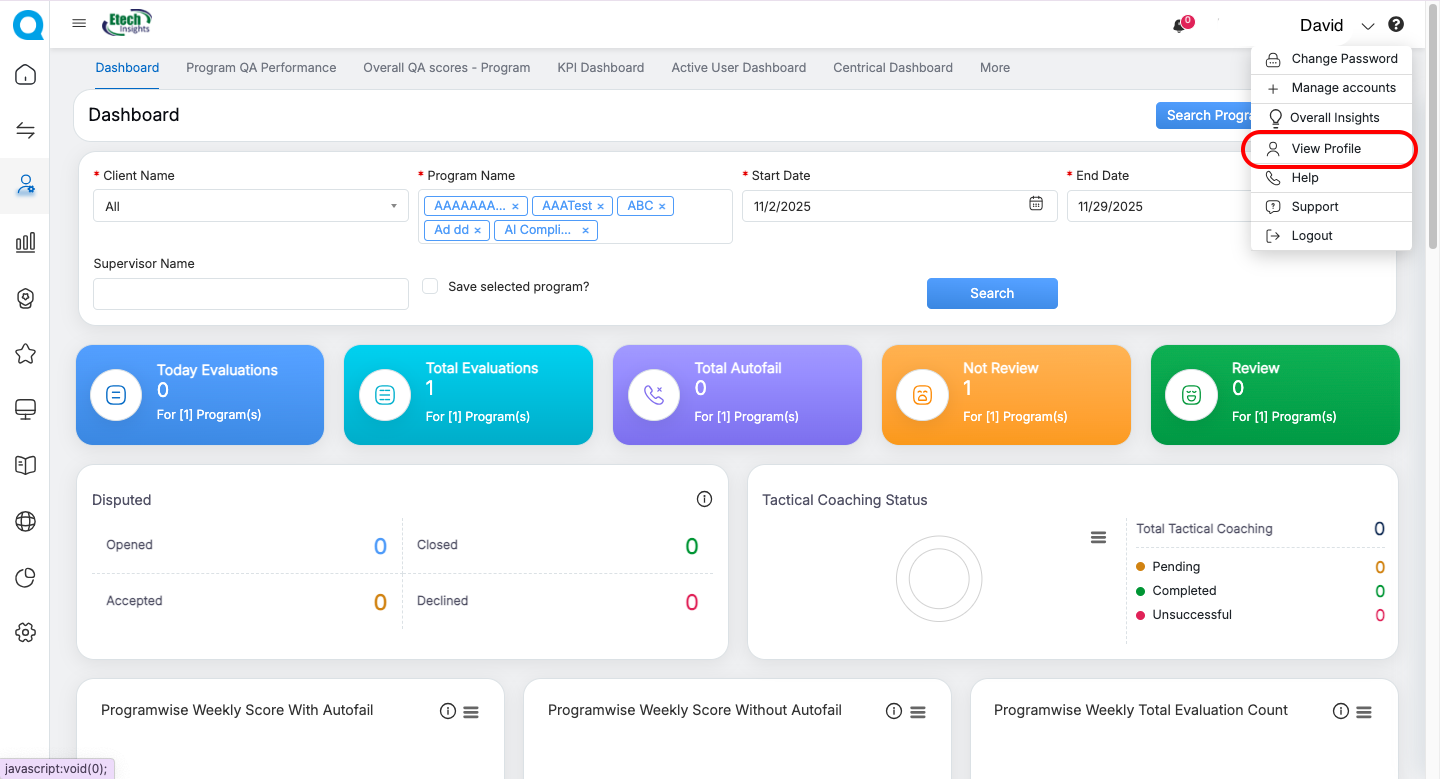
Once opened, the profile page displays your identity details, organizational information, dashboards, and access rights—all consolidated in one place. The layout adapts based on your role, ensuring you only see the sections and actions relevant to your permissions.
1. User Information Header
The top section of the page displays key personal and organizational details. This acts as a quick reference snapshot.
Displayed Information Includes:
- Profile Picture
- Full Name and Employee ID
- Email Address
- Supervisor Name
- Location
- Joining/Start Date
- Business Unit
- Program
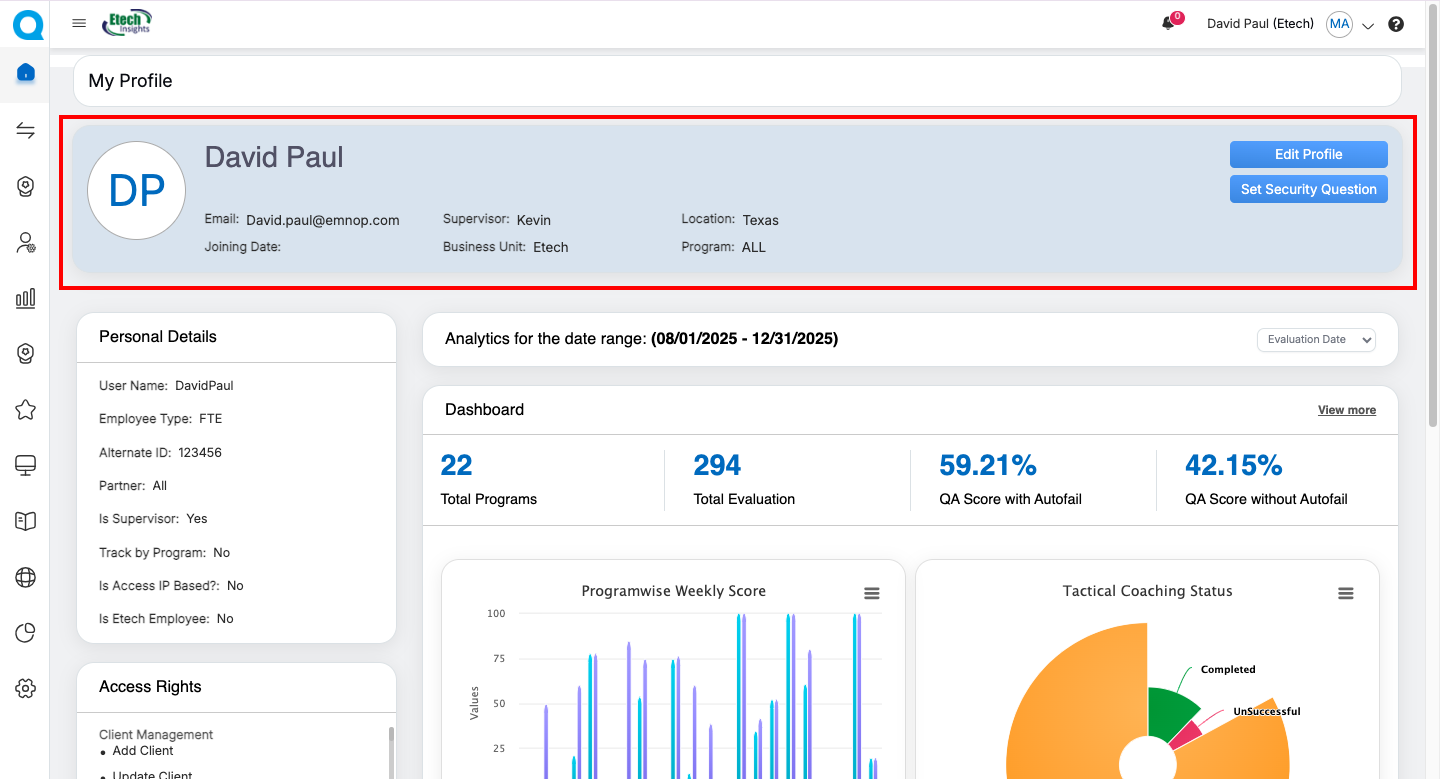
This header gives users immediate visibility into their profile details, ensuring accuracy and consistency across the system.
2. Available Actions
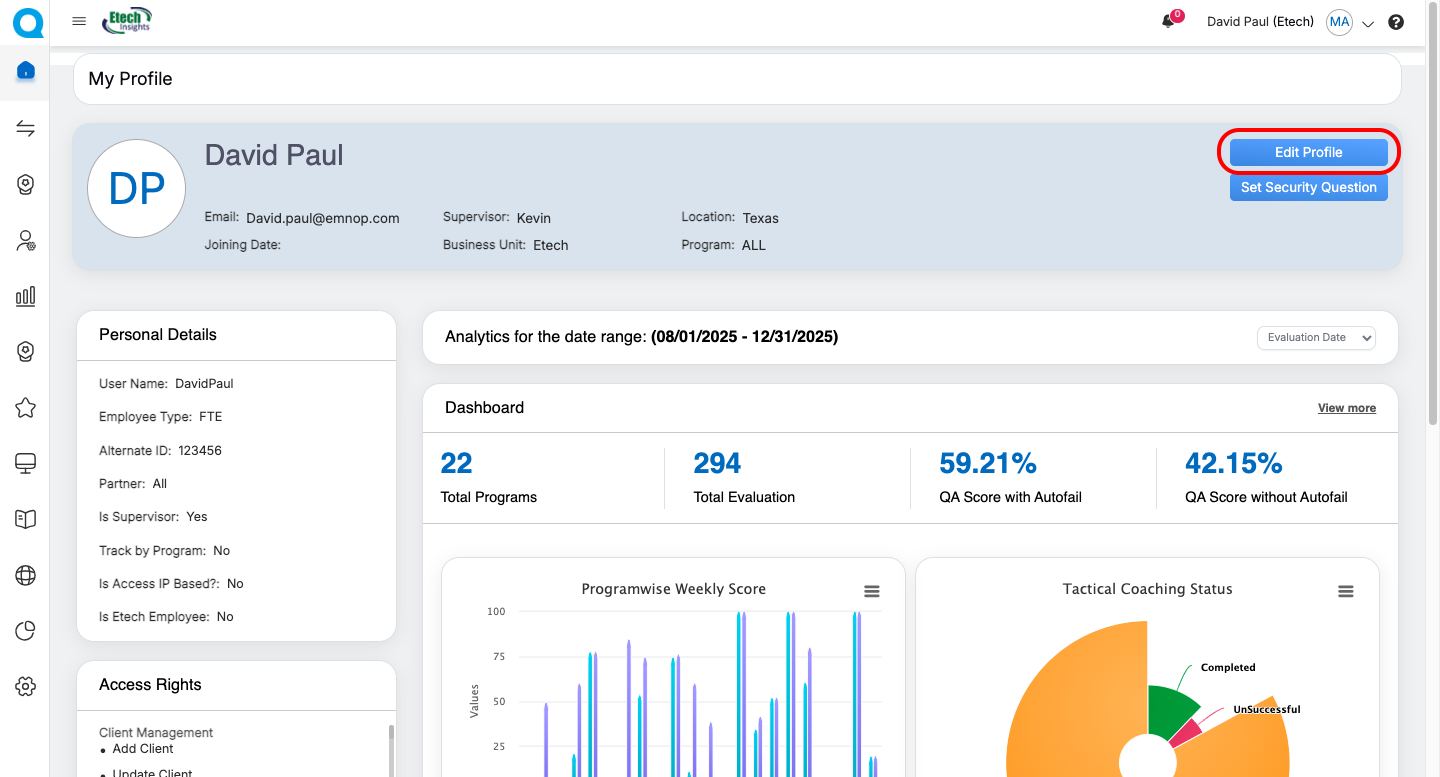
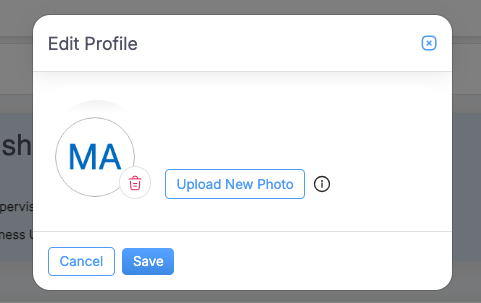
Edit Profile
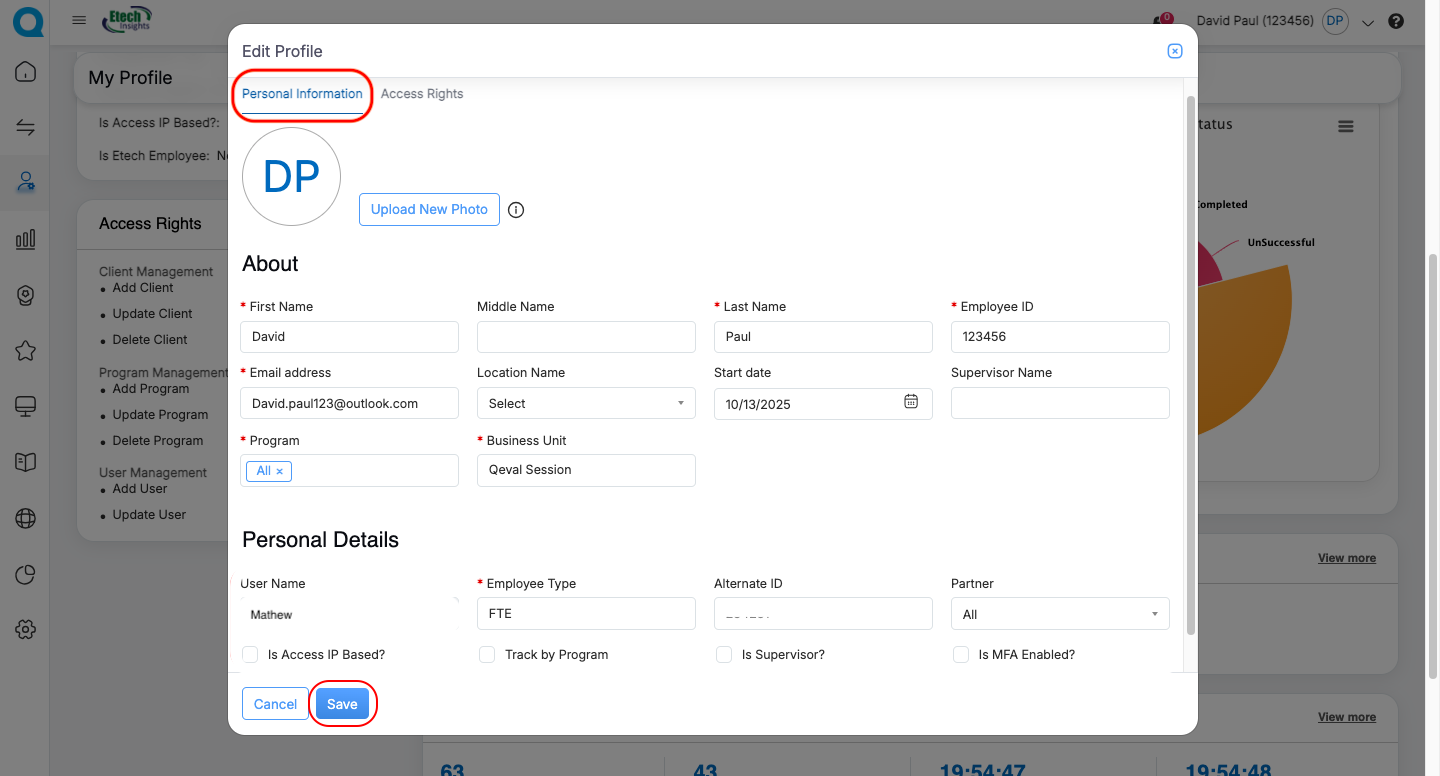
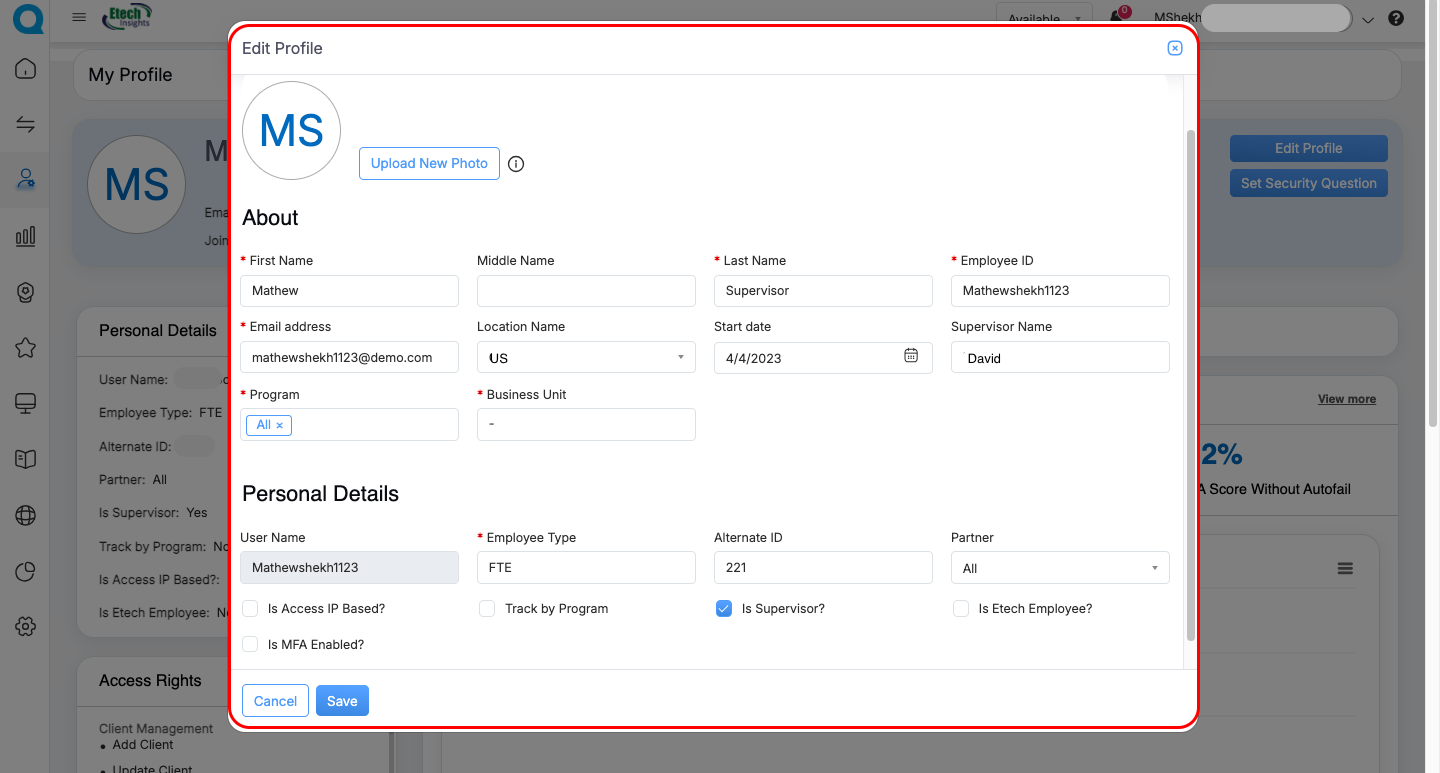
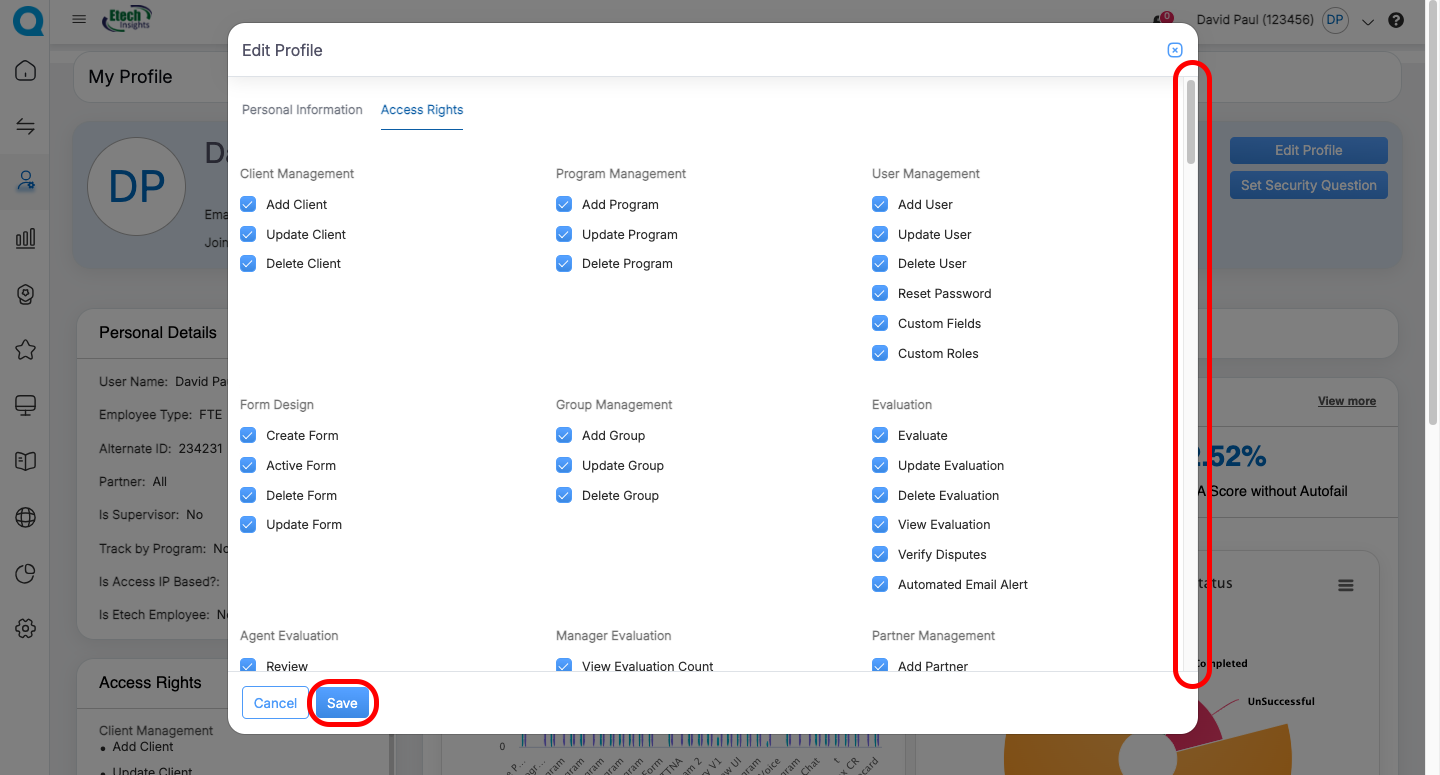
Set Security Question
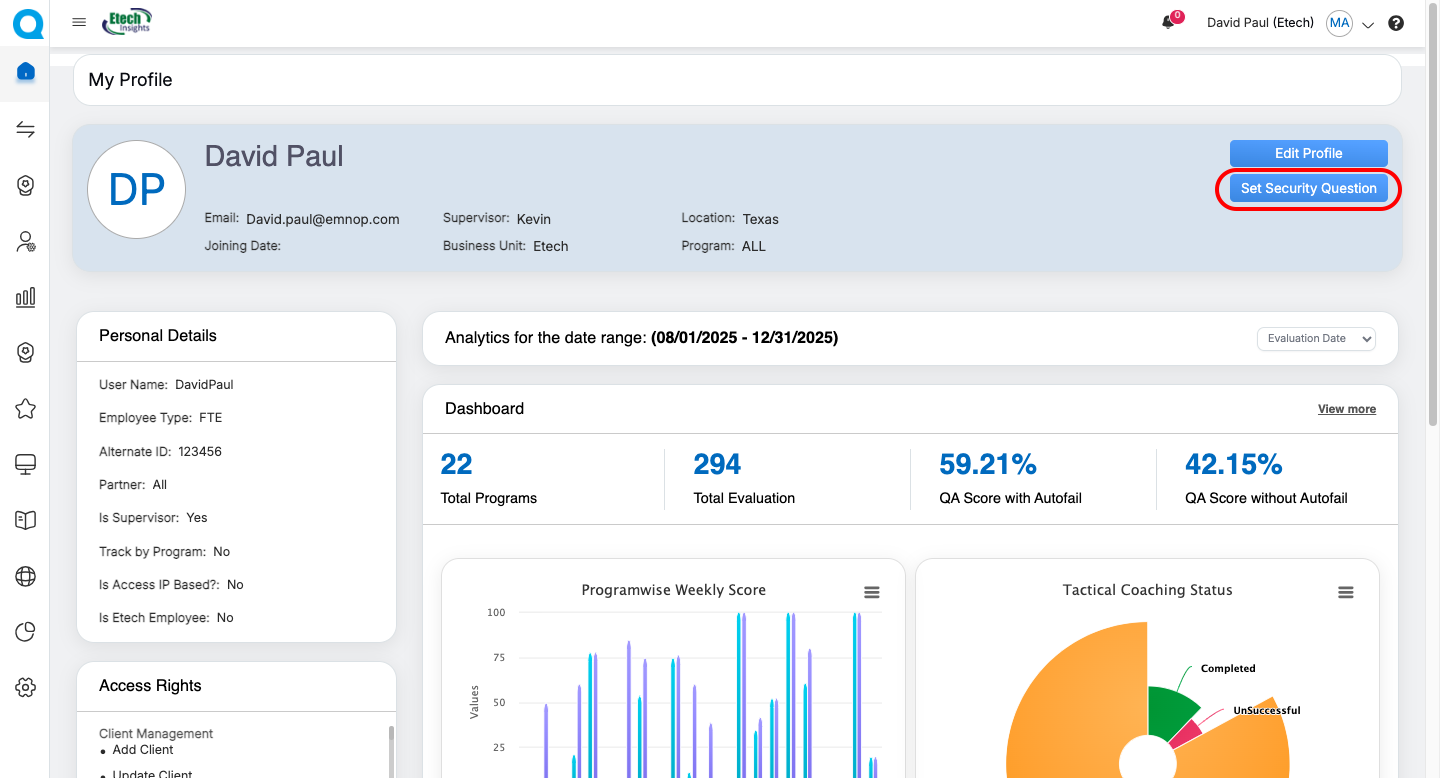
-
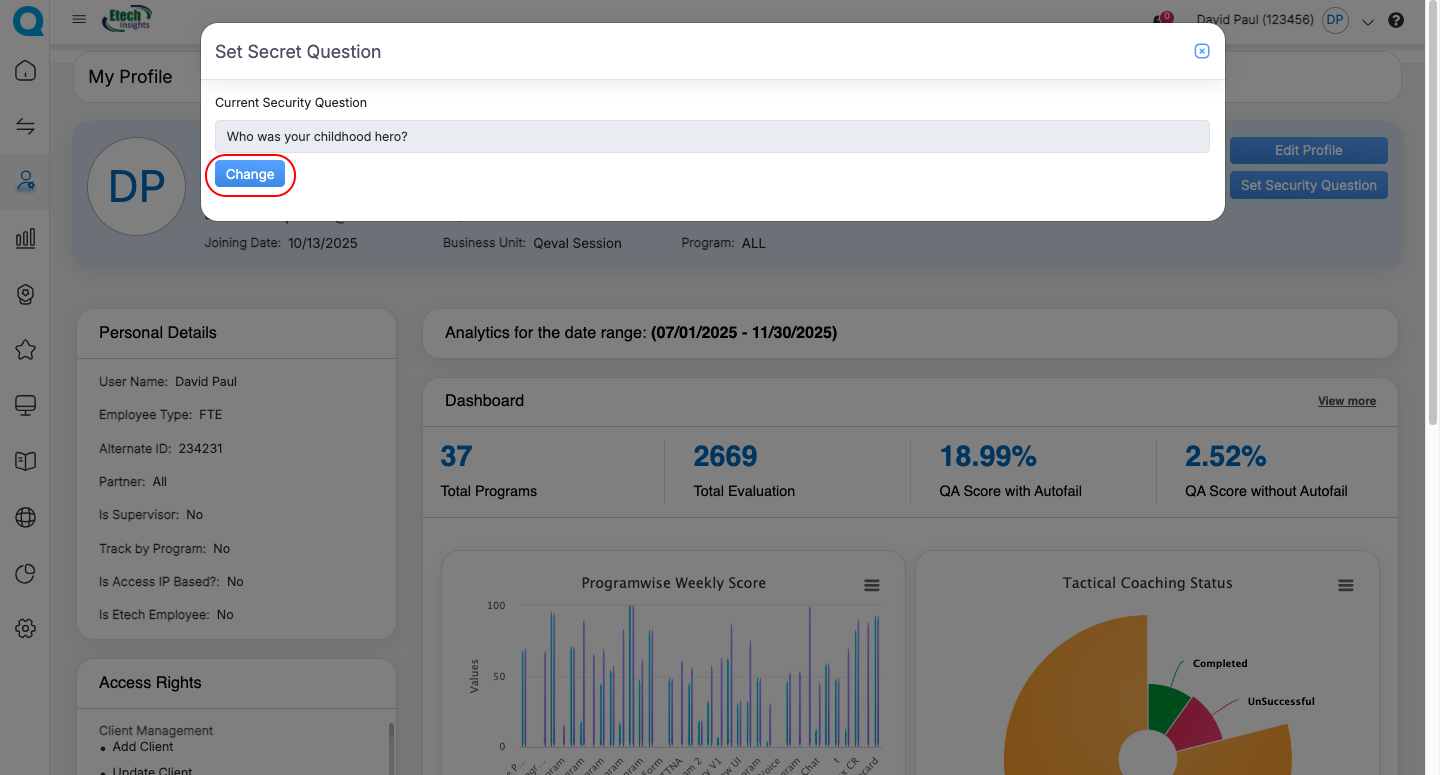
If a question already exists, the current one is shown with a Change Question option.
- Click the Change button to proceed.
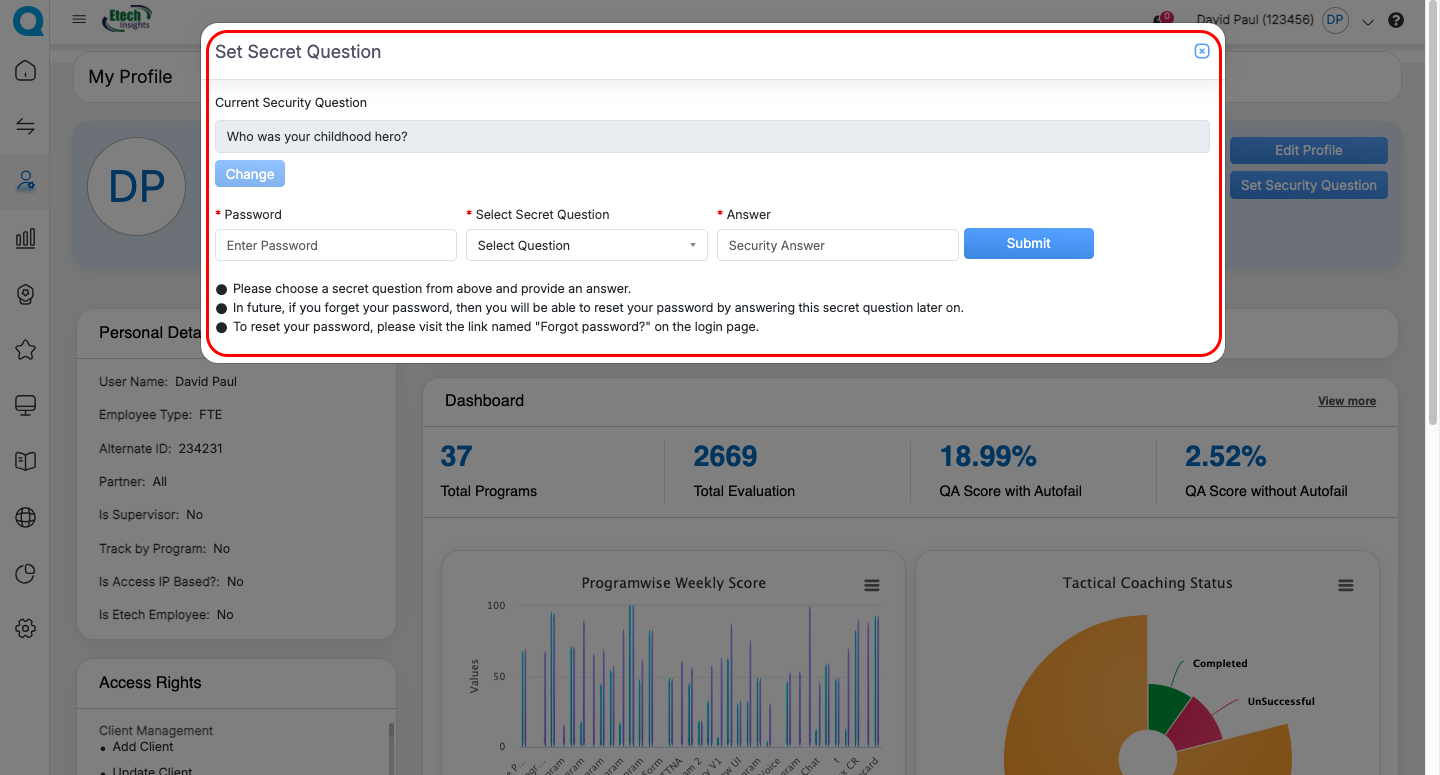
To update a secret question, the user must:
- Enter account password
- Select a question from the dropdown
- Provide the answer
- Submit to save
3. Role-Based View Breakdown
| Role | Visible Information | Editable Fields / Actions | Dashboard / Cards Access | Other Capabilities |
|---|---|---|---|---|
| Agent | Personal details (view-only), User Information Header, Monthly QA Trend Chart | Update profile picture, Set/Update Security Question | Personal Information Card, Access Rights Card, Dashboard Metrics, Program Weekly Score (Bar Graph), Tactical Coaching Status (Donut Chart), KPI Dashboard Card, User Dashboard Card | “View More” to access detailed dashboards |
| Supervisor | Full personal details, Assigned roles (view-only), QA & Coaching trends, Agent-wise coaching summary, Drill-down charts | Update profile picture, Edit limited personal fields (if permission), Set/Update Security Question | All Agent cards plus Coaching Dashboard insights, Drilldown views for evaluations & performance | Navigate to detailed dashboards via “View More” |
| Admin | Complete personal & system attributes | Edit all personal/system fields, Upload/Remove profile pictures, Modify roles & permissions, Configure dashboard access | All cards (Personal Info, Access Rights, Dashboard, Program Weekly Score, Tactical Coaching Status, KPI Dashboard, User Dashboard) | Full administrative & operational control, “View More” to access detailed dashboards |
| QA Supervisor | Evaluation summaries, Live Dashboard, User Dashboard, Dispute Evaluation metrics | Update personal information (role-dependent) | Personal Information, Access Rights, Evaluation Summary Cards, Dispute-related dashboards, Program Performance Charts | Navigate to detailed dashboards via “View More” |
| QA Verifier | Total Evaluations, Auto-Fail Evaluations, Audits Reviewed / Not Reviewed, Dispute Evaluation, User Dashboard metrics | Update profile picture only | Personal Information Card, Access Rights Card, Dashboard Metrics, Dispute Evaluation Dashboard | Full visibility into verification dashboards, “View More” to explore detailed analytics |
4. Cards Displayed Below Header
Across all roles, several analytical cards appear; availability depends on permissions.
A. Personal Information Card
This card displays the user’s information stored in the system, including personal, organizational, and system-related attributes.

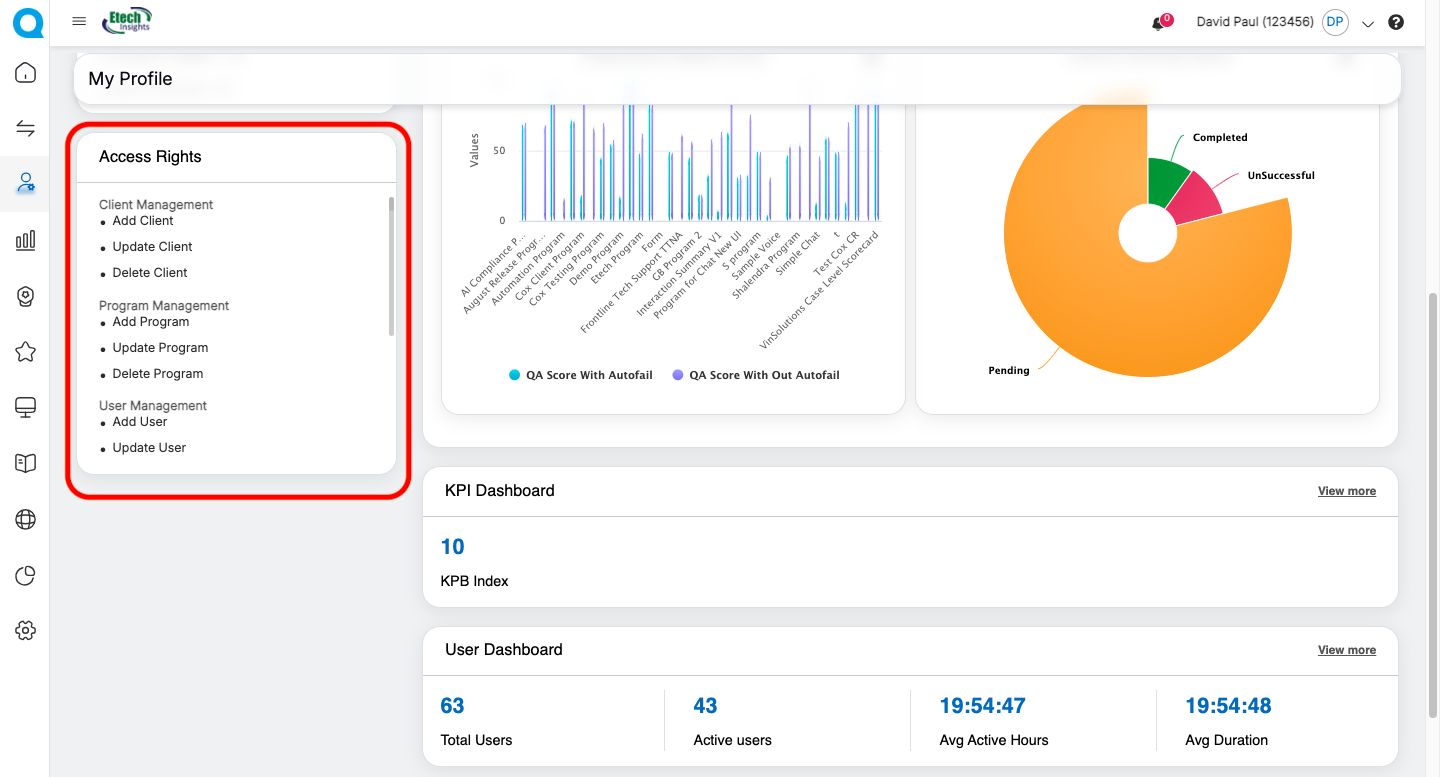
B. Access Rights Card
This card displays all roles and permissions assigned to the user, helping them understand which actions and modules they can access.
Examples of access rights include:
- Client Management
- User Permissions
- Coaching Access
- Dashboard Access
- Training Module Access
- Evaluation & Dispute Handling
- Reporting & Analytics
- Program Management
Only the rights available to the user’s role are shown.
Analytics Overview
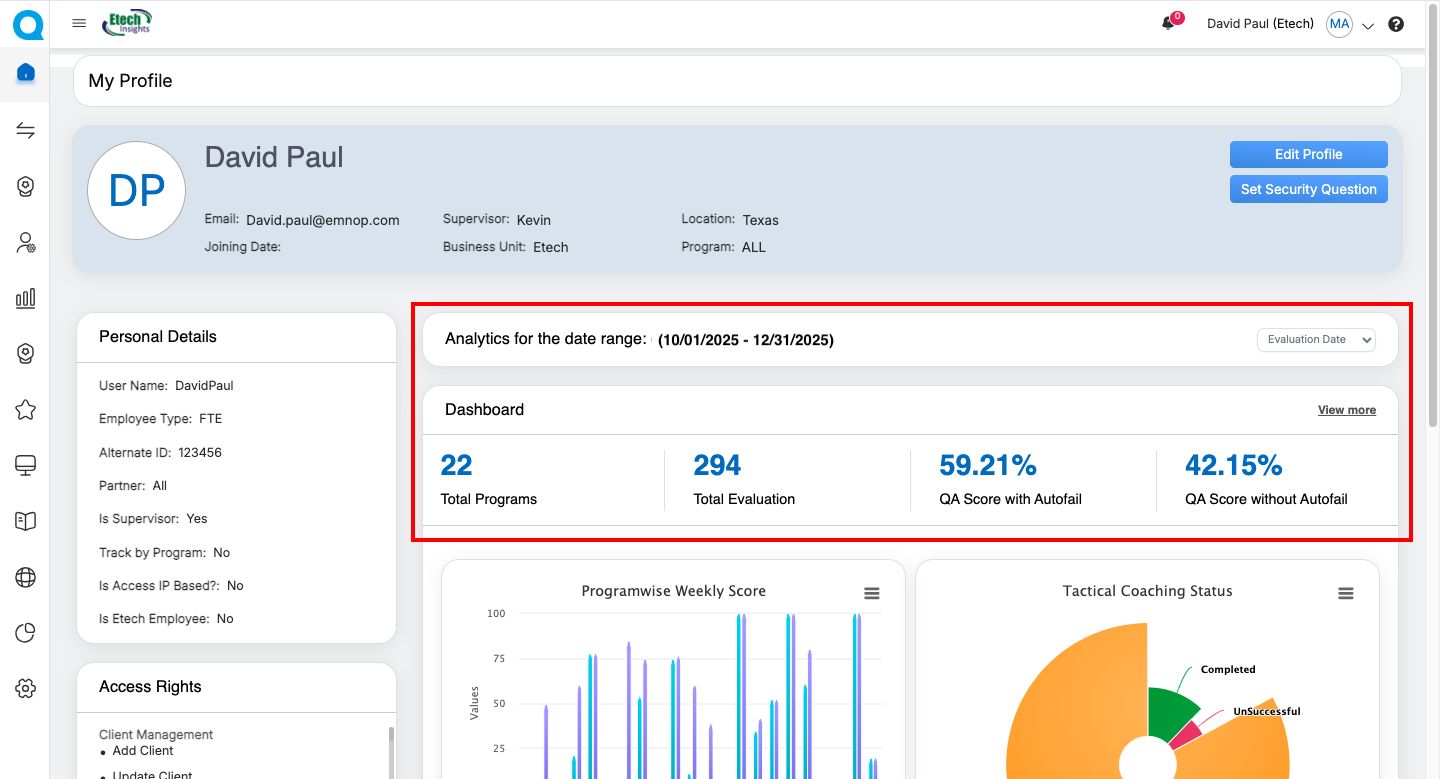
Analytics are available for a predefined date range covering the last three months. In this section, you’ll find dashboard cards, graphs, and pie charts that provide a comprehensive view of performance insights. By default, the Date Type is set to Evaluation Date. You can switch to Call/Chat Date using the drop-down option next to Evaluation Date in the upper-left corner.
A. Dashboard Card
This card provides a snapshot of analytics for a particular date range, highlighting key performance metrics such as total programs, total evaluations, and QA scores.
Example metrics:
- Total Programs – 37
- Total Evaluations – 2669
- QA Score with Auto-Fail – 18.99%
- QA Score without Auto-Fail – 2.52%
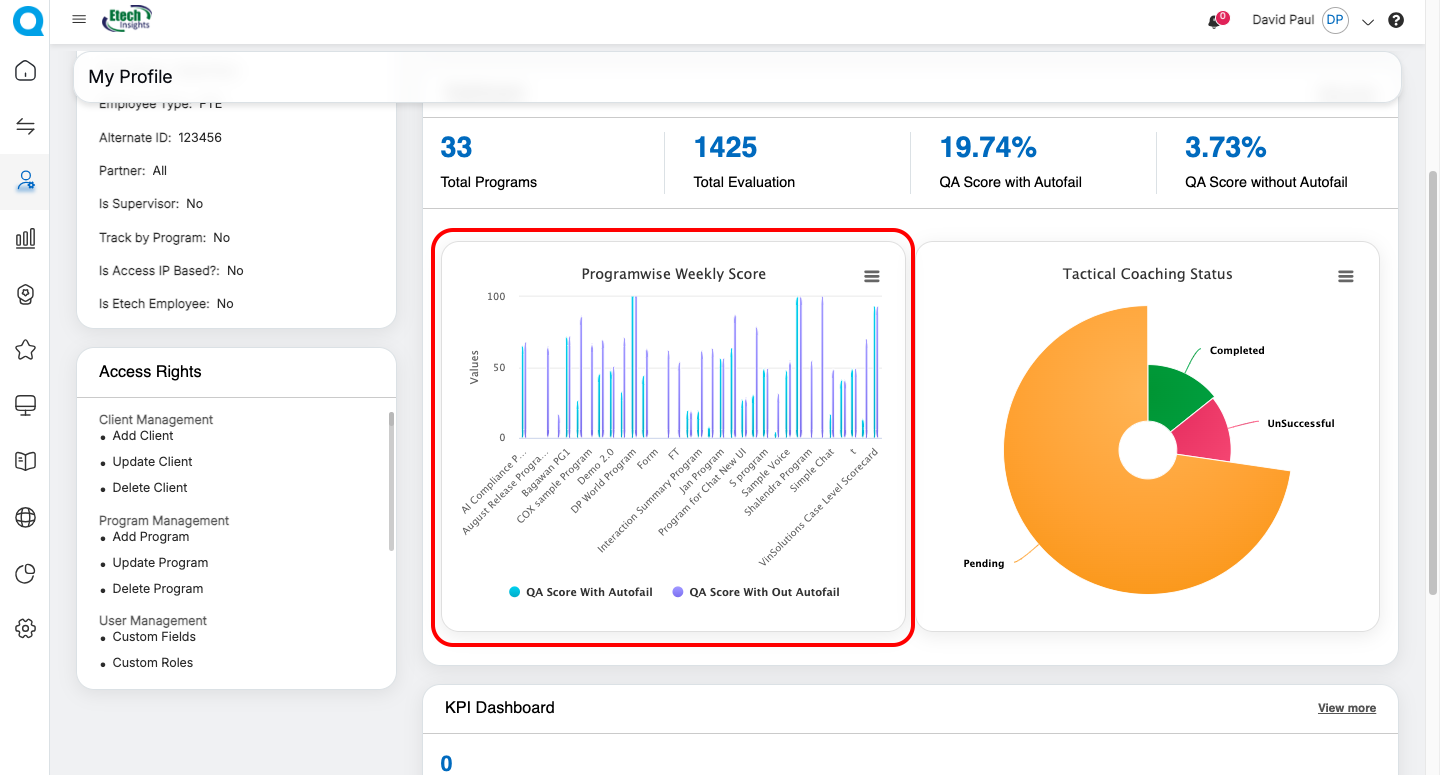
B. Program Weekly Score
This section displays a bar graph illustrating the weekly performance trends for programs. It allows users to quickly visualize progress, identify patterns, and compare performance across different weeks.
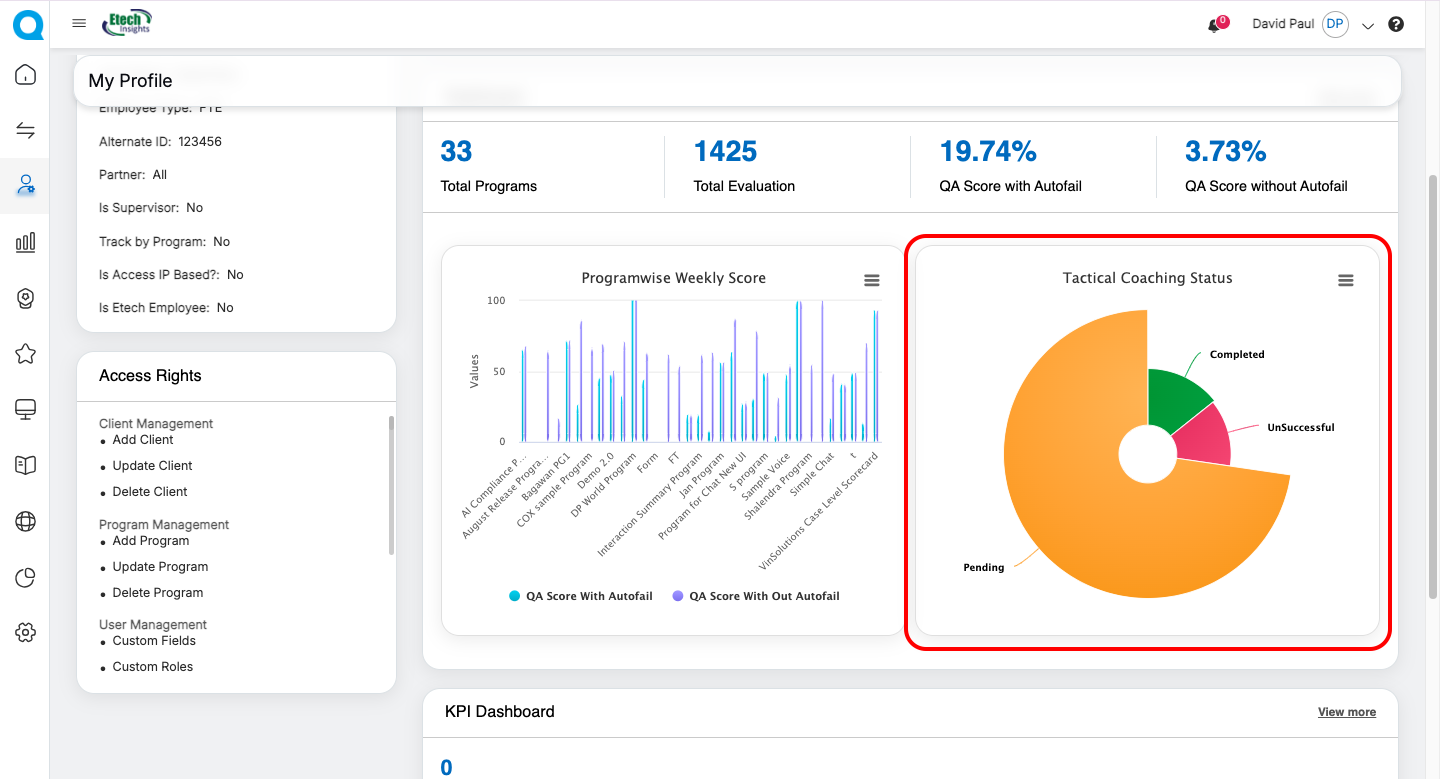
C. Tactical Coaching Status
This section presents a donut chart that visualizes the distribution of coaching activities. It shows the proportion of sessions that are Completed, Unsuccessful, or Pending, providing a clear overview of coaching progress and areas that may require attention.
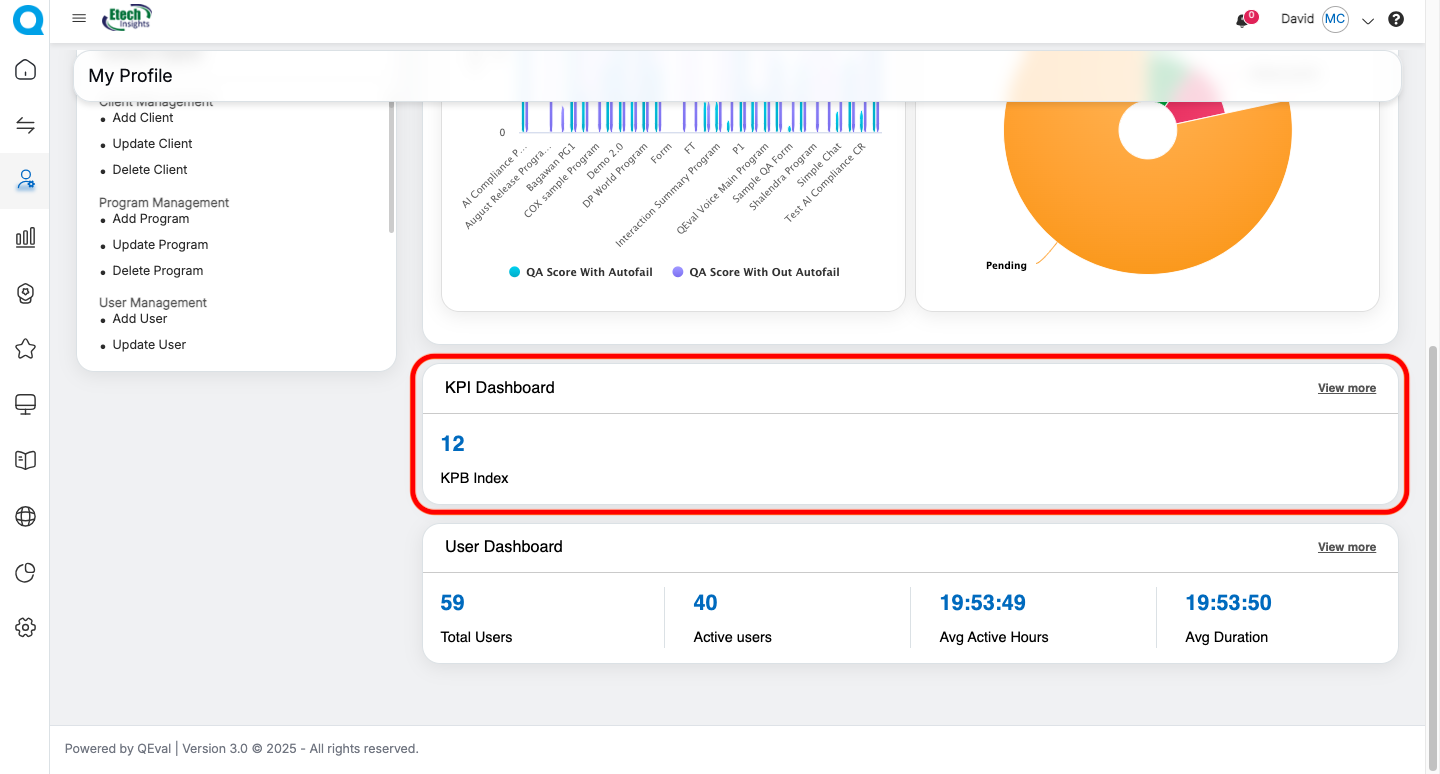
D. KPI Dashboard Card
Shows the KPI Index score and includes a View More option to navigate to the detailed KPI Dashboard.
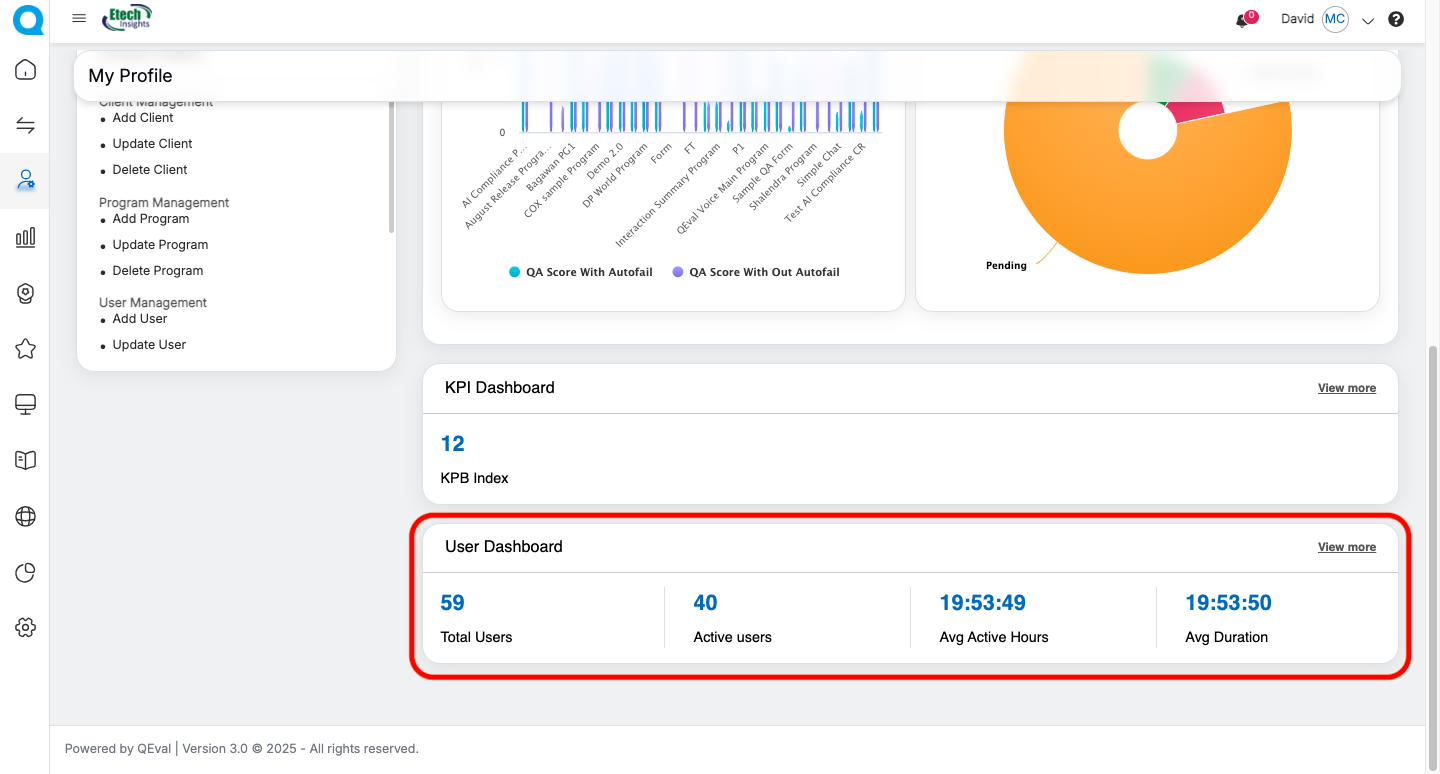
E. User Dashboard Card
This card provides an overview of user activity and engagement metrics:
Example metrics:
- Total Users – 59
- Active Users – 40
- Average Active Hours – 19:54:47
- Average Duration – 19:54:48
Video