An admin is the highest of all user roles in the QEval environment. This user role has the authority to monitor and track the work processes of every other user role of the QEval tool. An admin can create a user with any of the available user roles within QEval. An admin can also assign or remove access rights to existing user roles. Further, an admin user role has the access to view all the reports within the tool.
When a user logs in as the admin with his/her user ID and password, the system redirects to the following screen:
Admin console includes the operational tabs like – Home, Manage, KPI, Quality, Coaching, Training, My Universe, Reports, and Settings.
Note: The above-mentioned tabs are based on access rights. Admin can assign separate rights to the individual users. To know about the access rights of Admin, refer to Users Access Control.
Admin Home Page
Admin will have access to six main tabs on the home page:
- Dashboard
- Program QA Performance
- Overall QA scores – Program
- Learning Overview Dashboard
- KPI Dashboard
- Active User Dashboard
Dashboard
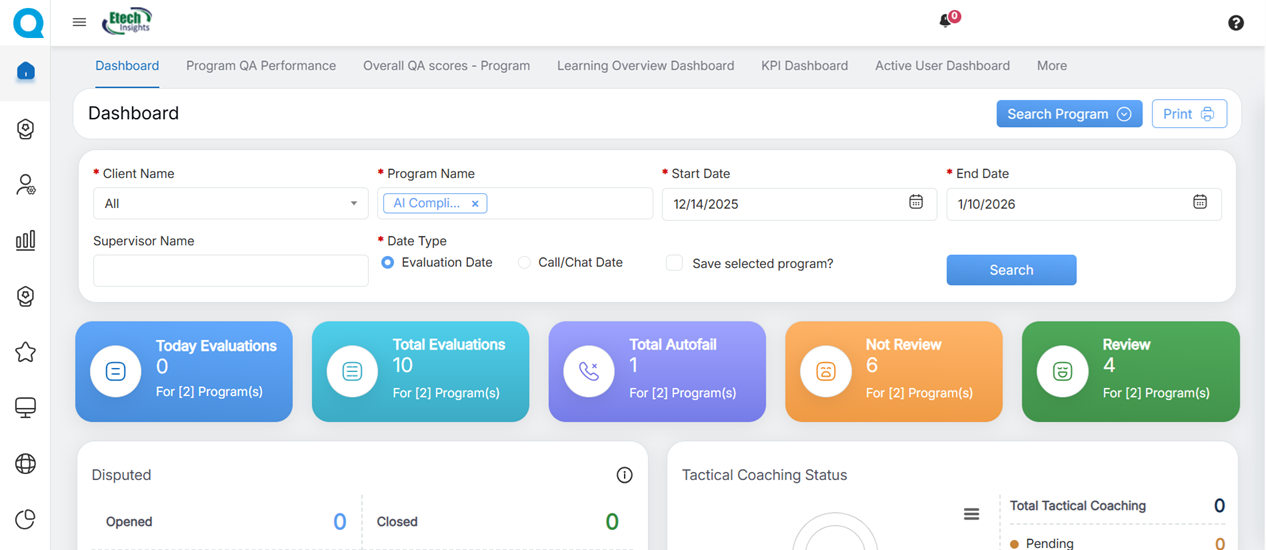
Once the admin logs in, the Dashboard will be displayed as shown below:
Various analytical data will be displayed. Scroll down to view more and different statistics based on different factors.
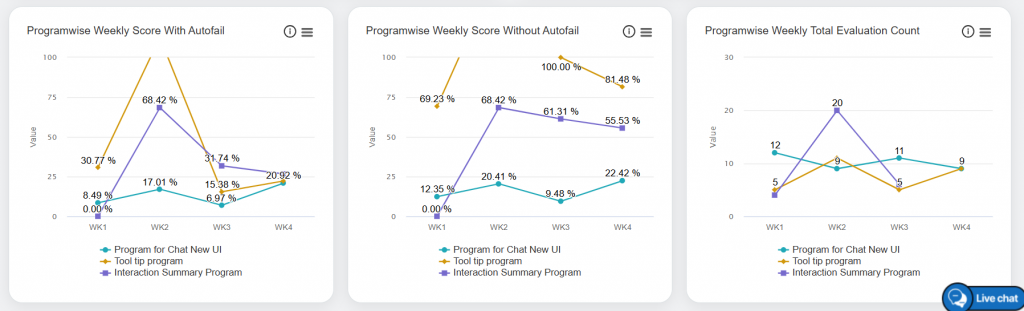
The graphical representation of data will be displayed as shown below.
In order to generate any specific data in the Dashboard, the admin needs to set the search filter. To do so, click on the Search Program button as shown below:
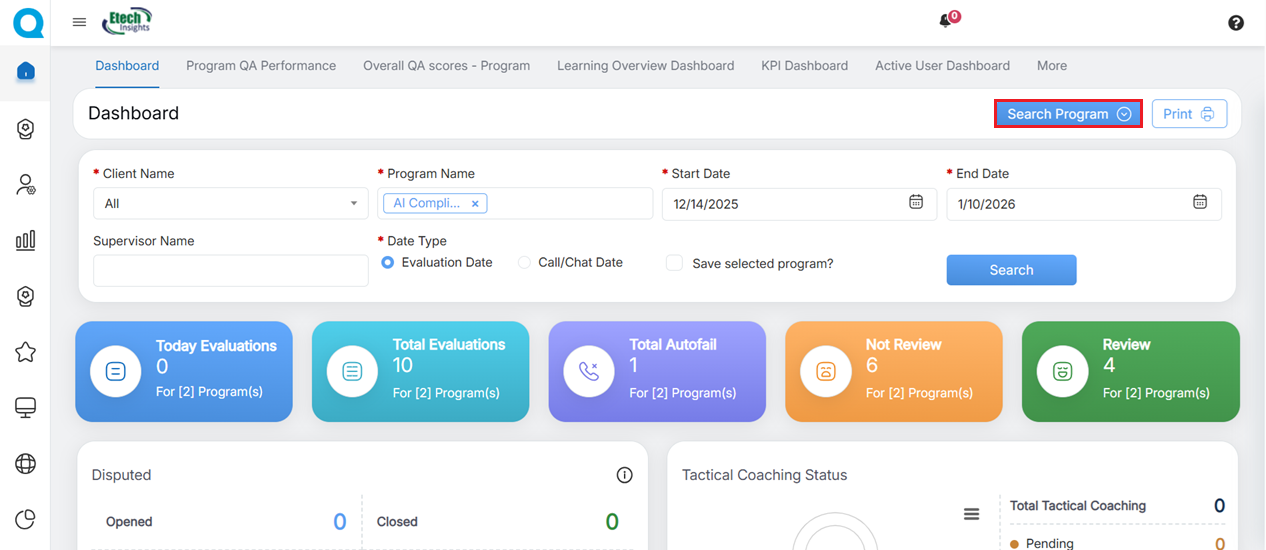
The Admin will have the option to set the Client Name, Program Name, Supervisor Name, select the Date Type (Evaluation Date or Call/Chat Date), and choose the Start Date and End Date using the respective date picker fields. Select the Save selected program? checkbox for the system to save the particular selected program every time the admin searches any statistic. Once the duration is set, click on the Search button.
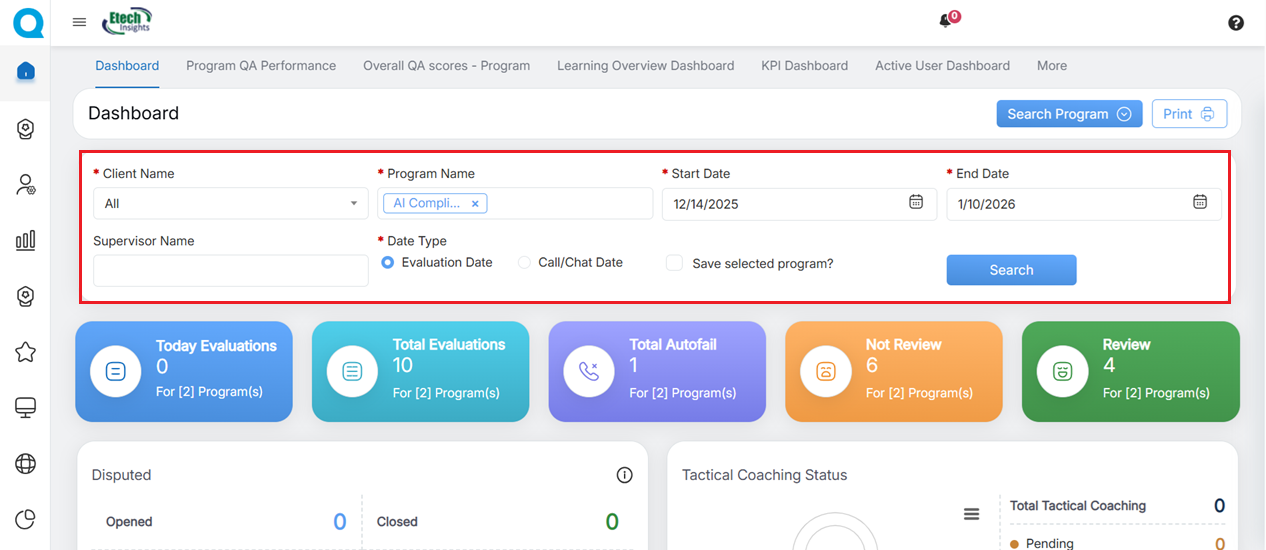
Search Program Details
The data will be displayed accordingly. An Admin has permission to view the performance of multiple programs, centers, and categories at a time.
The following data will be displayed on this page:
|
Dashboard Elements |
Description |
|
Today’s Evaluation |
Displays the total number of evaluations done for the current day. |
|
Total Evaluation |
Displays the total number of evaluations for the specified date range. |
|
Total Autofail |
Displays the total number of autofail that occurred for the specified date range. |
|
Not Reviewed |
Displays the total number of evaluations that have not been reviewed. |
|
Reviewed |
Displays the total number of evaluations that have been reviewed. |
|
Disputed |
Displays the total number of disputes in the following states:
|
|
Programwise Charts |
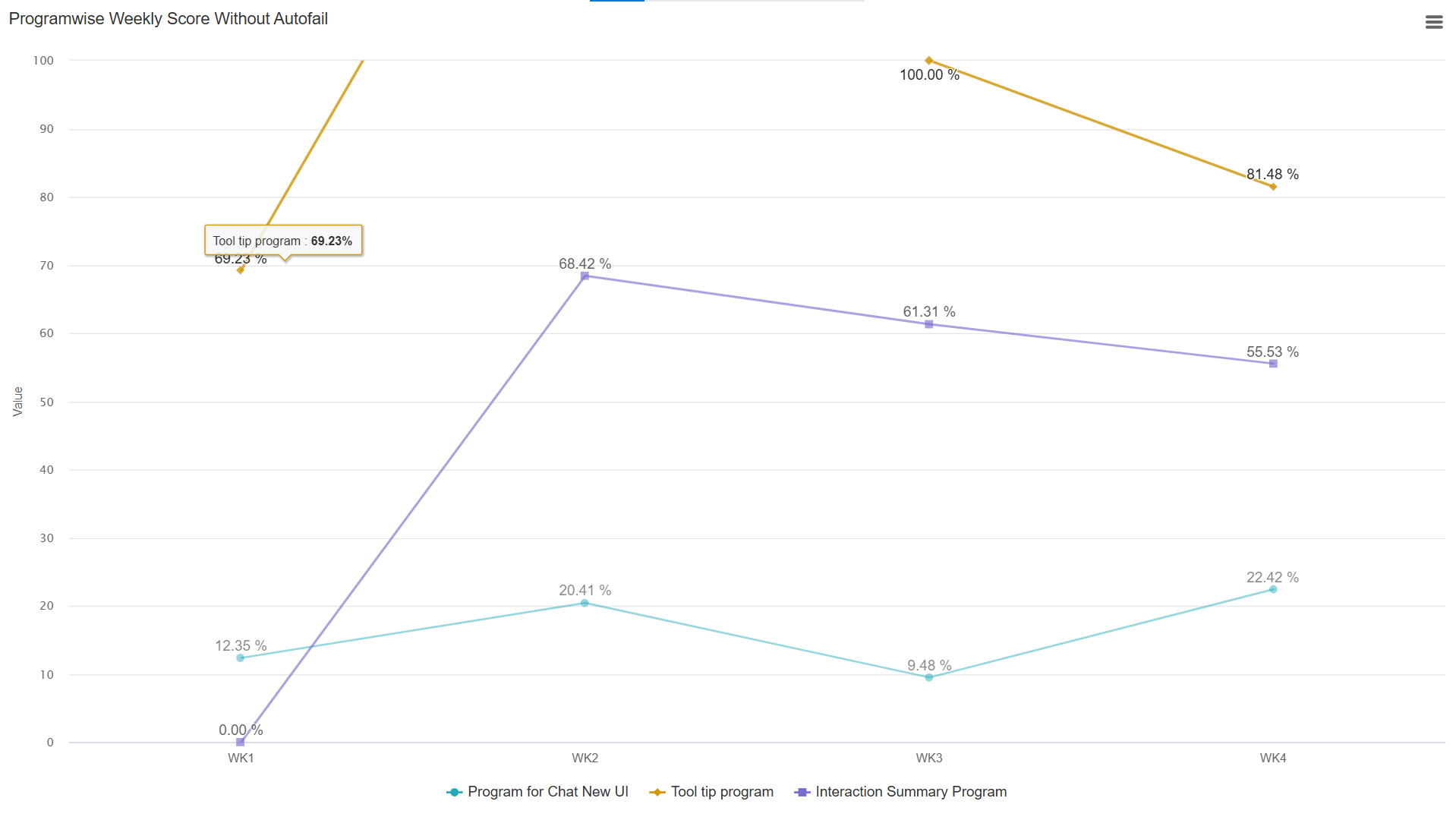
Displays weekly data for: Score with and without Autofail These statistics are displayed in the Line Chart format. On these charts, the weekly score is displayed for each program.
Click on the program name(s) displayed below the chart to view the statistics of only that specific program(s) as shown below:
Then, the statistics of only the selected program(s) will be displayed as shown below:
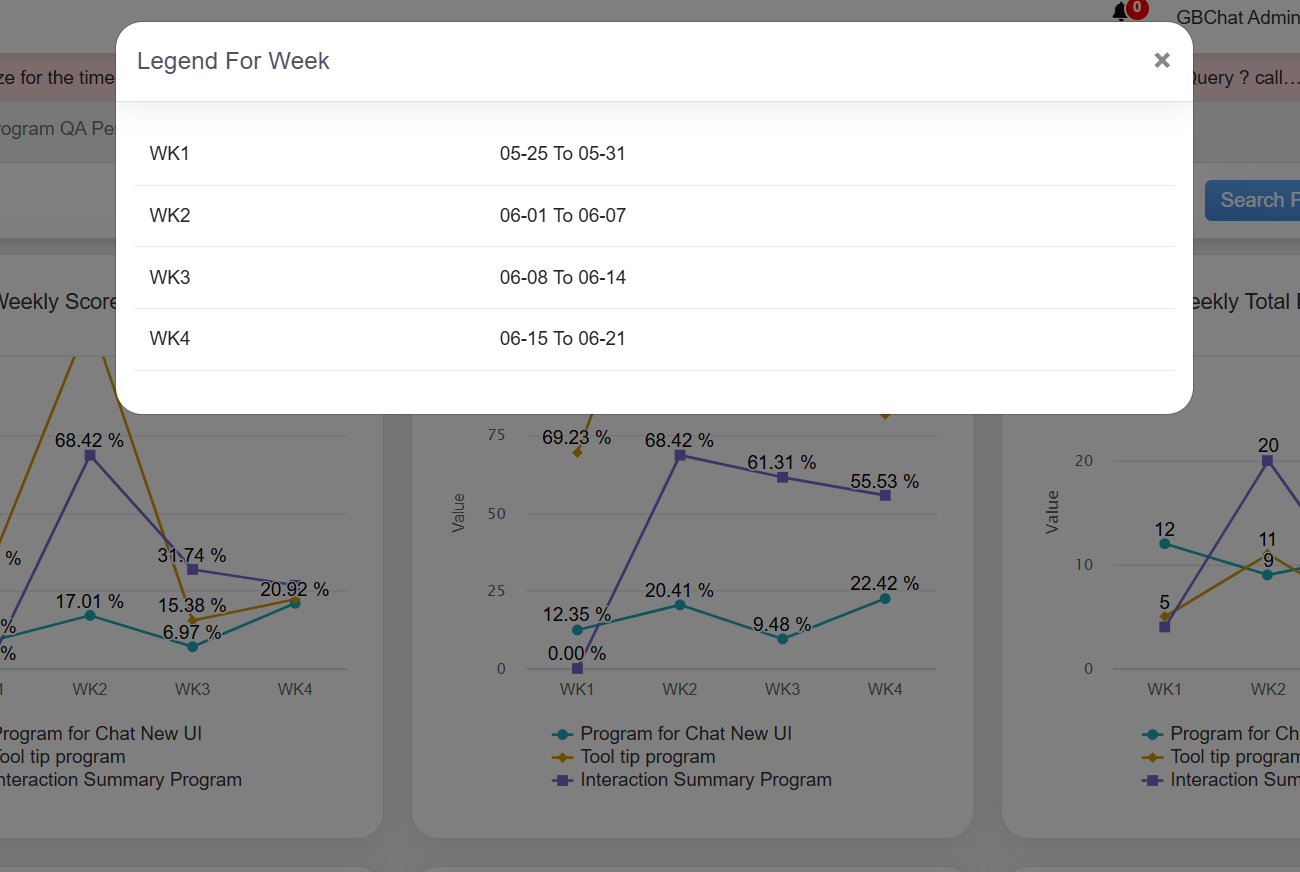
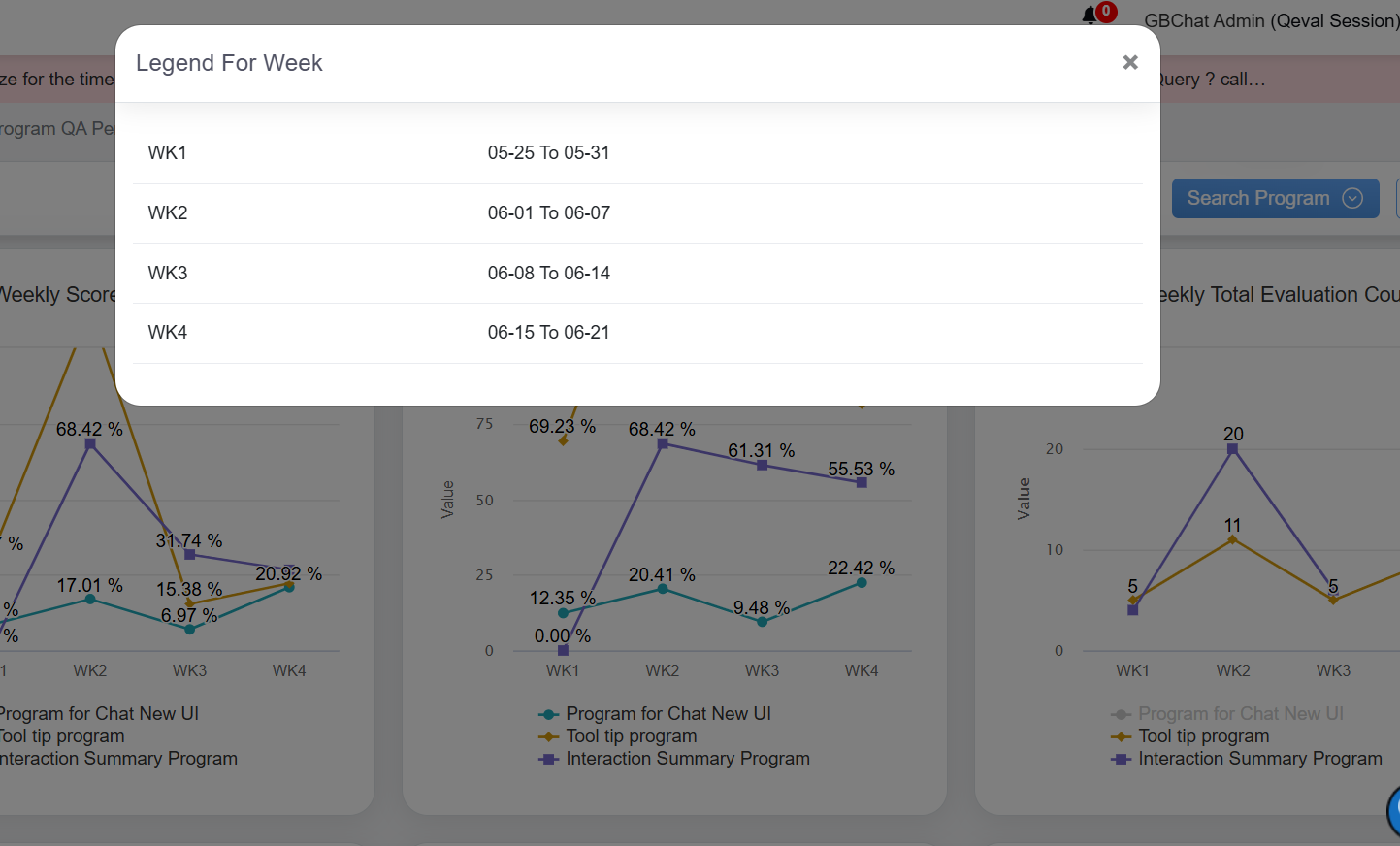
Similarly, admins can view the chart of the Weekly Score without Autofail for specific programs. To view the legends, click on the Legend For Week as shown below.
The Legend For Week window will be displayed as shown below:
In this window, the date range of each week will be displayed for which the data is displayed for the Programwise Weekly Score with Autofail and Programwise Weekly Score without Autofail in the Line Chart format. Total Evaluation Count and Autofail Count These statistics are displayed in the Line Chart format. On these charts, the weekly count is displayed for each program.
Click on the program name(s) displayed below the chart to view the statistics of only that specific program(s) as shown below:
To view the legends, click on the Legend For Week as shown below.
The Legend For Week window will be displayed as shown below:
In this window, the date range of each week will be displayed for which the data is displayed for the Programwise Weekly Total Evaluation Count and Programwise Weekly Autofail Count in the Line Chart format.
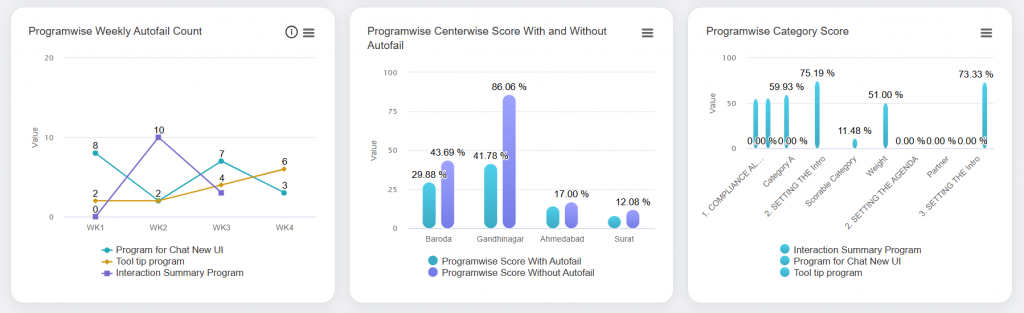
Centerwise Score with and without Autofail and Category Score These statistics are displayed in the Bar Chart format. The following chart displays the statistics of both programwise scores achieved by the agents with and without the Autofail on a weekly basis for different centers (left image) and the statistics of QA scores achieved by all the agents category-wise (right image).
Click on the Programwise Score With Autofail displayed below to view the statistics of only scores with autofail.
The statistics of only scores with autofail achieved by the logged-in admin will be displayed:
Similarly, click on the Programwise Score With Autofail and the statistics of only scores without autofail achieved by the logged-in admin will be displayed:
Top 5 Agents on QA Score with and without Autofail These statistics are displayed in the Table format. The following table displays the statistics of both programwise QA scores achieved by the top 5 performing agents with and without the Autofail on a weekly basis.
Admin can view the QA scores for each program by clicking on the program name as shown below:
Bottom 5 Agents on QA Score with and without Autofail These statistics are displayed in the Table format. The following table displays the statistics of both programwise QA scores achieved by the bottom (poor) 5 performing agents with and without the Autofail on a weekly basis.
Admin can view the QA scores for each program by clicking on the program name as shown below:
|
| Tactical Coaching
|
Tactical coaching graphs assist the logged-in user to access the comprehensive agent-level coaching data. These statistics are displayed in the Bar Chart format as shown below:
Click on the individual agent’s name displayed below the chart to view the status of only that specific agent as shown below:
Then, the status of Accept, Decline, and Pending cases of that specific agent will be displayed as shown below:
|
| Tactical Coaching Status |
Tactical coaching status statistics are displayed in the Pie Chart format. On this chart, the user can view the number of completed, pending, and unsuccessful coaching status as shown below:
|






For each statistic displayed on the Dashboard, the logged-in admin can perform the following actions:
View the Statistics on Full Screen
Admin can view all the stats of the Dashboard in full-screen mode. To do so, click on the Chart Context Menu  icon which is highlighted on the following screen.

Then, click on the View in full screen option.

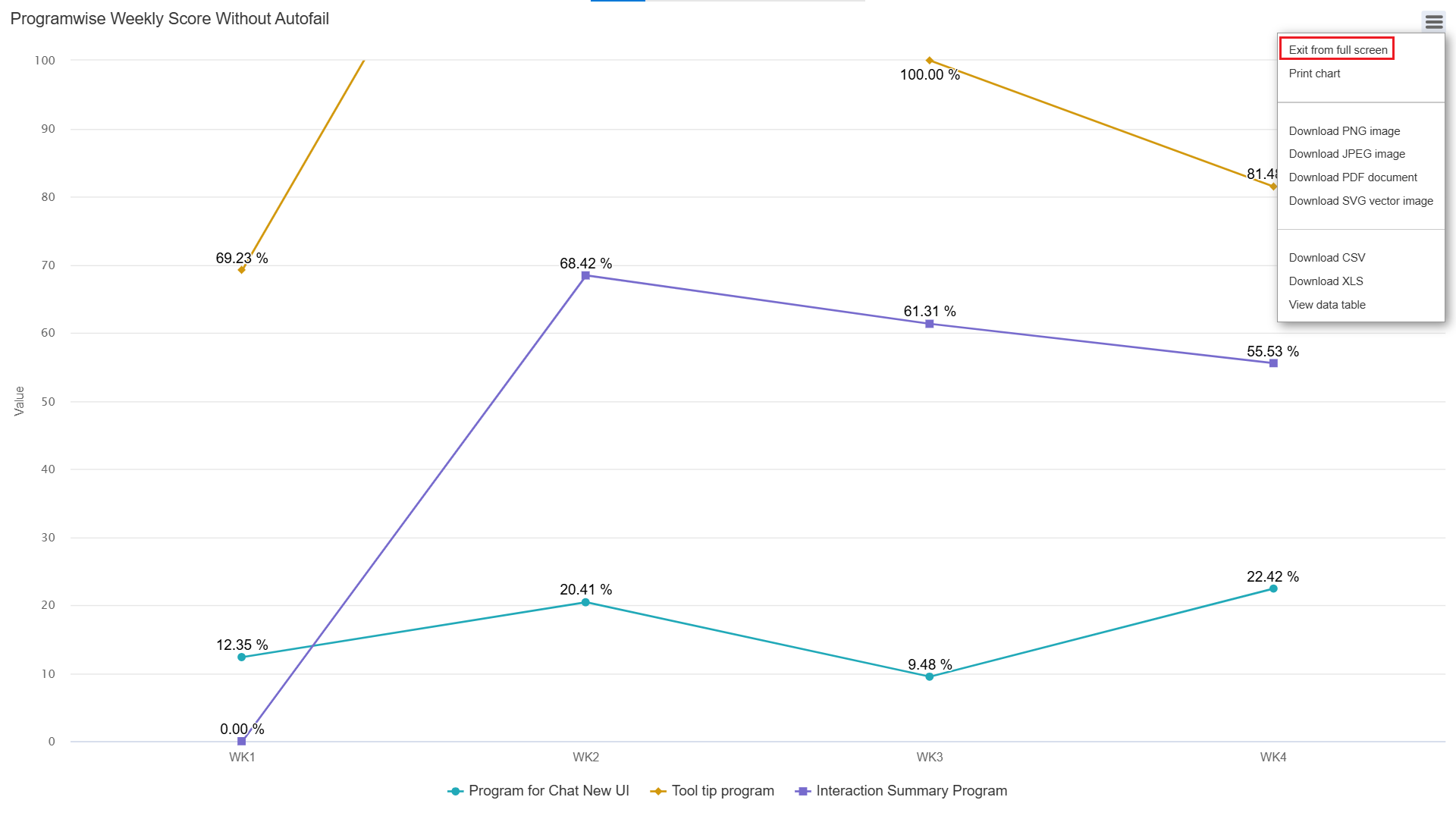
The data will be displayed in the full-screen mode as shown below:
To exit the full-screen mode, click on the Chart Context Menu icon and select the Exit from full screen option as shown on the following screen:
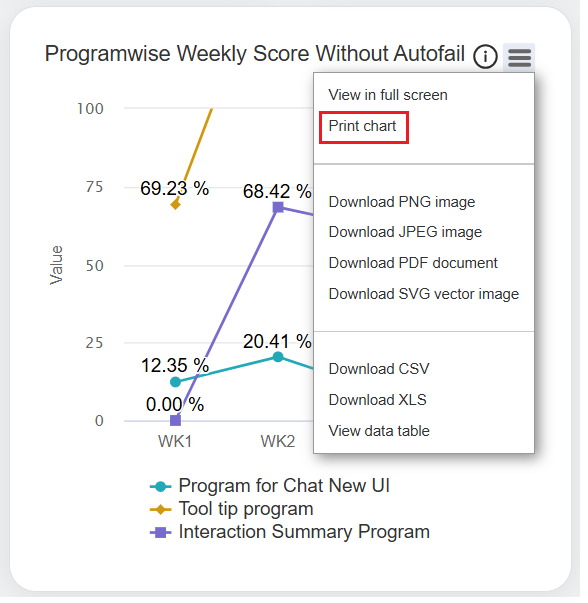
Print Chart
Admin can print the chart and save it in their local system as well. To do so, click on the Chart Context Menu icon and select the Print Chart option.
Download Chart
Admin can download each chart/statistic displayed on the Dashboard in:
- PNG image
- JPEG image
- PDF document
- SVG vector image
Agents can also download the data in CSV and XLS format as well.
To download this information in any of the above-mentioned formats, then click on the Chart Context Menu icon and select the required format.
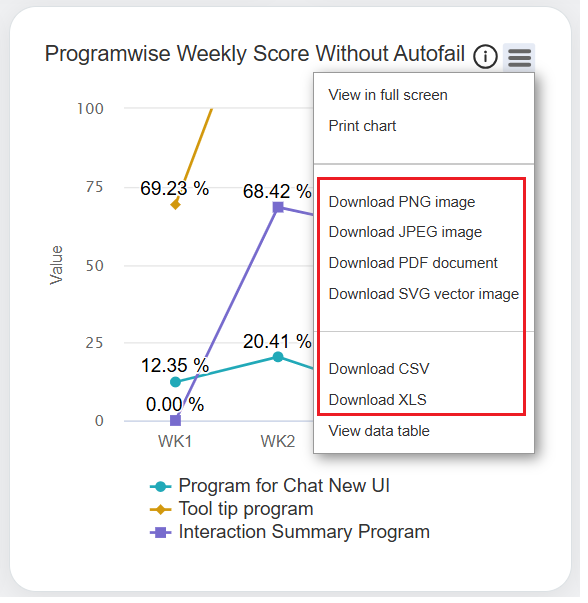
The particular information will be downloaded into the local system.
View Data Table
Admin can view the data in the table format which is initially displayed in the Chart format. To do so, click on the Chart Context Menu icon from the required category and select the View data table option.
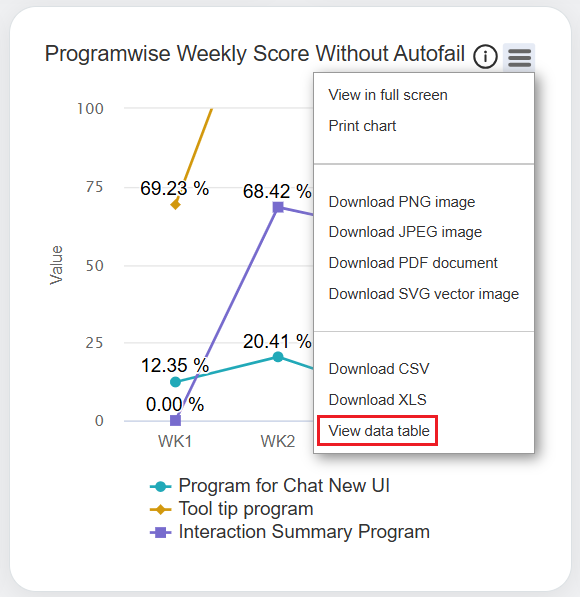
The data table will be displayed for the particular category as displayed below:

Program QA Performance
On the Program QA Performance page, the Admin would be able to view the weekly data for Voice Campaigns and Chat Campaigns.
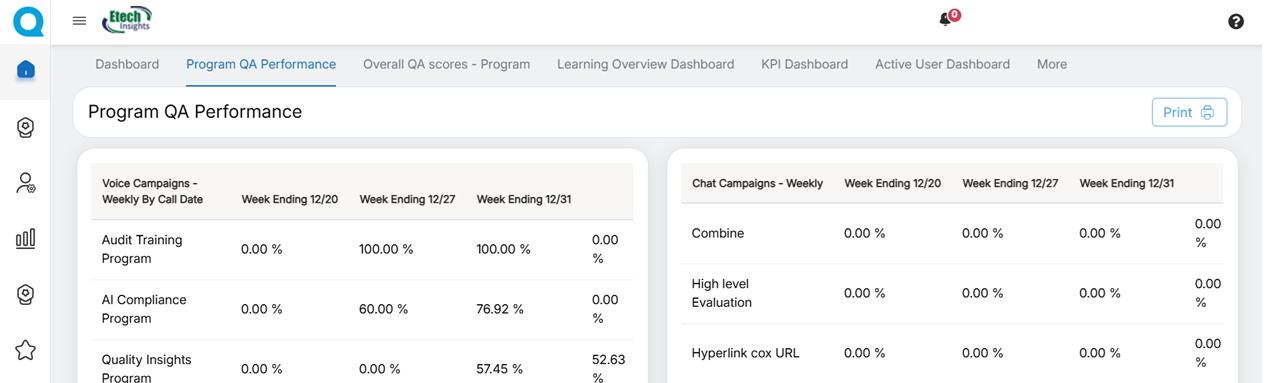
The data also consists of an added field Trend.
The admin can print the data by clicking on the Print button.
Then the data will get downloaded into the system.
Overall QA Scores – Program
On the Overall QA Score page, the admin will be able to view the data of the QA scores – Week Wise, Center Wise, Category Wise, and Weekly Top 3 Defects Category.
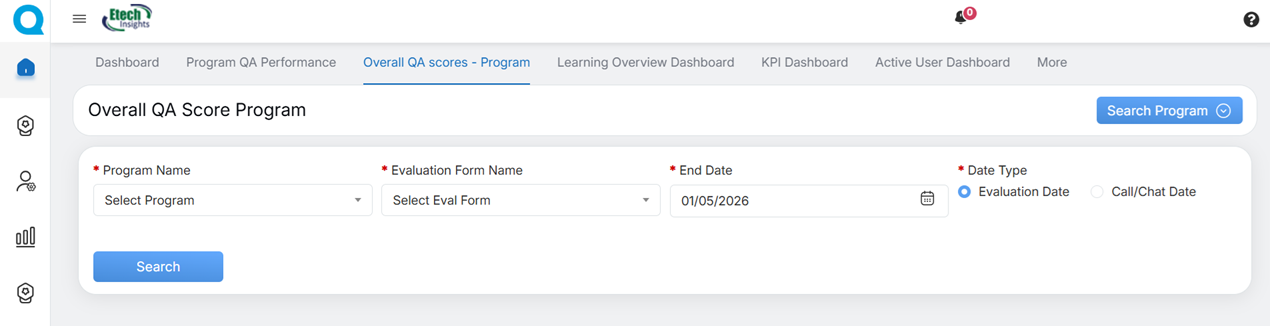
To search specific data on this page, the admin should set the following filters:
- Program Name: Select the name of the program from the dropdown list.
- Evaluation Form Name: Select the name of the Evaluation Form from the dropdown list which will display the forms based on the selection of the program.
- End Date: Select the end date from the date picker option.
- Select the Date Type (Evaluation Date or Call/Chat Date)
Then, click on the Search button, and based on the set filters, the data will be displayed.
QA Score Week Wise and QA Score Center Wise
These statistics are displayed in the Bar Chart format.
The following chart displays the statistics of QA scores achieved by all the agents week-wise and center-wise.

QA Score Category Wise
These statistics are displayed in the Bar Chart format.
The following chart displays the statistics of QA scores achieved by all the agents category-wise.

The above screen displays the data for different categories for every week ending like:
- Greeting
- Concern
- Retention
- Resolution Details
- Conversation
- Closing
To view the stats for specific categories, select those particular category names displayed under the chart and the data will be displayed for the selected categories as shown below:

Weekly Top 3 Defects Category
These statistics are displayed in the Bar Chart format.
The following chart displays the statistics of the top 3 defects category on weekly basis.

To view the stats for a specific week(s), select that particular week(s) displayed under the chart, and the data will be displayed for the selected week as shown below:

Select another week range and the data will be displayed for the selected week as displayed on the following screen:

Learning Overview Dashboard
The Learning Overview dashboard is designed to help admins monitor the health of QEval’s active‑learning loop: it summarizes disputed evaluations, highlights items that need human review, and surfaces model performance trends.
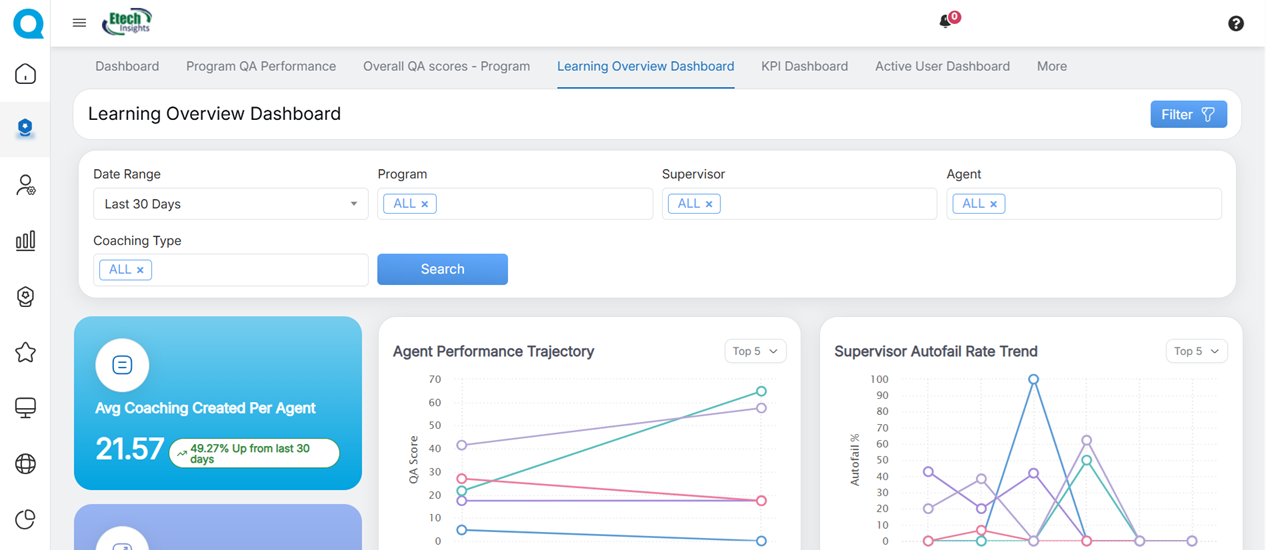
To search specific data on this page, the admin should set the following filters:
Date Range: By default the date range is selected last 30 days. The date filter options are Last 7 days, last 15 days, last 30 days, last 90 days, last 120 days.
Program Name: Select the program name from the dropdown list.
Supervisor: Select one or multiple supervisors from the dropdown list.
Agent Name: Select one or multiple agents from the dropdown list.
Coaching Type: Select the coaching type from the dropdown list.
Then, click on the Search button, and based on the set filters, the data will be displayed.
|
Dashboard Elements |
Description |
|
|---|---|---|
|
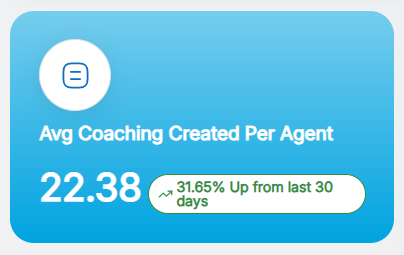
Average Coaching Created Per Agent |
|
|
|
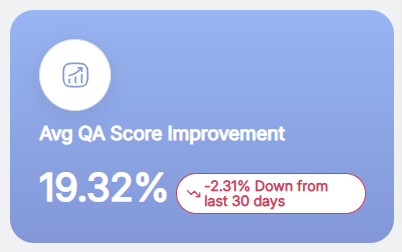
Average QA Score Improvement |
This metric measures the impact of coaching on QA performance by showing the percentage improvement in average QA scores for the selected date range and comparing that period with the previous equal time period; a positive percentage indicates scores improved during the selected period, a negative percentage indicates a decline that may require coaching adjustments, and a value near zero shows little or no measurable change.
|
|
|
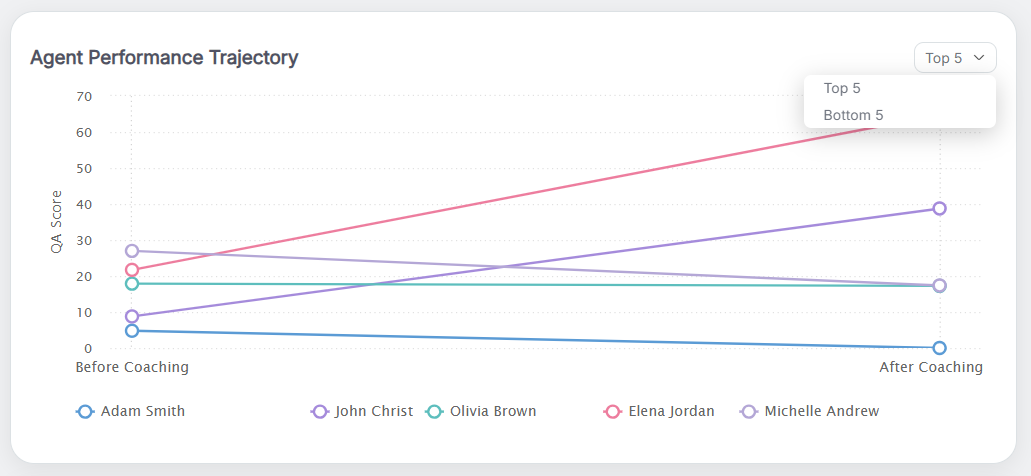
Agent Performance Trajectory |
This graph represents QA score and Auto Fail rate over time, defaulting to the Top 5 agents by improvement (toggle to Bottom 5 to find agents needing coaching); each agent has a distinct color, hovering reveals the agent name, color, and coaching created in the current date range, trends compare the selected period with the previous equal period, and if fewer than five agents are selected the Top/Bottom toggle is disabled and the chart shows only the selected agents. The system displays the Top 5 agents based on improvement trends. Users can also switch to Bottom 5 agents to identify who needs more coaching or support.
|
|
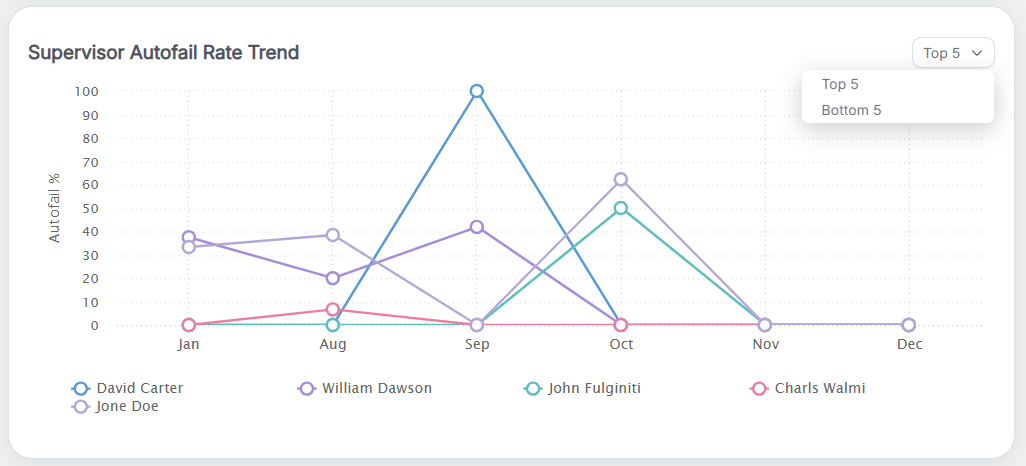
| Supervisor Autofail Rate Trend
|
This graph displays supervisors’ Auto Fail % over the last five months, defaulting to the Top 5 supervisors by performance with an option to toggle to Bottom 5. |
|
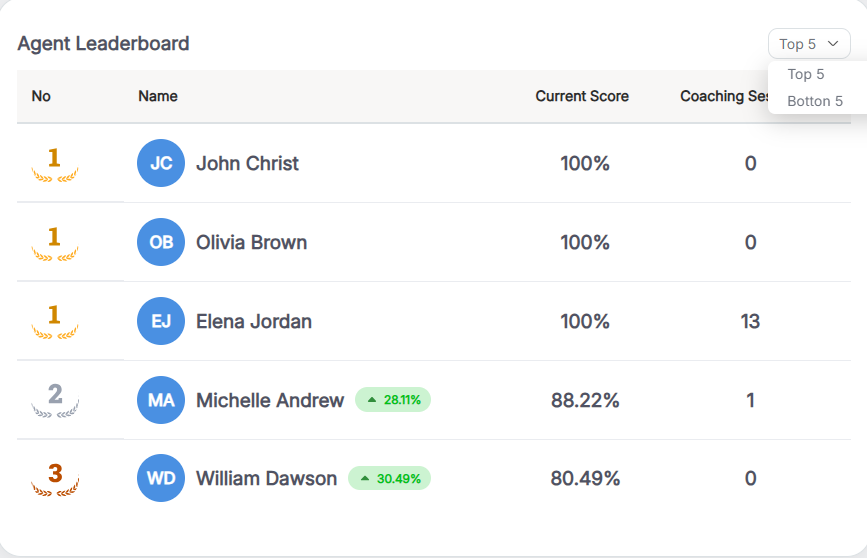
| Agent Leaderboard |
By default, the leaderboard shows the Top 5 agents and displays each agent’s performance improvement percentage (current date range vs the previous equal period), current QA score with Auto Fail rate, and number of coaching sessions completed; supervisors can toggle to Bottom 5 to identify agents who may need additional support.
|
|
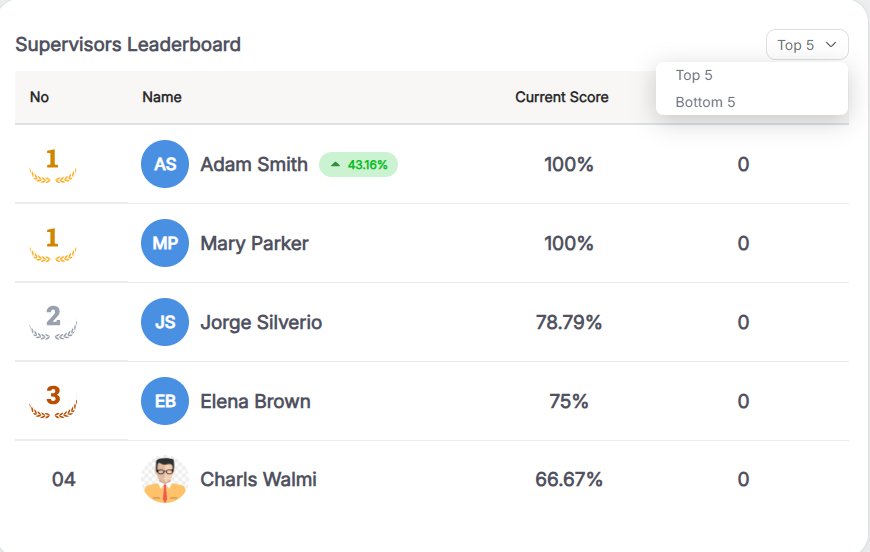
| Supervisors Leaderboard |
By default the view shows the Top 5 supervisors and displays each supervisor’s performance improvement percentage (current date range versus the previous equal period), their overall QA score with Auto Fail rate for the agents they supervise, and the number of coaching sessions they have created; this helps identify strong mentors who are positively impacting quality, and users can toggle to Bottom 5 as needed.
|
|
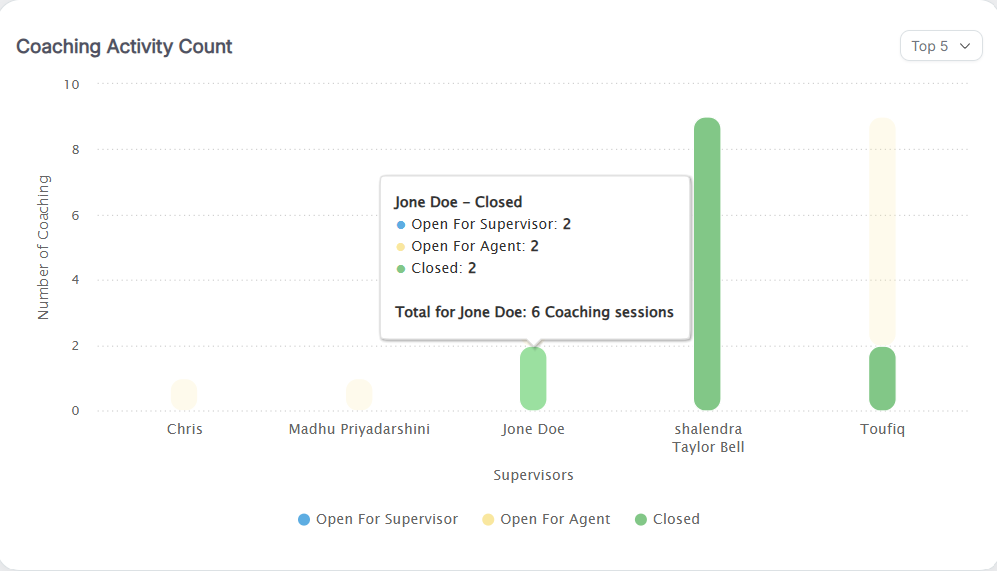
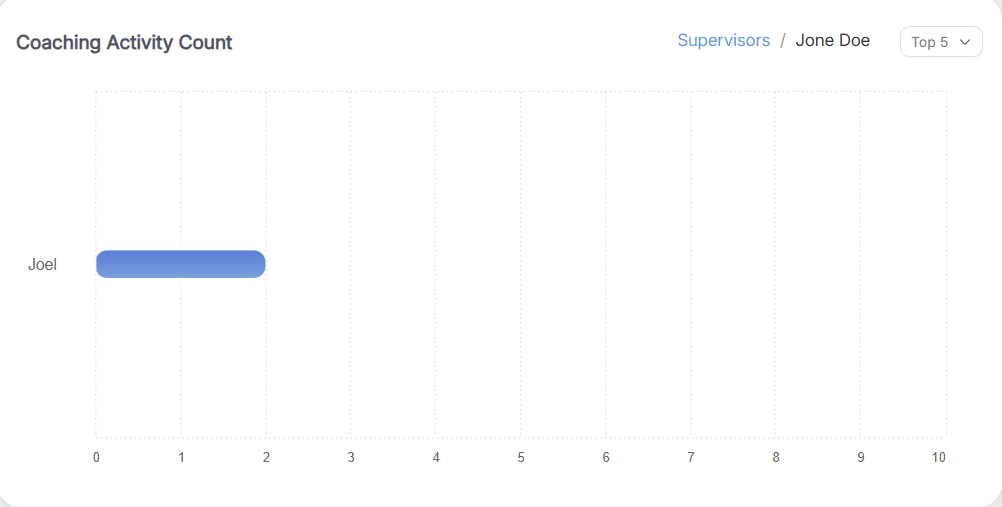
| Coaching Activity Count |
The Coaching Activity Count graph lists supervisors with their total coaching counts, displaying each supervisor as a stacked, color‑coded bar that breaks down counts for Open for Supervisor, Open for Agent, and Closed. The chart supports drilldown and hover interactions: clicking a chart element opens a detailed view showing the underlying records and breakdowns, while moving the cursor over an element displays a tooltip with the count and other summary details. |
|
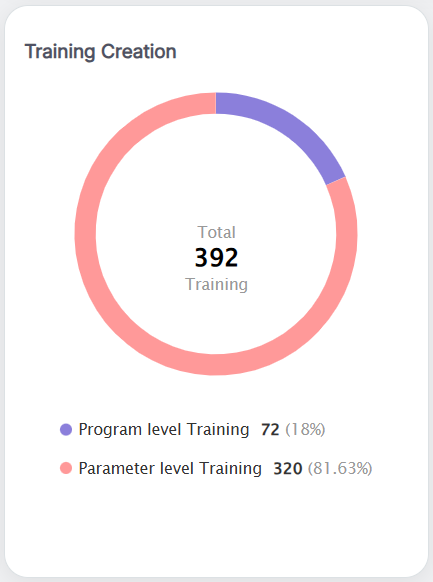
| Training Creation |
This pie chart breaks down training created in the selected date range into program‑level and parameter‑level categories, displays matching color codes below the chart, and shows the count of trainings per program or parameter on hover, helping users quickly see what types of training content were developed.
|
|
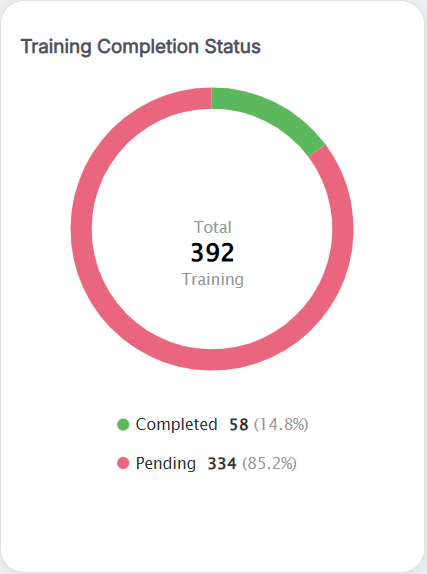
| Training Completion Status |
This pie chart shows the number of training sessions Completed and Pending for the selected date range, with matching color codes displayed below the chart; hovering over each segment reveals the count for that status, providing a quick view of overall training participation and progress.
|
|
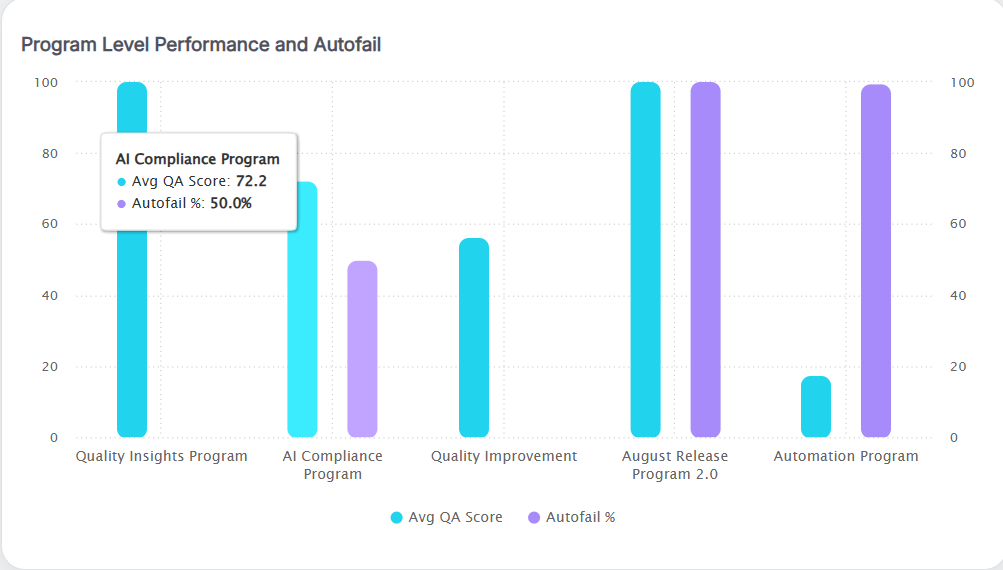
| Program Level Performance and Autofail |
This graph displays each program’s average QA score alongside the total number of coaching sessions conducted for that program over the selected date range, helping users identify high‑performing programs and those needing additional coaching; hovering the QA score trend line reveals the program name and its average score, and hovering the coaching data shows the program name and the number of coaching sessions created.
|
|
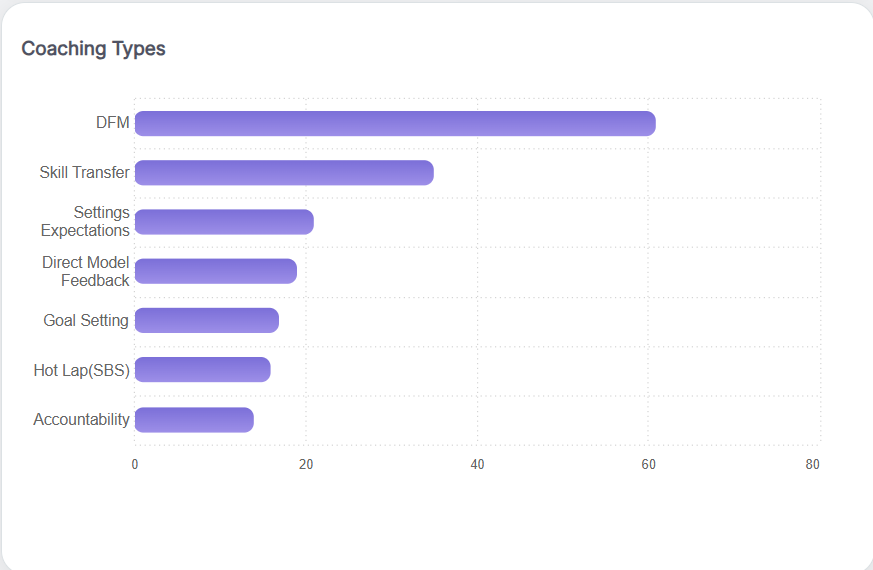
| Coaching Types |
This bar chart shows the number of coaching sessions for each coaching type in the selected date range, helping users identify the most‑used types, those needing more attention, and how coaching resources are allocated; hovering a bar reveals the coaching type and the total sessions created.
|
KPI Dashboard
From the KPI Dashboard, admins can view the scores achieved by all the agents in different categories:
- Program Level Score Comparison
- KPB Index
- Strategic Parameter Score
- Prediction Score Based on Strategic Parameter Monthly
- Prediction Score Based on Strategic Parameter – Quarterly
- Top 5 Agents KPI
- Bottom 5 Agents KPI
- Coach (Tactical Warehouse)
- Highest & Lowest Daily Score
To view these scores, select KPI Dashboard from the home page of the agent console as shown on the following screen:
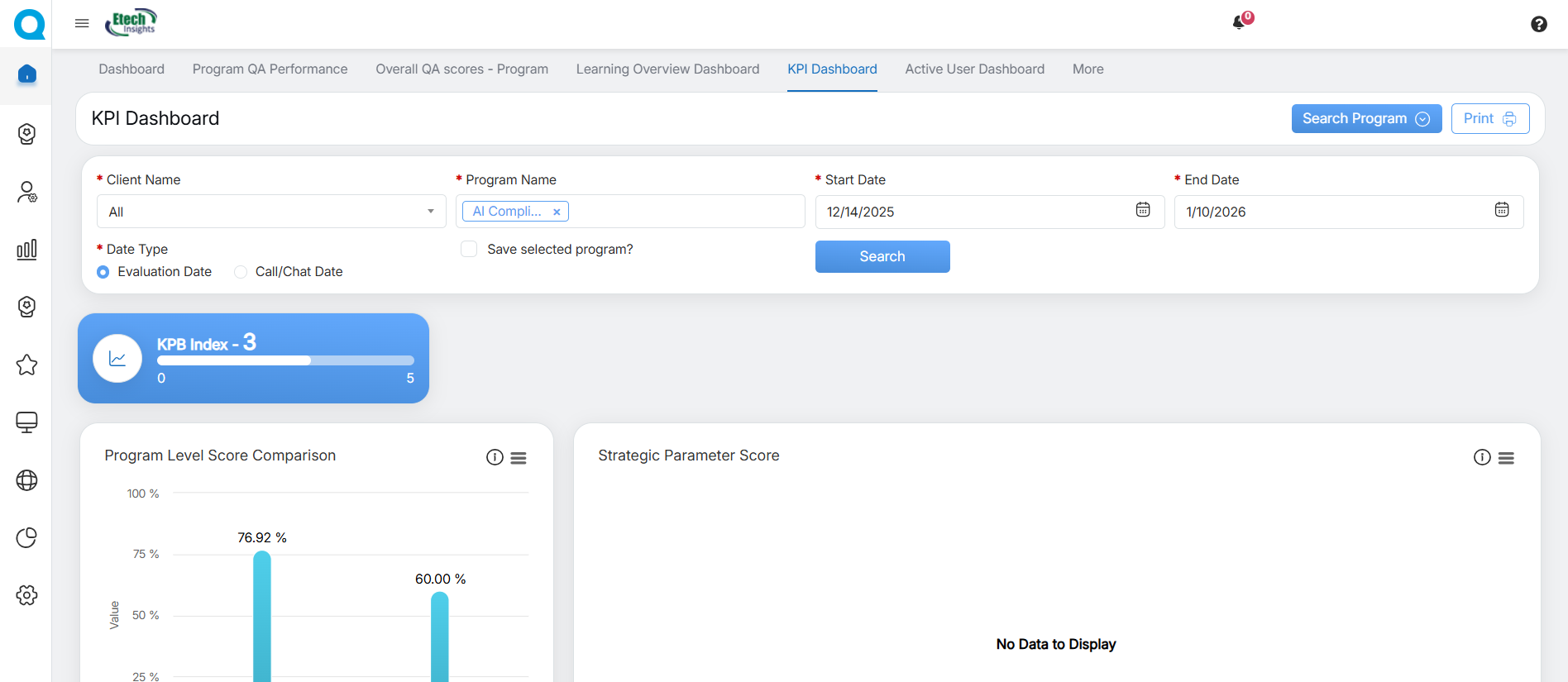
To search the data for a specific duration, then click on the Search Program button as shown below:
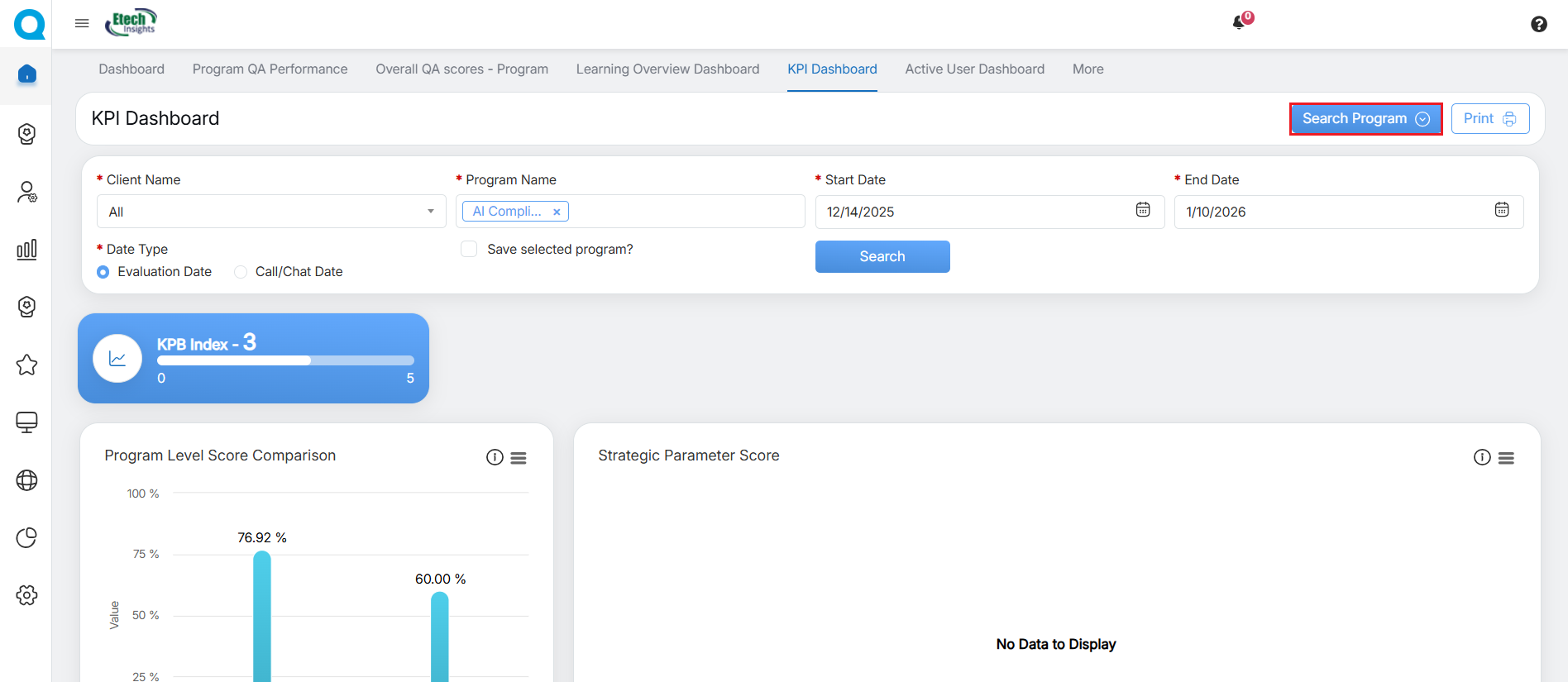
The admin will have an option select Client Name, and Program Name from the respective dropdown fields. Then set the date range by selecting the Start Date and End Date from the date picker option and also select the Date Type (Evaluation Date or Call/Chat Date)
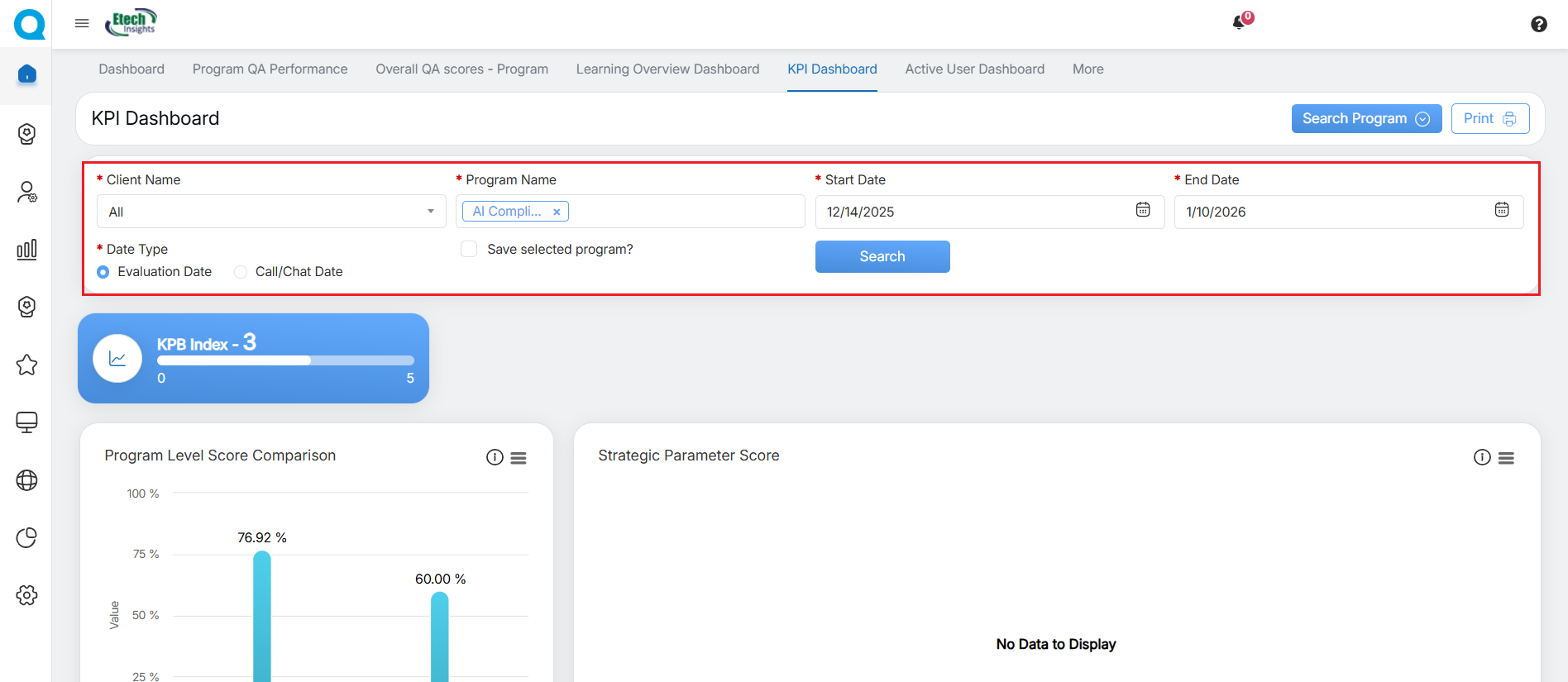
Search Criteria
Select the Save selected program? checkbox for the system to save the particular selected program while searching the statistic.
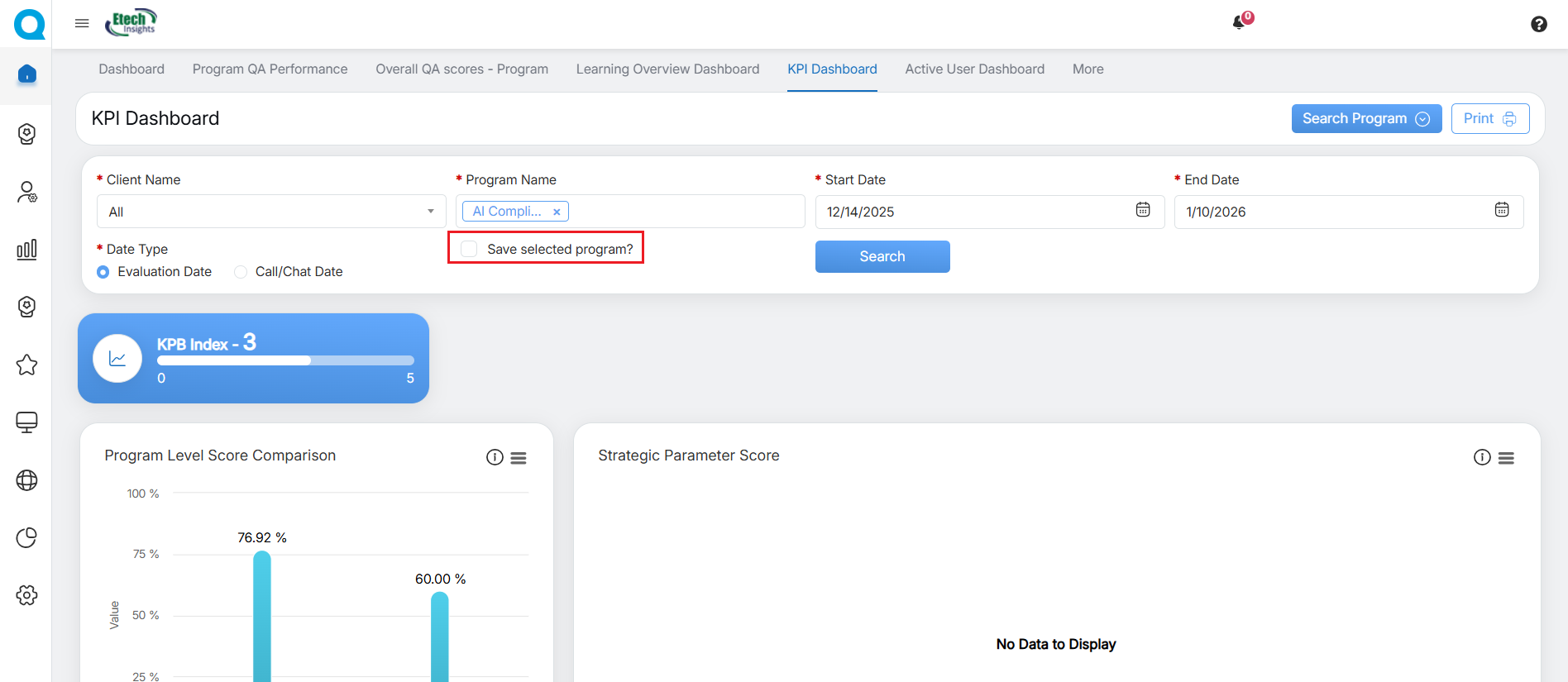
Save selected program
Click on the Search button to view the KPB index, score comparisons, and predicted performance.
Admin can scroll down to view more reports.
The following reports will be displayed on this page:
|
Reports |
Description |
|---|---|
|
Program Level Score Comparison |
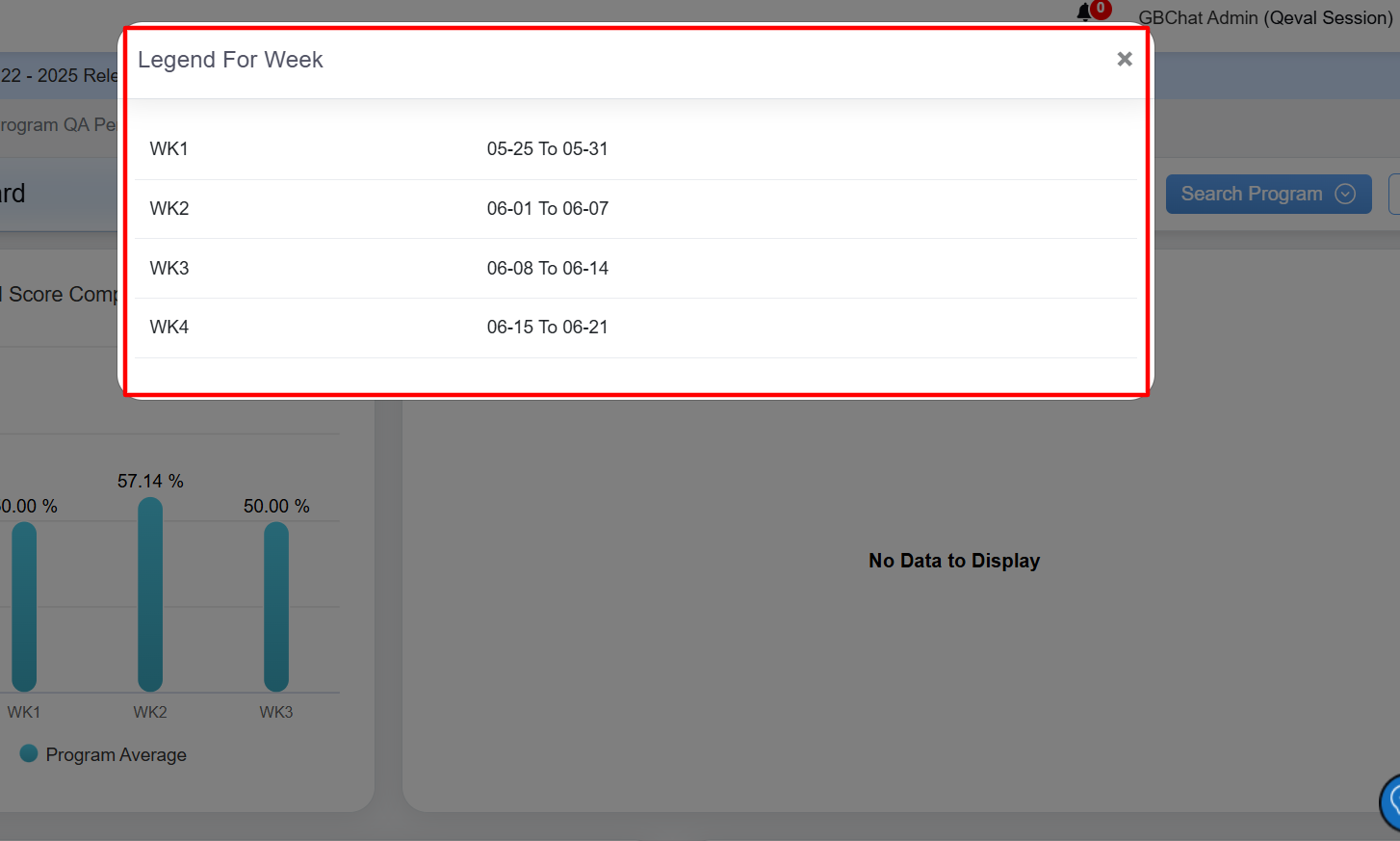
Displays the week-wise comparison of the program average score which is the average of the performance of all the agents. This data is displayed in the Bar Chart format. To view the legends, click on the Legend For Week as shown below.
The Legend For Week window will be displayed as shown below:
In this window, the date range of each week will be displayed for which the data is displayed for the Program Level Score Comparison in the Bar Chart format. |
|
KPB Index |
Displays the overall Key Performance Behaviour Index of all the agents. |
|
Strategic Parameter Score |
Displays the overall Strategic Parameter Score achieved by all the agents. To view the legends, click on the Legend For Week displayed under the chart. |
|
Prediction Score Based on Strategic Parameter Monthly |
Displays the overall Prediction Score based on the Strategic Parameter Score achieved by the agent on a monthly basis in the Line Chart format.
|
|
Prediction Score Based on Strategic Parameter – Quarterly |
Displays the overall Prediction Score based on the Strategic Parameter Score achieved by the agent on a quarterly basis in the Line Chart format.
|
|
Top 5 Agents KPI |
Displays the KPI data of the top 5 agents. |
|
Bottom 5 Agents KPI |
Displays the KPI data of the bottom 5 agents. |
|
Coach (Tactical Warehouse) |
Displays the data of – before the week, during the week, and after the week – for the Coach Tactical Warehouse in the Line Chart format.
Admin can also view the data of one, multiple, or all the coaches by selecting the names displayed at the bottom of the chart. |
|
Highest and Lowest Daily Score |
Displays the overall highest and the lowest score achieved by all the agents on a daily basis. The following chart displays the statistics of both High and Low Scores achieved by all the agents on a daily basis.
Click on the High Score displayed below to view the statistics of only High Scores.
The statistics of only High Scores achieved by the logged-in agent will be displayed:
Similarly, click on the Low Score and the statistics of only Low Scores achieved by the logged-in agent will be displayed:
|



Active User Dashboard
When this tab is clicked, the system will redirect the admin to the active user dashboard console wherein the admin will be able to view the total active hours for the specific user roles of the system including Admin, QA Verifier, QA Supervisor, and Supervisor. This is as displayed below:
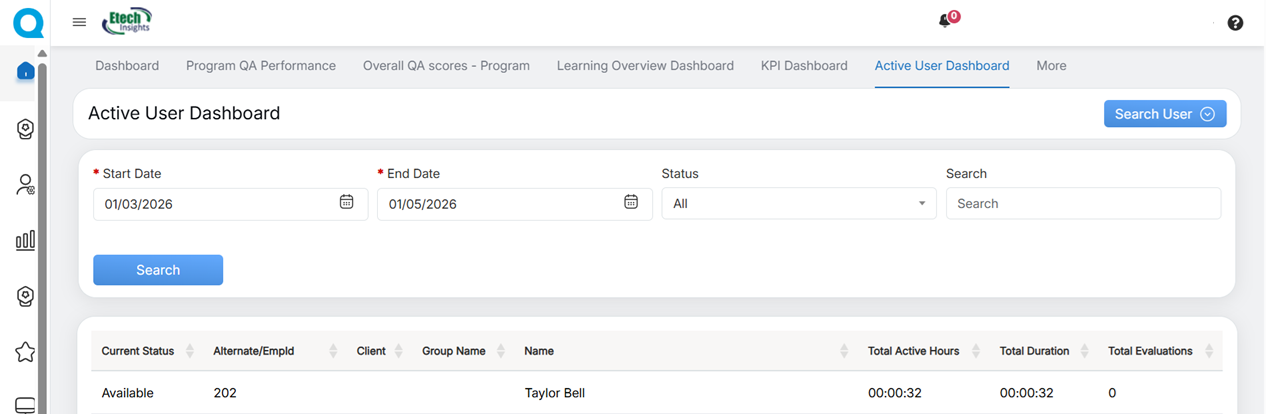
Active User Dashboard
By default, the system will display the active hours for the current day. However, an admin has the option to view the active hours for the particular number of days for his/her team members.
To do so, search the data for a specific duration by clicking on the Search User button.
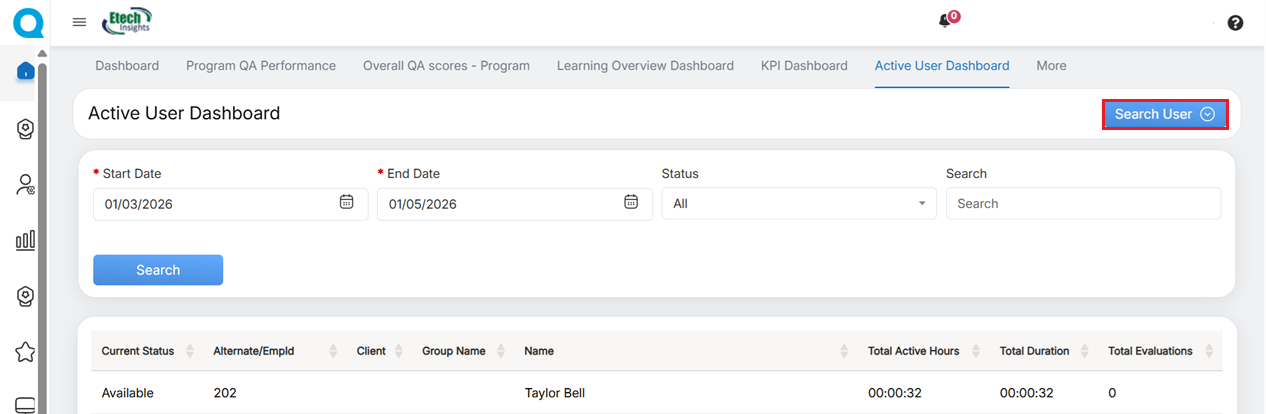
Then set the date range by selecting the Start Date and End Date from the date picker option. Select the Status from the dropdown field. Enter any relevant keyword in the Search text box to search for any specific data. Then click on the Search button.
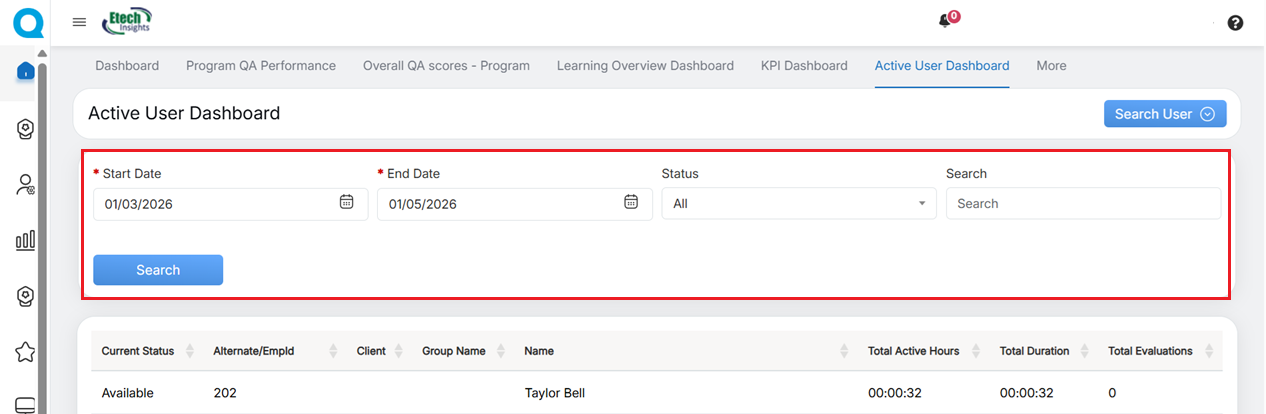
Search Details
Based on the set filters, the data will be displayed on the grid accordingly. The table will display the following details:
- Current Status
- Alternate/EmpId
- Client Name
- Group Name
- Name of the users
- Total Active Hours
- Total Duration
- Total Evaluation
Notes
- The total active hours will not include the time period when the member has set their status as “Not Available”.
- The active hours’ data will be displayed in the CST zone.
Video