The Performance Report provides a consolidated view of customer feedback and survey performance, enabling users to quickly evaluate agent, team, channel, tag, and brand performance using visual insights and filters.
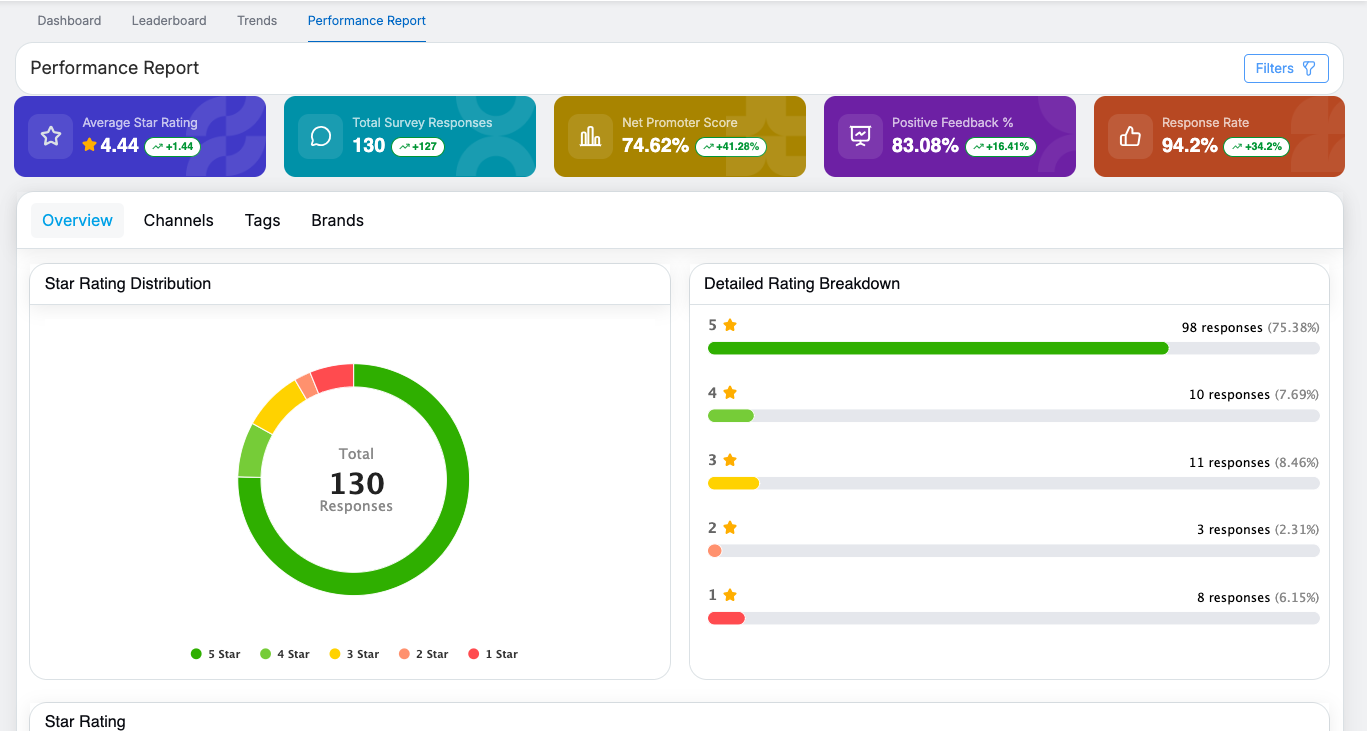
By default, the report loads data for the last 1 month. All metrics and charts dynamically update based on the selected filters.
Summary Metrics (Top Cards)
At the top of the Performance Report, five summary cards display key performance indicators:

- Average Star Rating
Displays the overall average rating calculated from survey responses, along with a change indicator showing performance compared to the previous period.
Example: 4.44 (▲ +0.04) - Total Survey Responses
Shows the total number of survey responses received, with a change indicator reflecting the increase or decrease over the previous period.
Example: 120 (▲ +110) - Net Promoter Score (NPS)
Indicates customer loyalty and the likelihood of customers recommending the brand, accompanied by a change indicator.
Example: 74.17% (▼ -5.83%) - Positive Feedback %
Represents the percentage of positive feedback received from survey responses, along with a change indicator for trend comparison.
Example: 82.5% (▼ -7.5%) - Response Rate
Shows the percentage of completed surveys out of the total surveys sent, with a change indicator highlighting performance variation.
Example: 96% (▲ +19.08%)
Note : Green indicators represent improvement, while red indicators represent a decline compared to the previous period.
Filters & Interaction
- The Filters button is available at the top-right corner.
- Supports single and multi-select options.
- Once filters are applied, all summary cards and charts update accordingly.
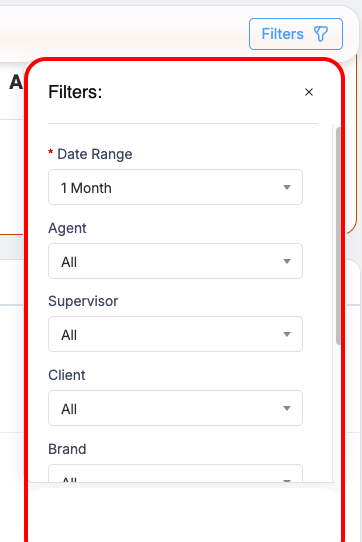
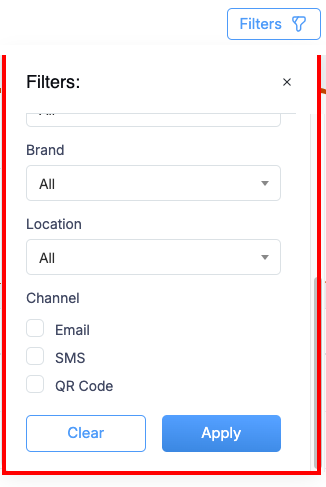
Users can refine Performance Report data using:
- Date Range (1, 3, 6, 12 months or custom date range; default is 1 month)
- Agent
- Supervisor
- Client
- Brand
- Location
- Channels (Email, SMS, QR Code – checkbox selection)
Filter Behavior
- All cards, charts, graphs, and metrics refresh dynamically when filters are applied.
- By default, Agent, Supervisor, Client, and Brand filters are set to All.
- Changing the date range updates all performance visuals and metrics accordingly.
Tabs in Performance Report
The Performance Report contains four tabs:
- Overview
- Channels
- Tags
- Brands
Overview Tab
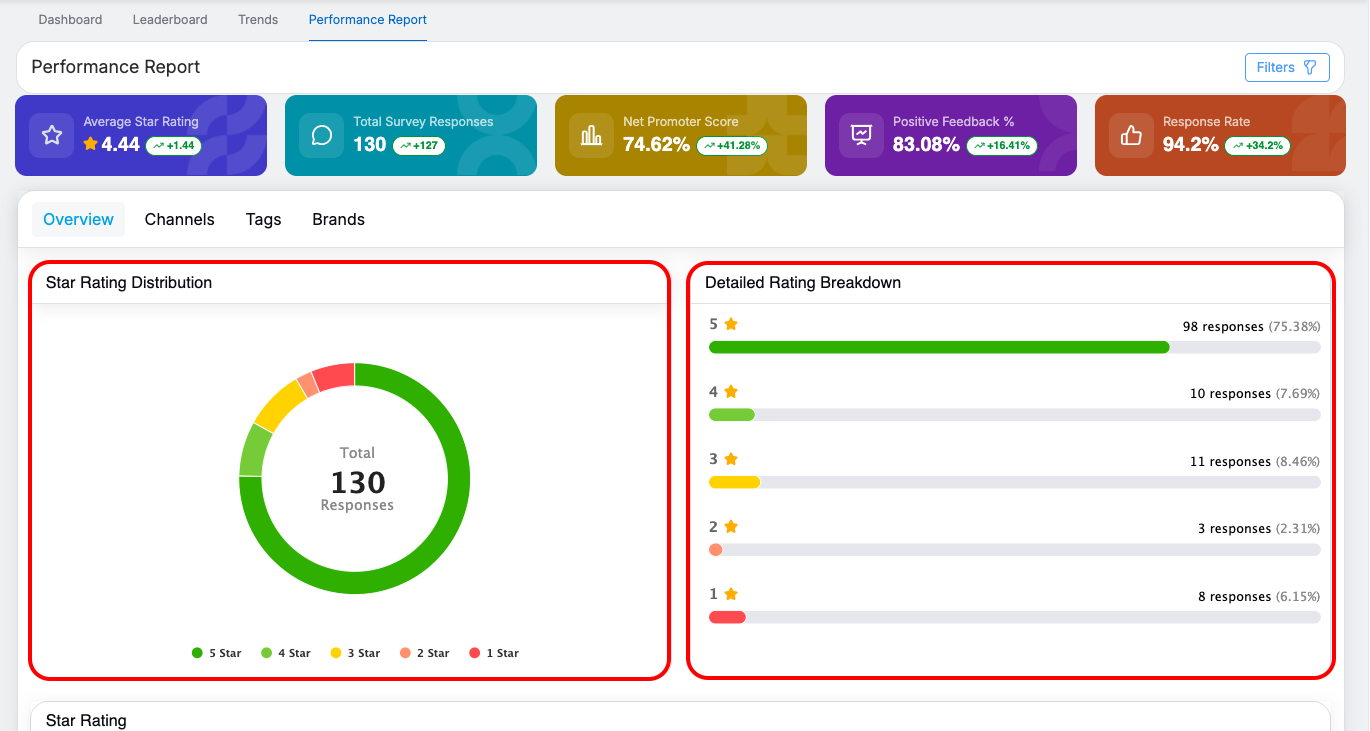
The Overview tab presents star rating insights using three visual components.
1. Star Rating Distribution
-
Displays a donut chart representing the distribution of ratings from 1-star to 5-star.
-
The center of the chart shows the total number of responses.
-
Each star category is visually distinguished using different colors and a legend.
-
2. Detailed Rating Breakdown
-
Displays a horizontal breakdown for each star rating (1–5).
-
Shows:
-
Number of responses per star rating
-
Percentage contribution of each rating
-
-
Enables quick identification of dominant rating categories.
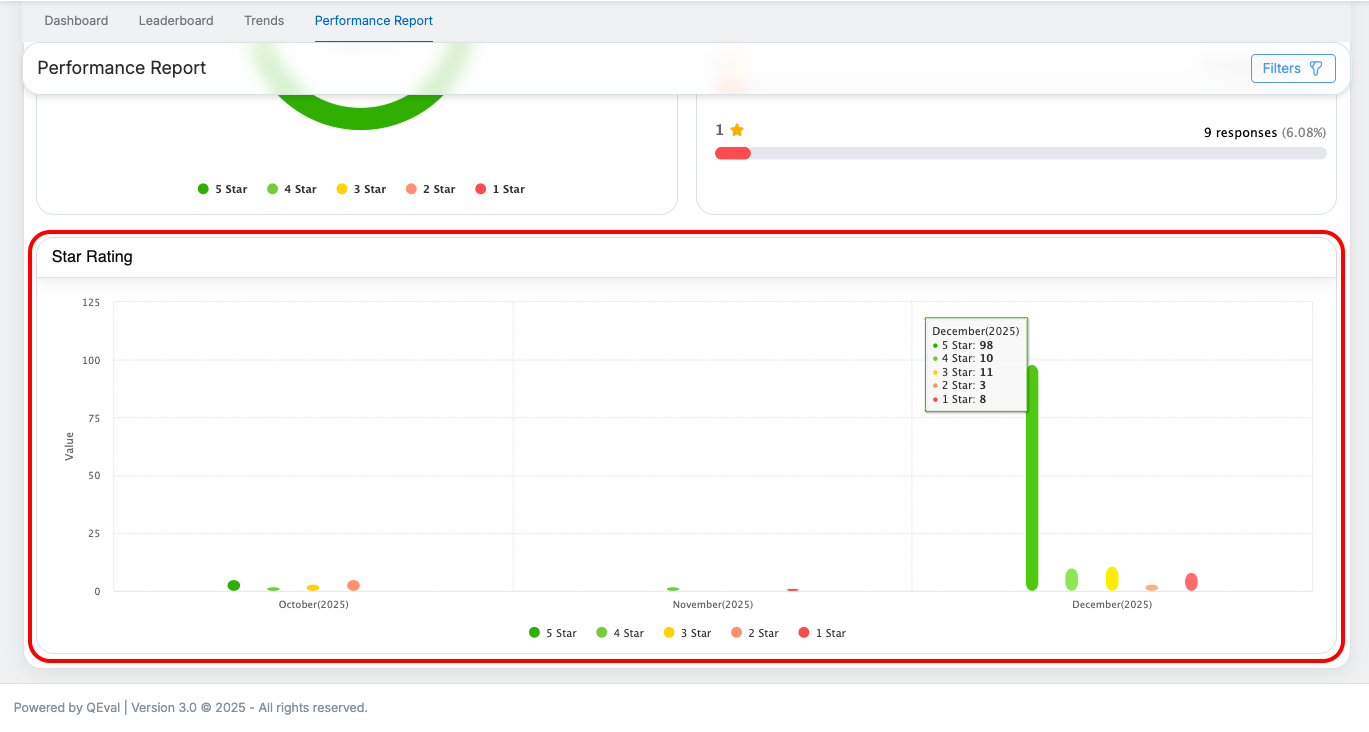
3. Star Rating
-
Displays a bar chart showing monthly-wise star rating counts.
-
Includes separate bars for:
-
1 Star
-
2 Star
-
3 Star
-
4 Star
-
5 Star
-
-
Users can hover over bars to view tooltip details for each month.
-
The chart updates dynamically based on applied filters.
Channels Tab
The Channels tab provides channel-wise performance insights.
Channel Summary Cards
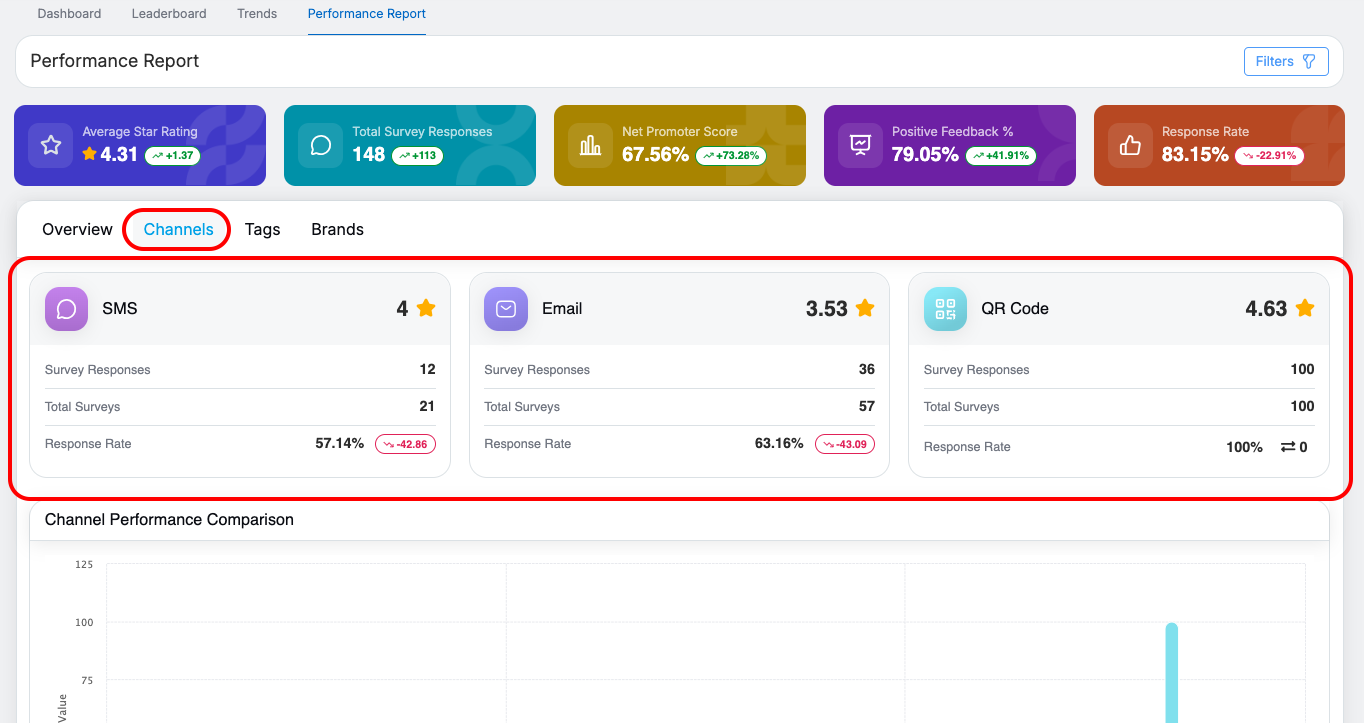
The Channels tab displays quick summary cards for each channel (SMS, Email, and QR Code), giving an at-a-glance view of survey performance.
Each card shows:
-
Average Rating
-
Survey Responses
-
Total Surveys
-
Response Rate (with trend indicator)
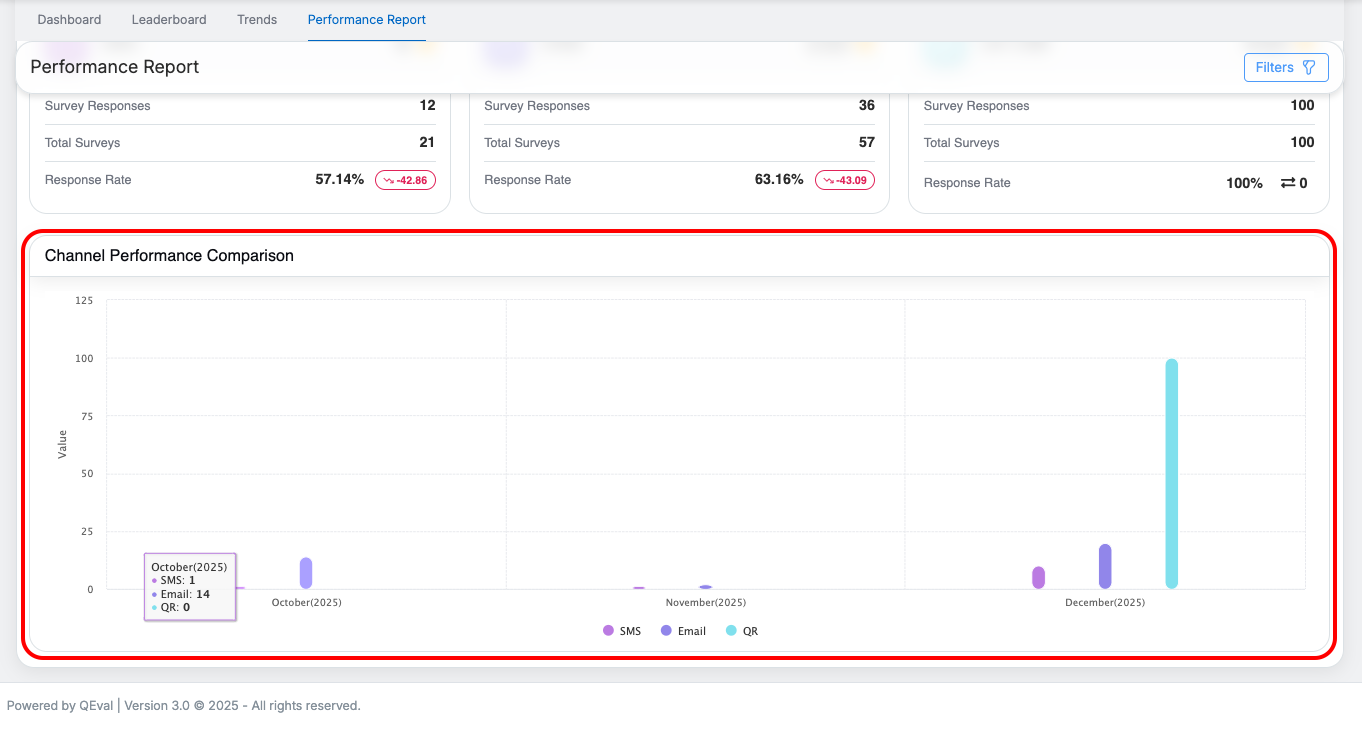
Channel Performance Comparison
-
Displays a bar graph comparing channel performance over time.
-
Channels include SMS, Email, and QR.
-
Hovering over bars shows tooltip details such as:
-
Month
-
Channel name
-
Response count
-
Tags Tab
The Tags tab highlights commonly mentioned feedback tags.
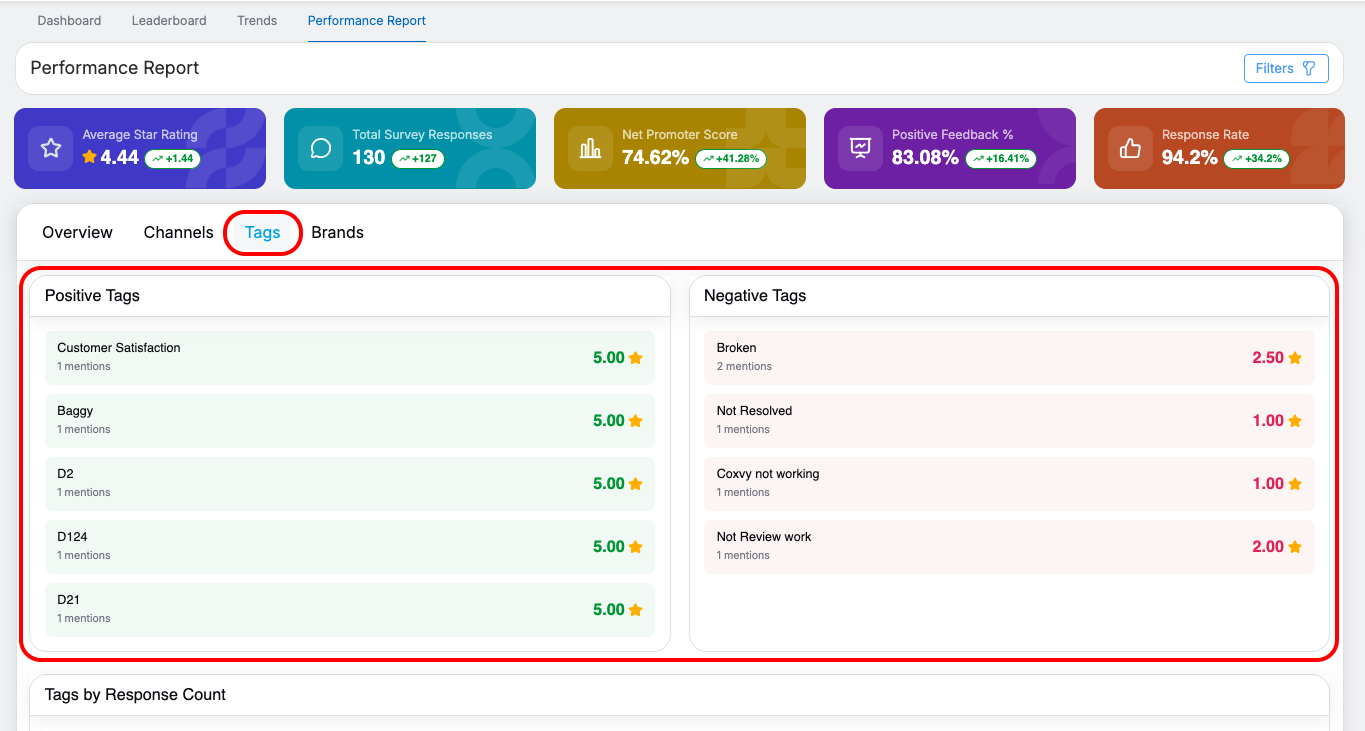
Positive Tags
Displays the top positive tags identified from survey feedback, along with the number of times each tag was mentioned and its average rating.
Negative Tags
Displays the most frequent negative tags from survey feedback, along with their mention count and corresponding average rating.
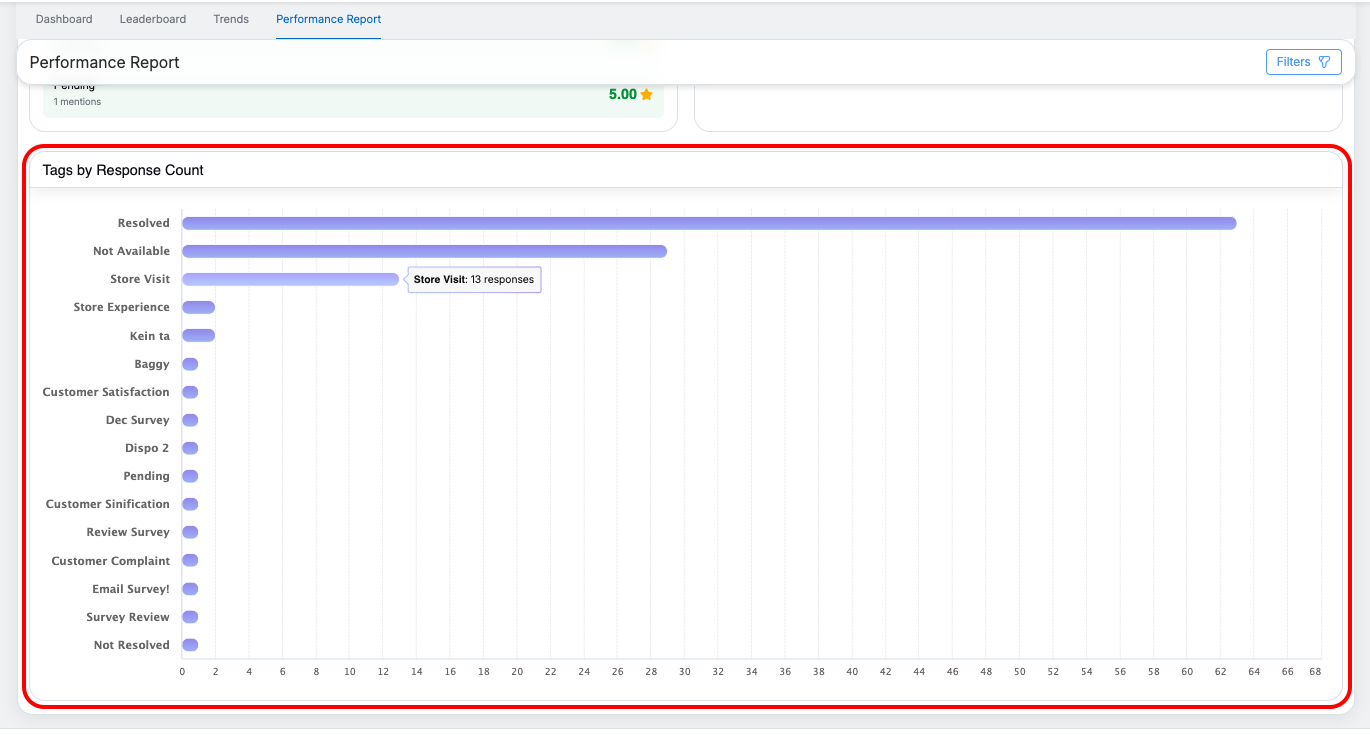
Tags by Response Count
-
Displays a horizontal bar chart listing all tags.
-
Each bar represents the number of responses per tag.
-
Hovering over a bar displays the exact response count.
Brands Tab
The Brands tab provides brand-wise performance insights.
Brand Summary Cards
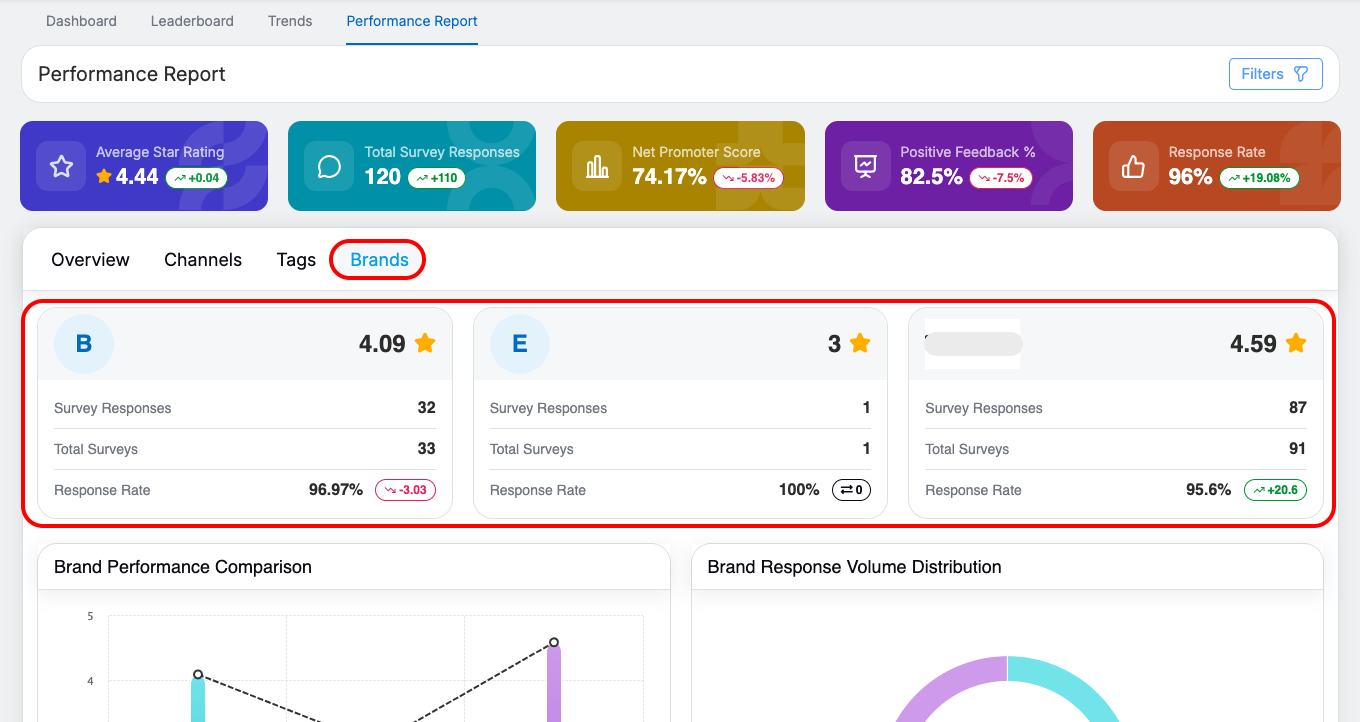
Quick cards present key performance metrics for each brand, including:
-
Average rating
-
Survey responses
-
Total surveys
-
Response rate (with trend indicators where applicable)
Example:
Brand B – Avg. Rating: 4.09 | Responses: 32/33 | Response Rate: 96.97% (▼ 3.03%)
Brand Performance Comparison
-
Displays a graph comparing average ratings across brands.
-
Brand names are shown on the axis with corresponding rating values (1–5 scale).
-
The graph automatically refreshes when filters are applied.
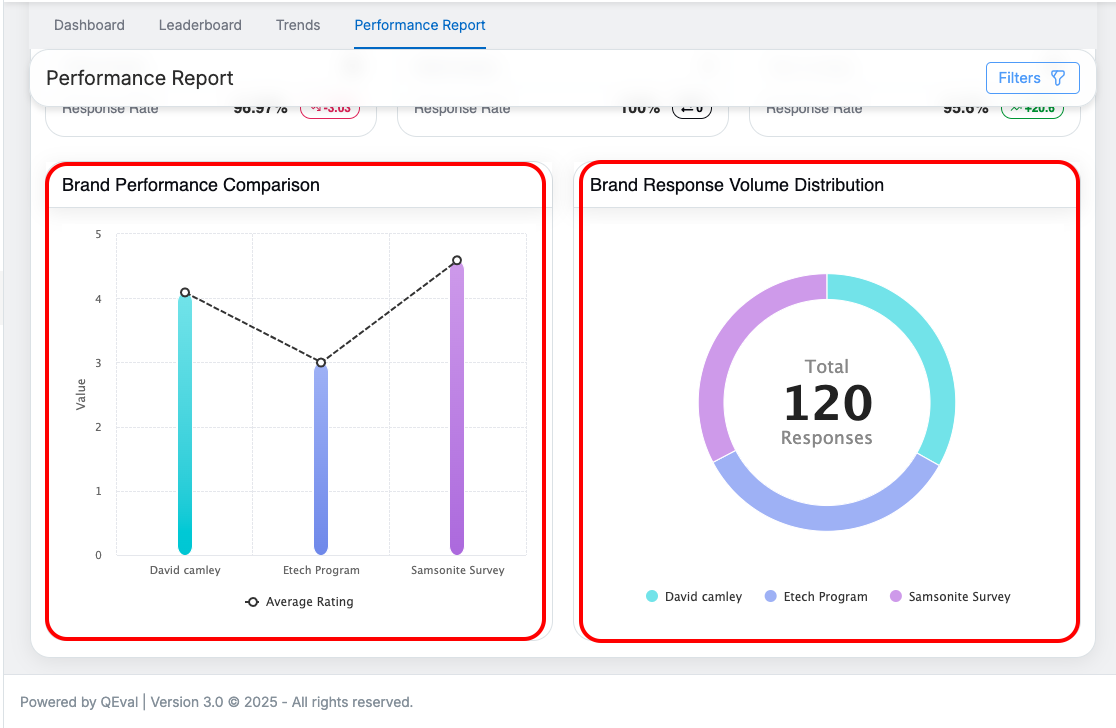
Brand Response Volume Distribution
-
Displays a donut chart showing the proportion of responses per brand.
-
The center of the chart displays the total number of responses.
-
Each brand is visually distinguished using color-coded segments and a legend.
Key Notes
-
All charts are interactive and support hover-based tooltips.
-
Data updates dynamically based on filter selection.
-
If no filters are applied, the system loads default data for the last 1 months.
Video