Coaching Level Tactical displays data on the coaching session’s details for each agent.
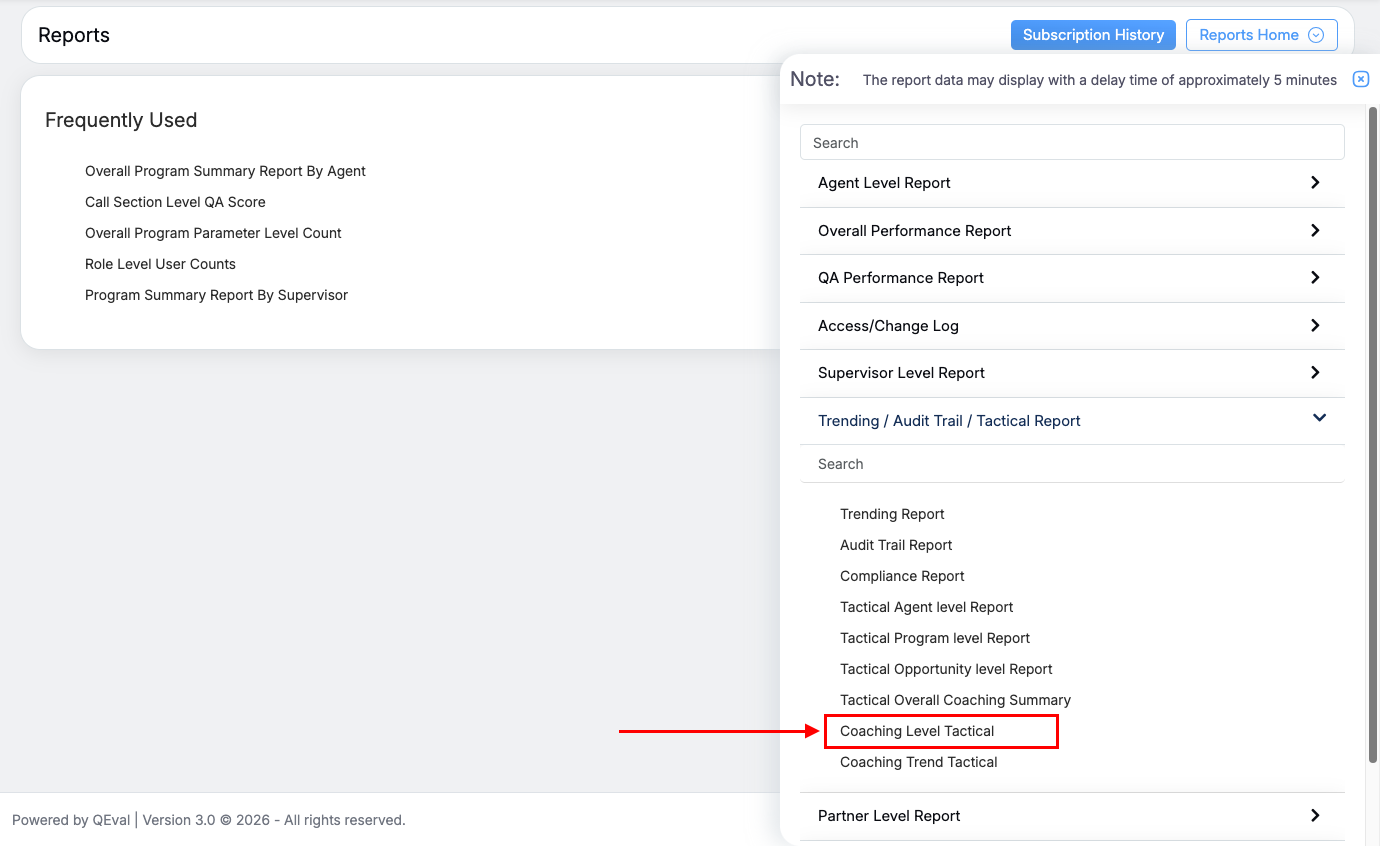
To view this report, select Reports > Report > Trending/Audit Trail /Tactical Report > Coaching Level Tactical as shown below:
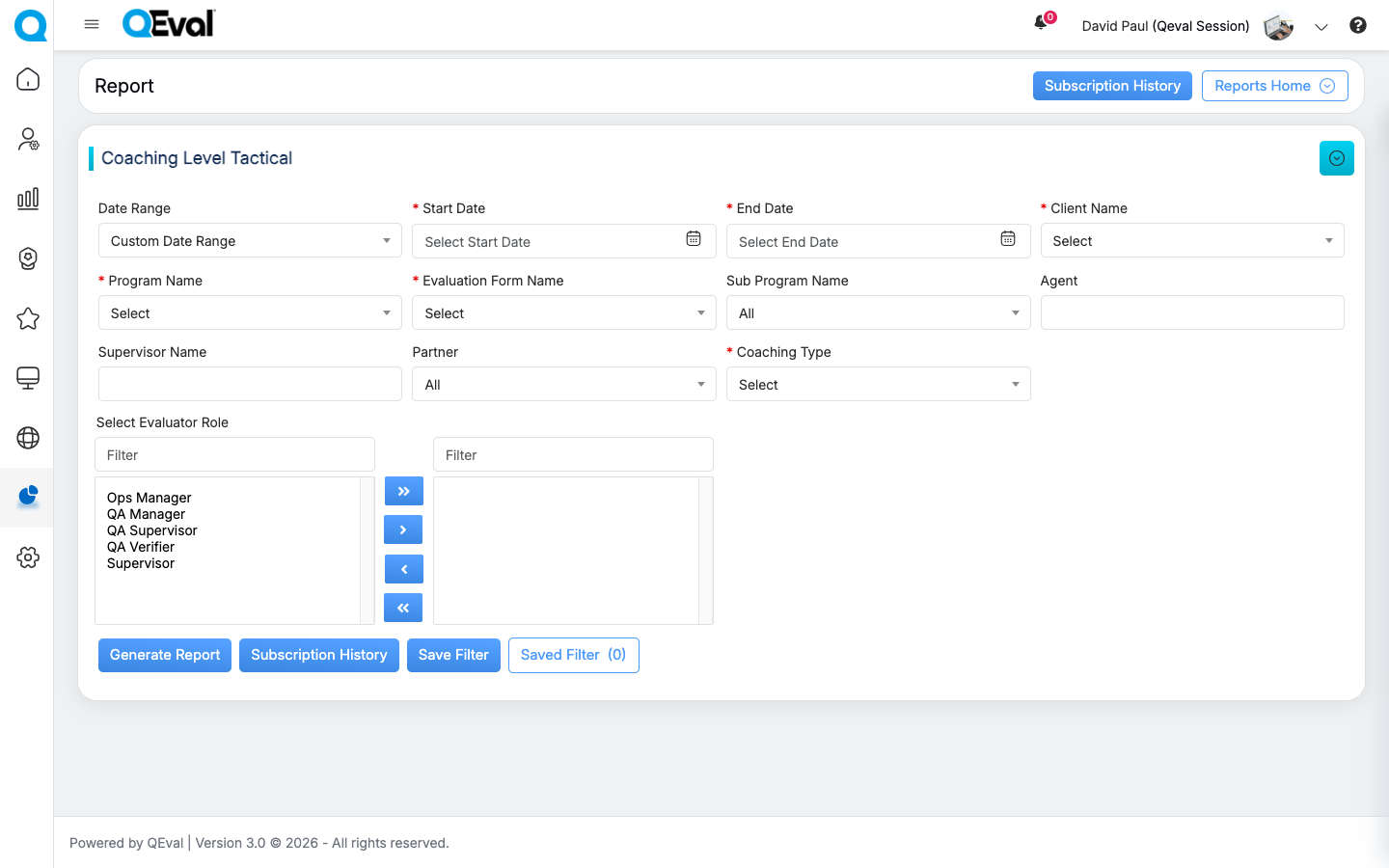
The following page will be displayed.
|
Screen Elements |
Description |
|---|---|
|
Date Range |
User can define a date range by either selecting from predefined timeframes in the dropdown or specifying a custom range based on the need. Available filters include Today, Last 7 Days, Last 10 Days, Last 30 Days, Last 12 Weeks, Last 6 Months, Week to Date, Month to Date, Previous Day, Previous Week, Previous Month, and Custom Date Range. Select the option that best suits your requirements. |
|
Start Date |
If user selects the custom date range then users would be able to select the start date and end date as per their need. |
|
End Date |
Select the end date. |
|
Client Name |
Select the name of the client from the dropdown list. |
|
Program Name |
Select a program from the dropdown list which will display the Program Names as per the selection of the Client Name. |
|
Evaluation Form Name |
Select the name of the evaluation form from the dropdown list. |
|
Sub Program Name |
Select the name of the sub-program from the dropdown list. |
|
Location |
Select the location name. |
|
Agent |
Enter the initial characters of the agent’s name and select the name from the dropdown list displayed. Note: If the agent name is not selected, it displays the reports for all the agents. |
|
Supervisor Name |
Enter the initial characters of the supervisor’s name and select the name from the dropdown list displayed. |
|
Partner |
Select the Partner name from the dropdown list which will display the different Partner Names. |
|
Date Type |
Evaluation Date: Select the radio button to search on the basis of the Evaluation date. Call/Chat Date: Select the radio button to search on the basis of the call/chat date. Modified Date: Select the radio button to search on the basis of the evaluation form modified date. |
|
Evaluator Role |
Select the required Evaluator role from the left-hand side box which will display the list of all the user roles of higher order. One can also search the roles by entering the role’s name in the Filter field. Once the role(s) is selected, click on To move all the roles to the right-hand side box at once, click on To remove a few roles from the right-hand side box and move them back to the left-hand side box, firstly, select such roles and then, click on To move all the roles from the right-hand side box to the left-hand side box at once, click on |
 button, and the selected role(s) will be moved to the right-hand side box.
 button.
 button.
 button.
Once the search criteria are set, then, click on the  button.
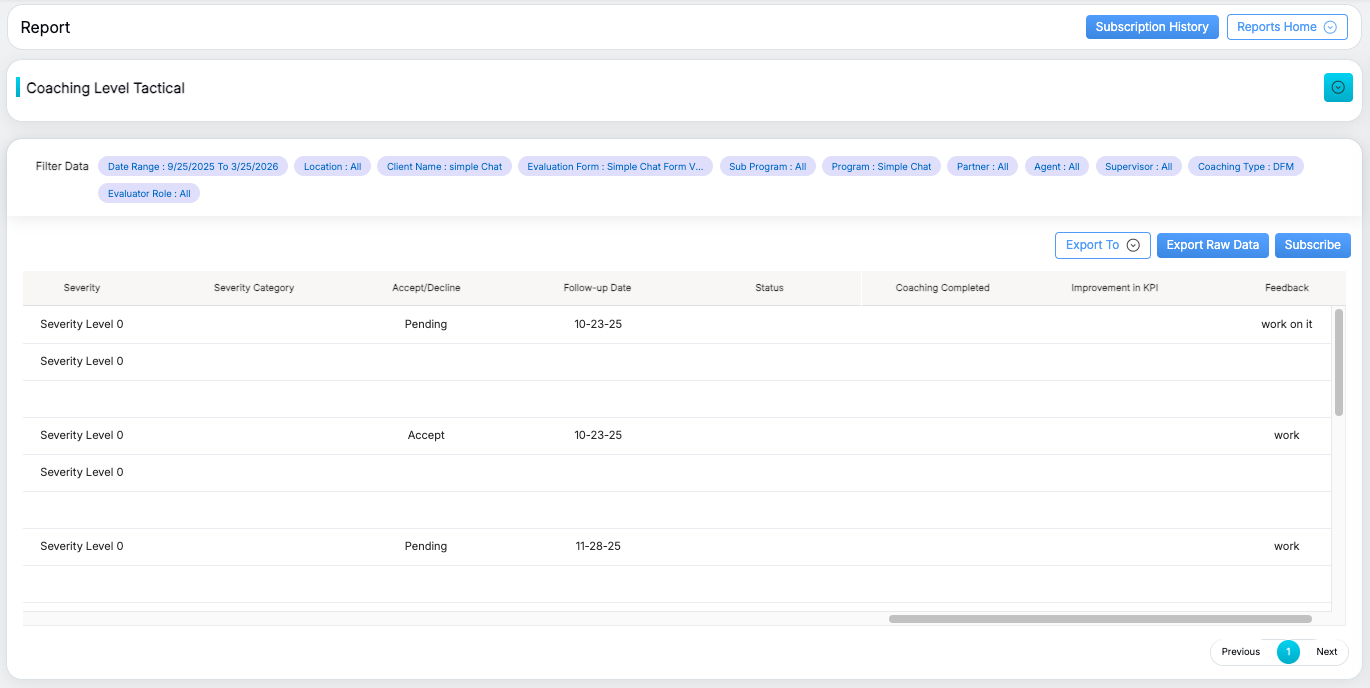
The report for the specified will be displayed as shown below:
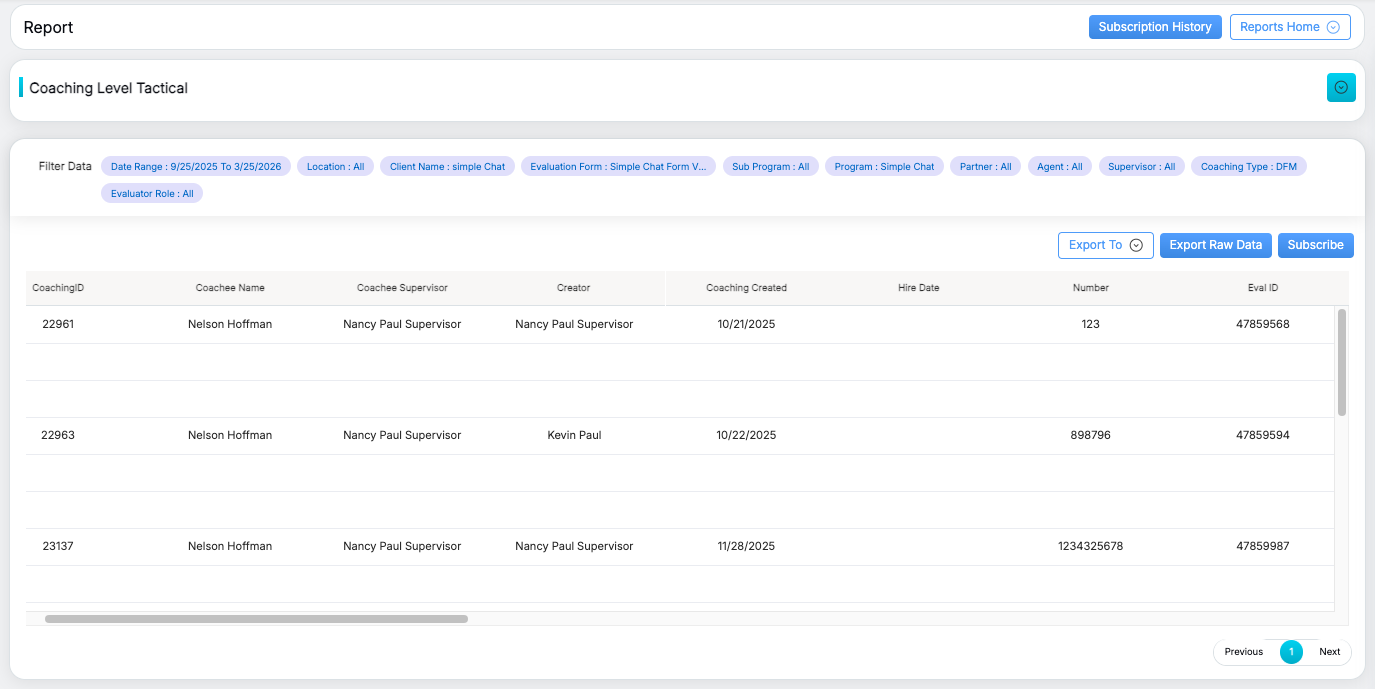
Scroll left or right to view the detailed report. The column headers will guide you through the available information.
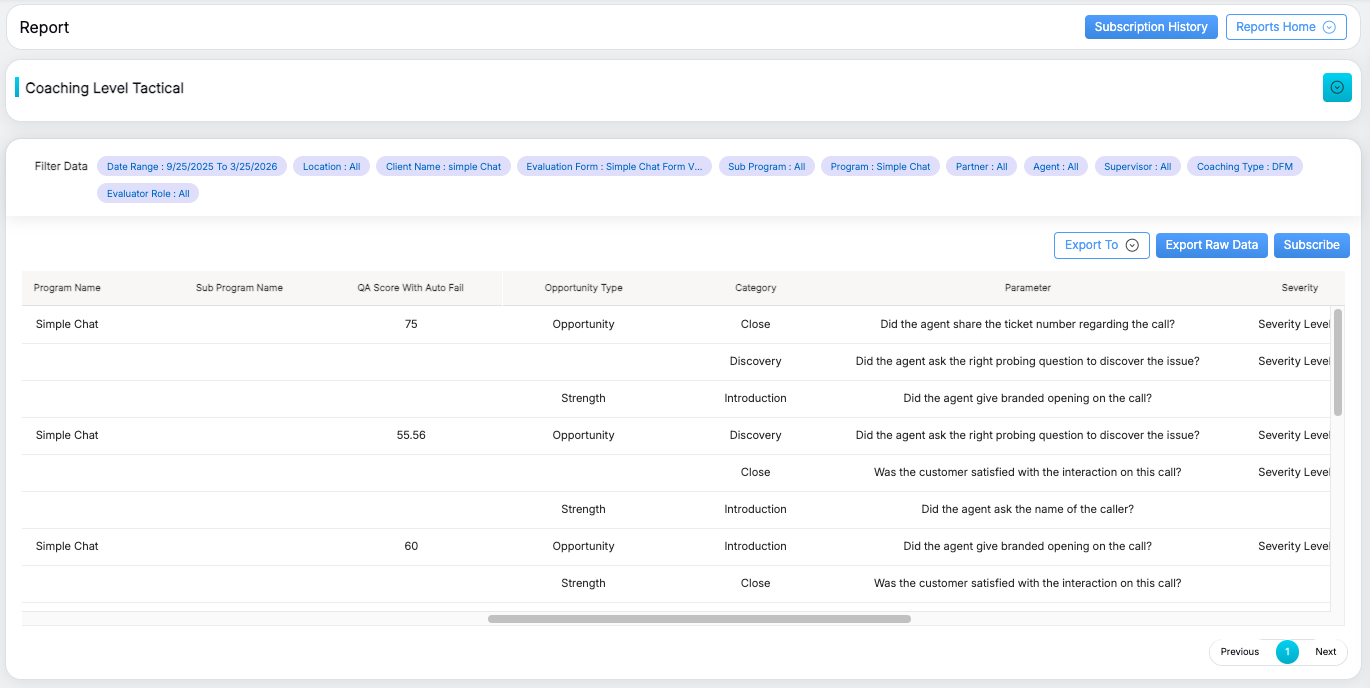
One can export the report displayed. To do so, click on the Export To button adjacent to Export Raw Data, As shown below.
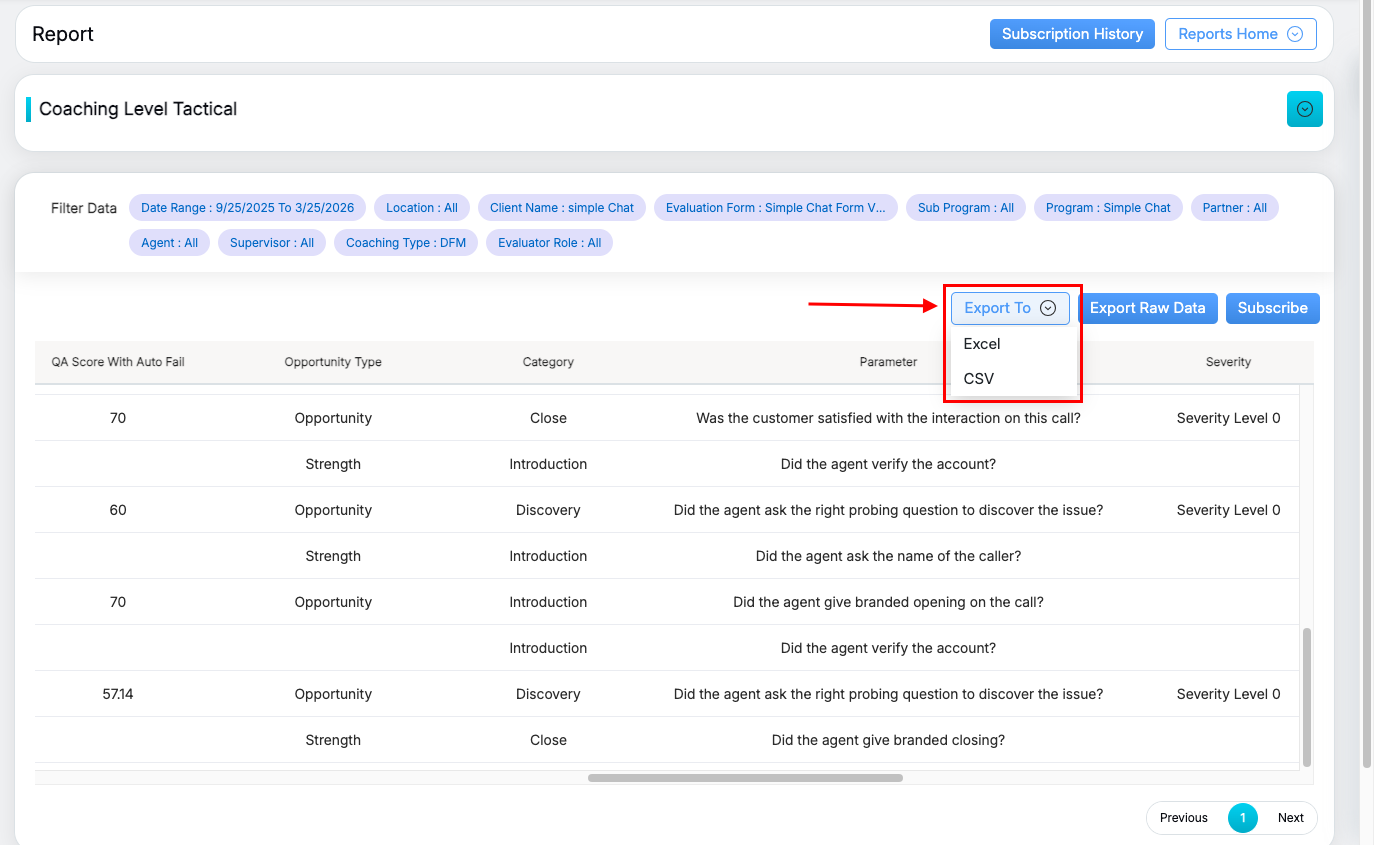
User can download the report in Excel or CSV formats as per the requirement.
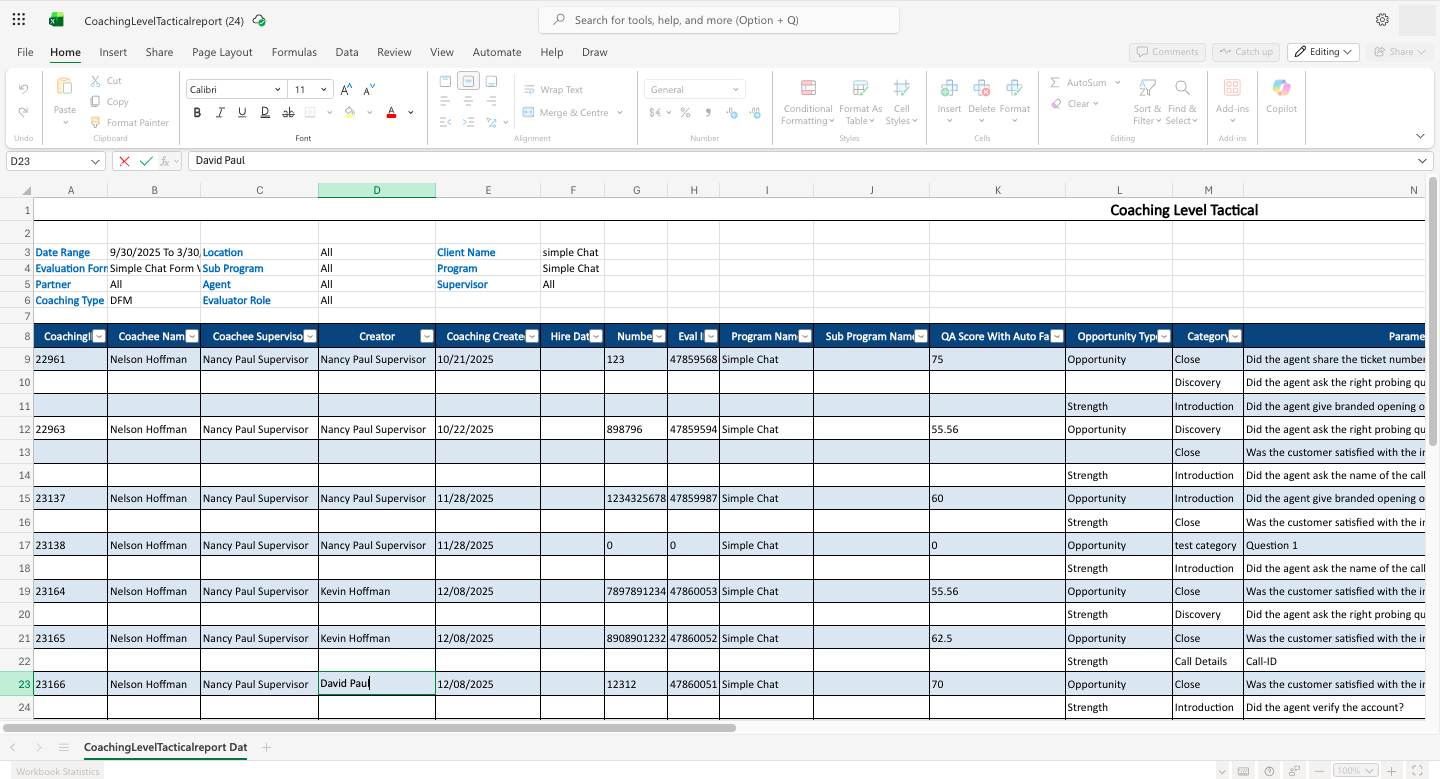
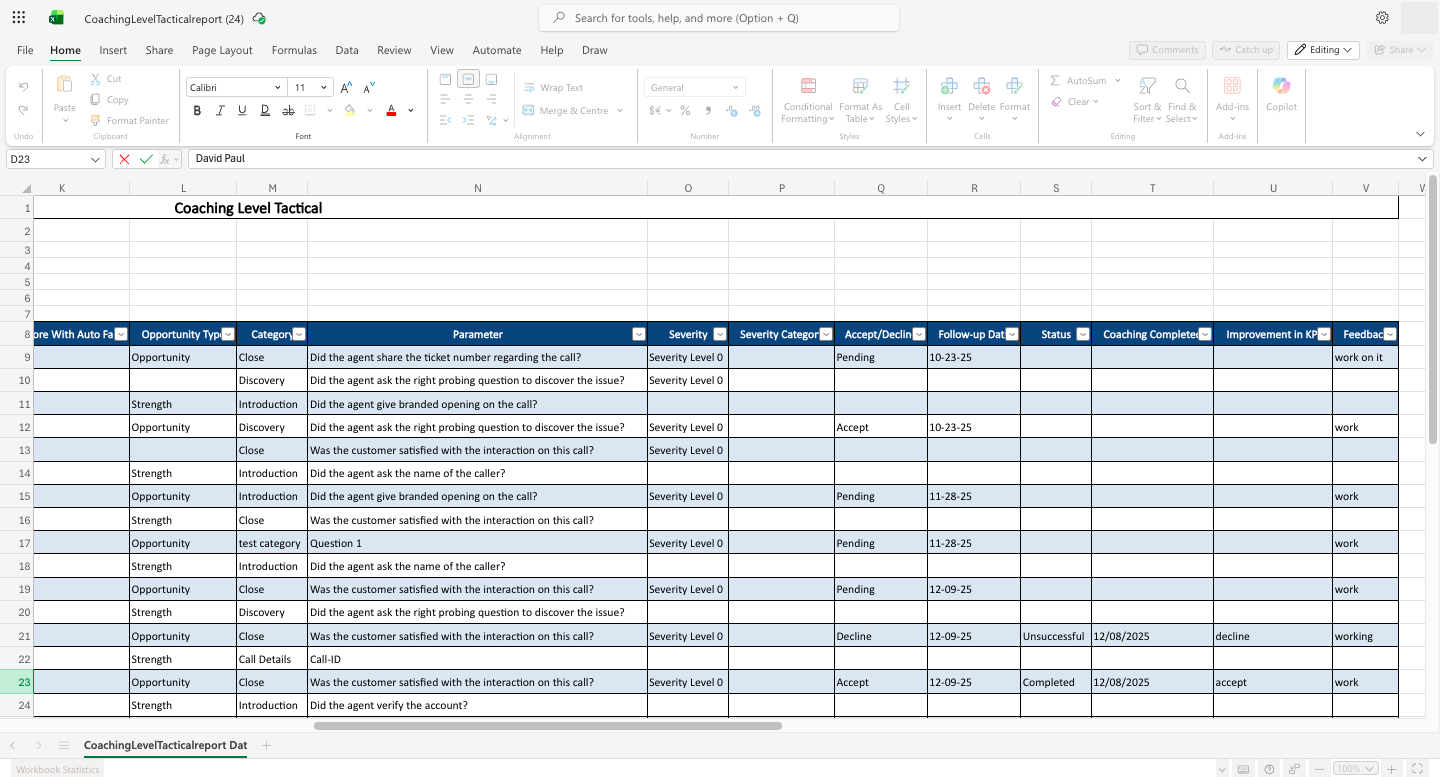
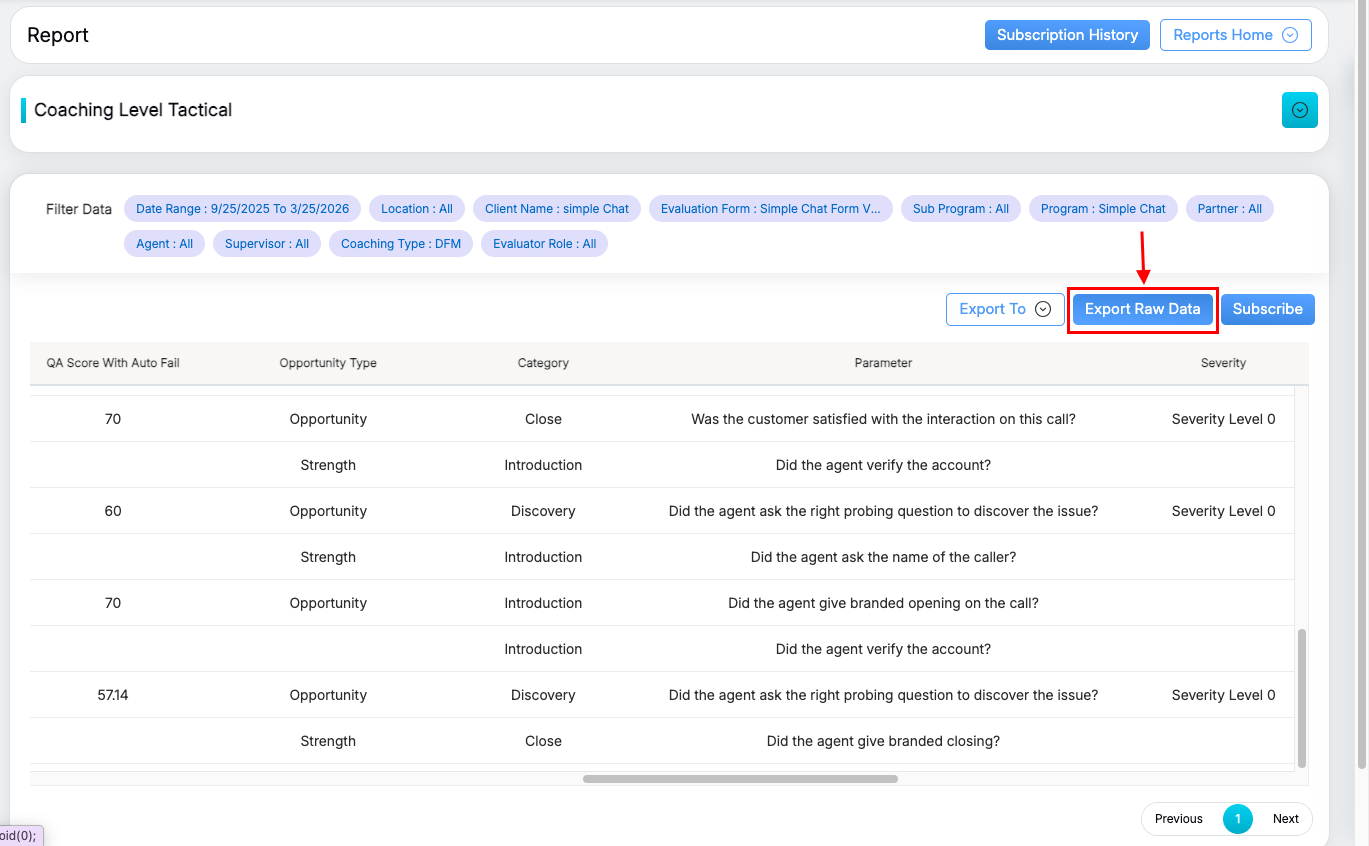
Click on the Export Raw Data button to export the complete dataset as an Excel sheet without any blank spaces, displaying all available data in a structured format as highlighted in the screen below-
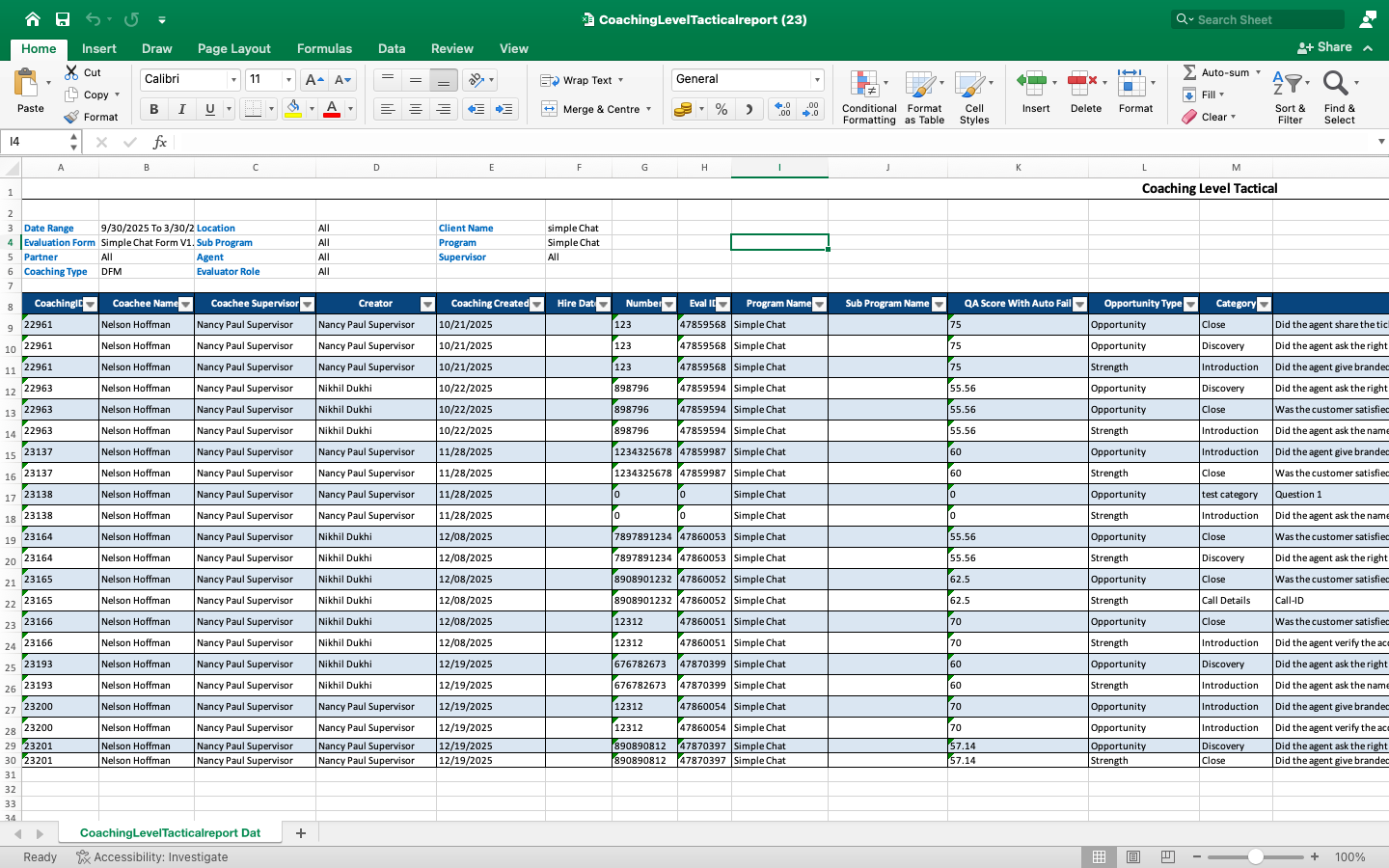
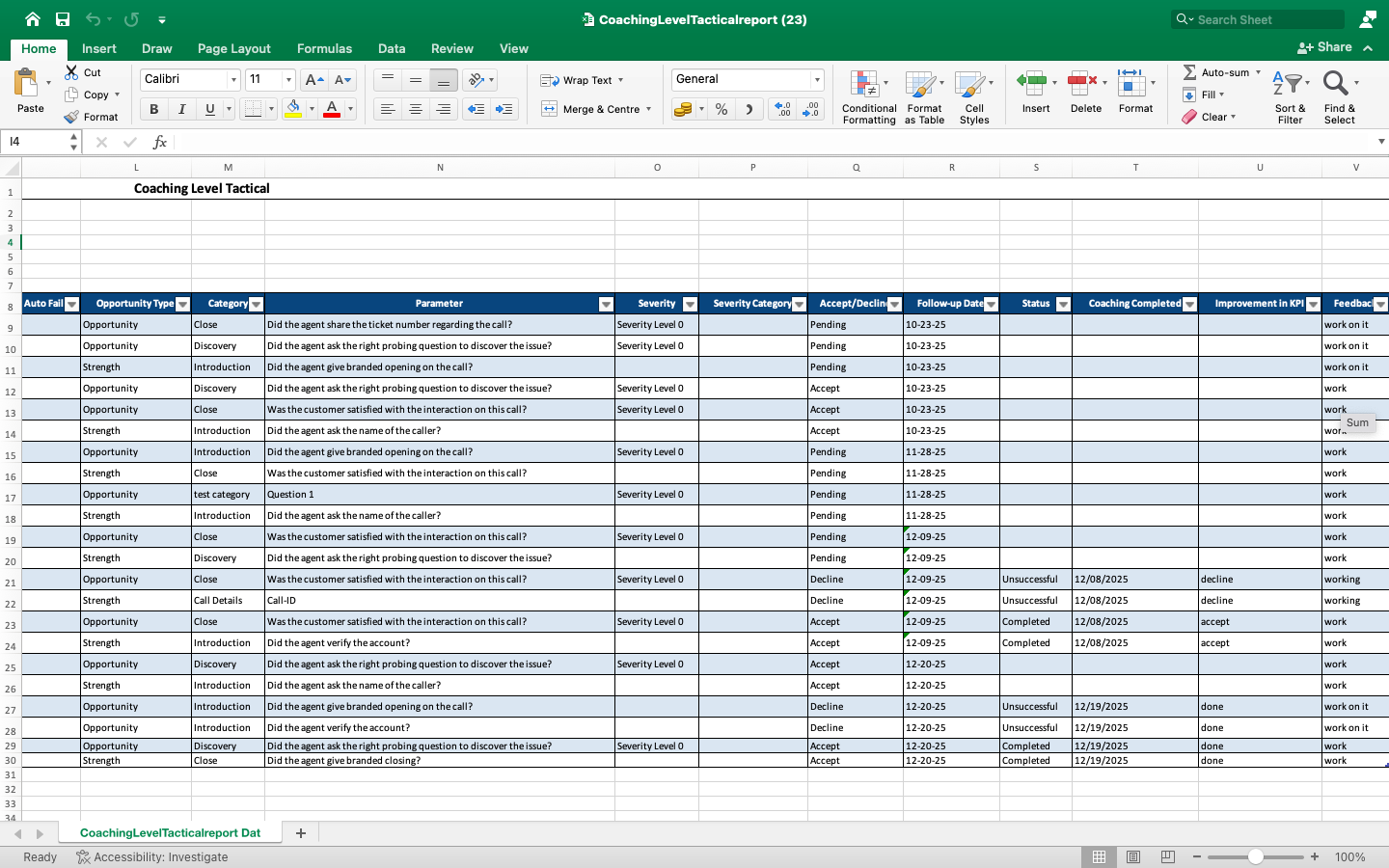
As shown here, the exported file will contain all available data in a structured format.
Video