The Trends page in QEval helps users visualize survey performance over time. It enables analysis of customer sentiment, satisfaction trends, and performance comparisons across agents, supervisors, clients, brands, channels, and programs. All insights are presented through interactive charts and cards for quick interpretation.
Key Metrics Summary
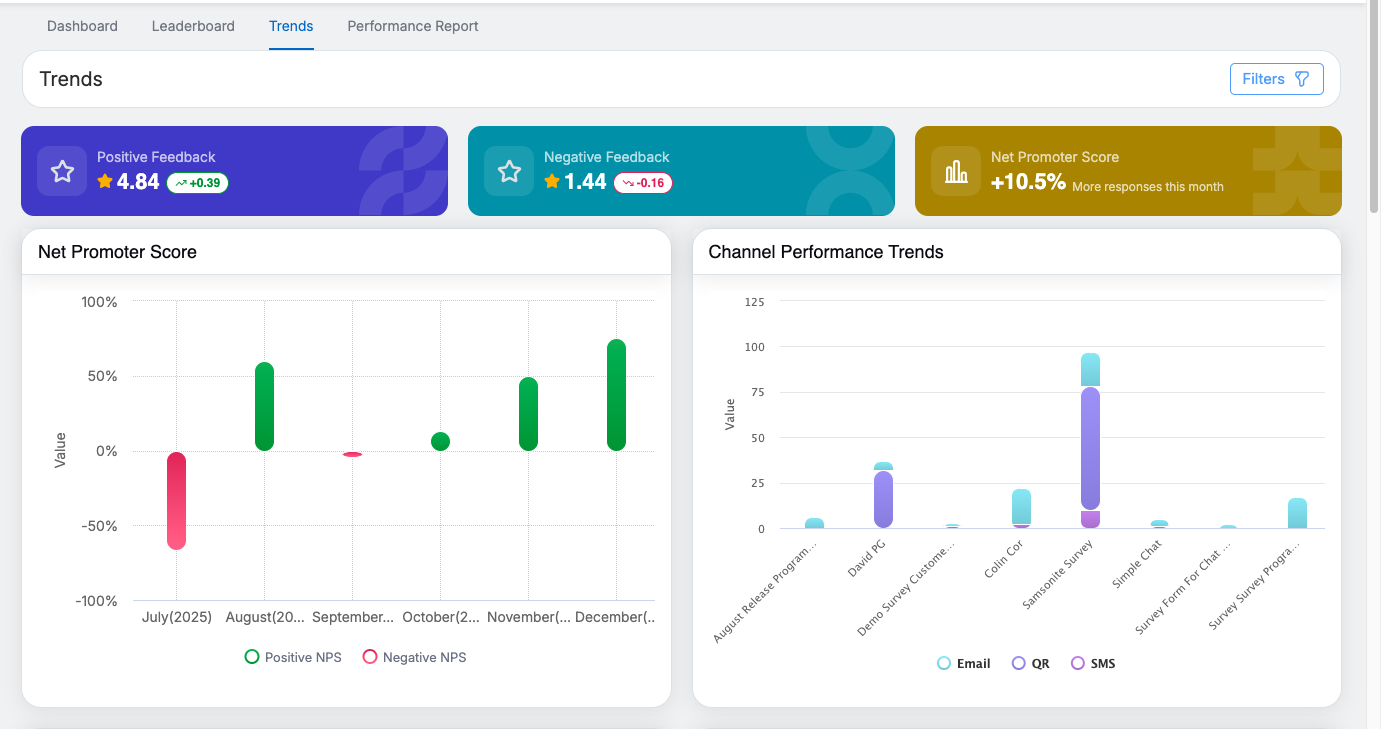
At the top of the Trends page, summary cards provide a quick snapshot of overall performance for the selected date range:

-
Positive Feedback
-
Displays the average positive feedback rating for the selected period.
-
Includes an upward or downward trend indicator comparing it with the previous equivalent period.
-
-
Negative Feedback
-
Shows the average negative feedback rating.
-
Includes a trend indicator to reflect improvement or decline from the previous period.
-
-
Net Promoter Score (NPS)
-
Displays the overall NPS value for the selected date range.
-
Shows the percentage change compared to the previous period (for example, +41.62% more responses this month) to indicate change in response percentage.
-
These cards help users quickly assess overall customer sentiment and satisfaction trends.
Filters & Interaction
Available Filters
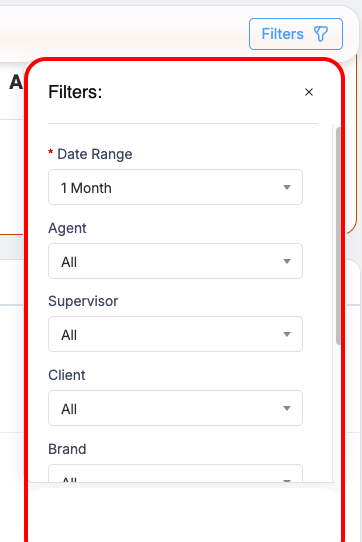
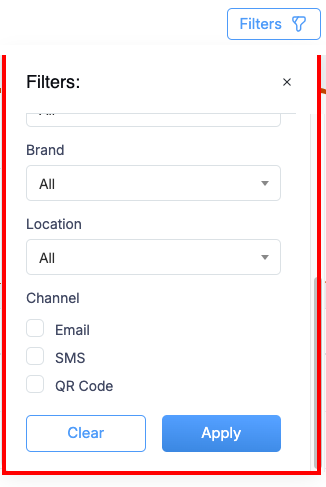
Users can refine trend data using:
- Date Range (1, 3, 6, or 12 months; default is 1 month)
- Agent
- Supervisor
- Client
- Brand
- Location
- Channels (Email, SMS, QR Code – checkbox selection)
Filter Behavior
- All charts, cards, and metrics update dynamically when filters are applied.
- Default filter state is set to All for Agent, Supervisor, client and Brand.
- Date range selection refreshes all trend-based visualizations.
Trend Visualizations
Net Promoter Score Trend
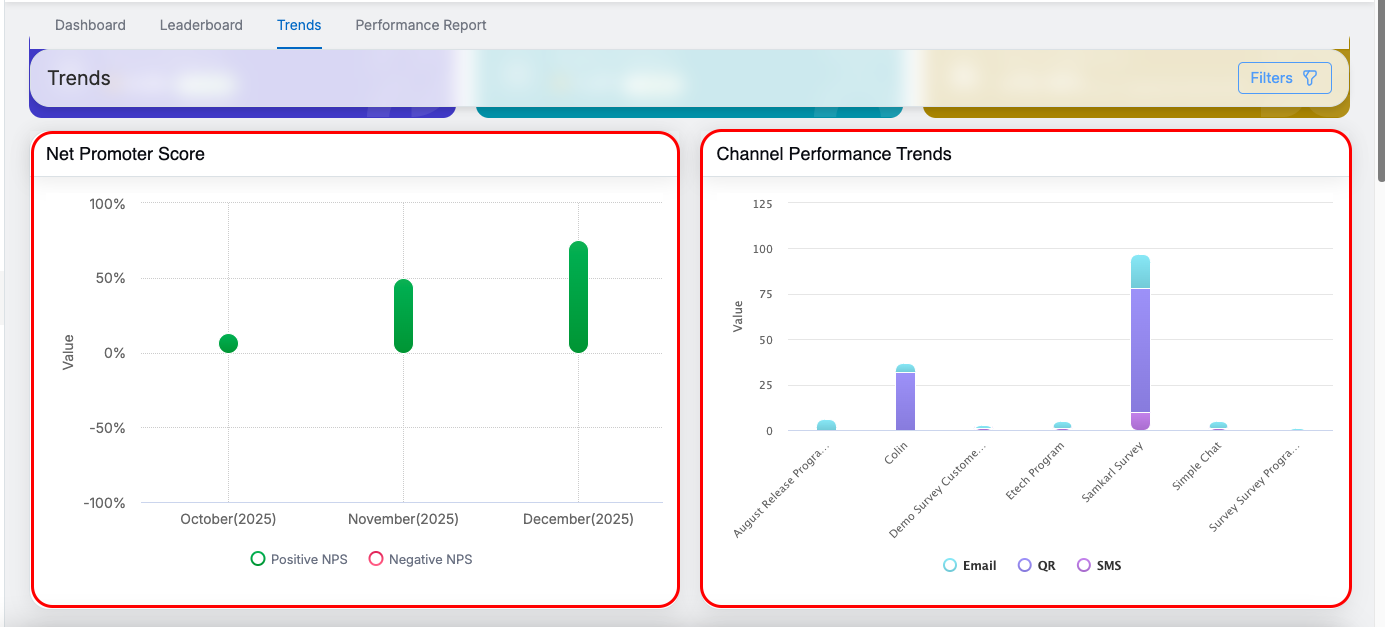
- Displays month-wise NPS performance for the selected date range of 12 months in the below image.
- Positive and negative NPS values are visually differentiated.
- Helps track changes in customer loyalty over time.
Channel Performance Trends
- Stacked bar chart showing performance by Email, SMS, and QR Code.
- Enables comparison of response volume and performance across channels.
- Useful for identifying the most effective survey distribution channel.
NPS Trends – Drill-Down and Tooltip Interaction
The NPS Trends report supports a structured drill-down mechanism with interactive tooltips for deeper performance analysis.
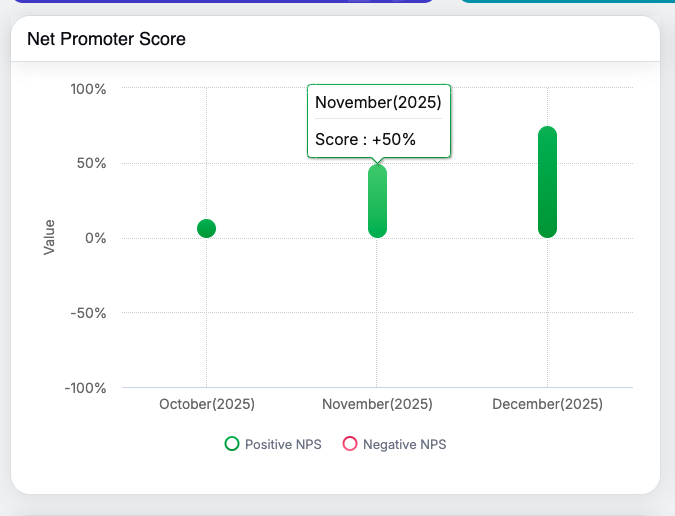
NPS Trend Level:
The chart displays NPS trends over time. Hovering over the chart shows tooltips with key metrics for quick understanding. Users can click on any specific month in the NPS trend to begin the drill-down.
- Month Level:
- Supervisor Level:
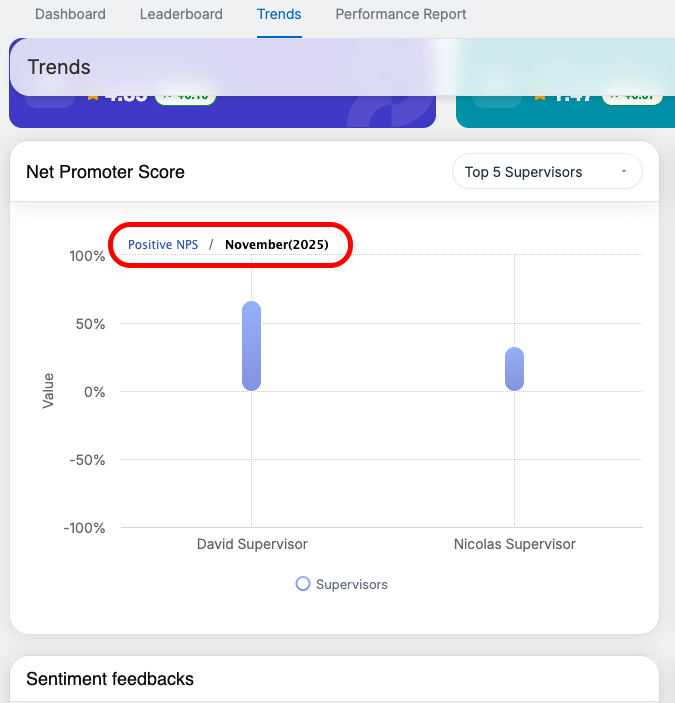
At the Supervisor level, performance data is displayed for supervisors associated with the selected month. A dropdown in the top-right corner of the chart allows users to switch between the Top 5 and Bottom 5 Supervisors based on NPS performance. Hovering over the chart displays supervisor-level metrics.
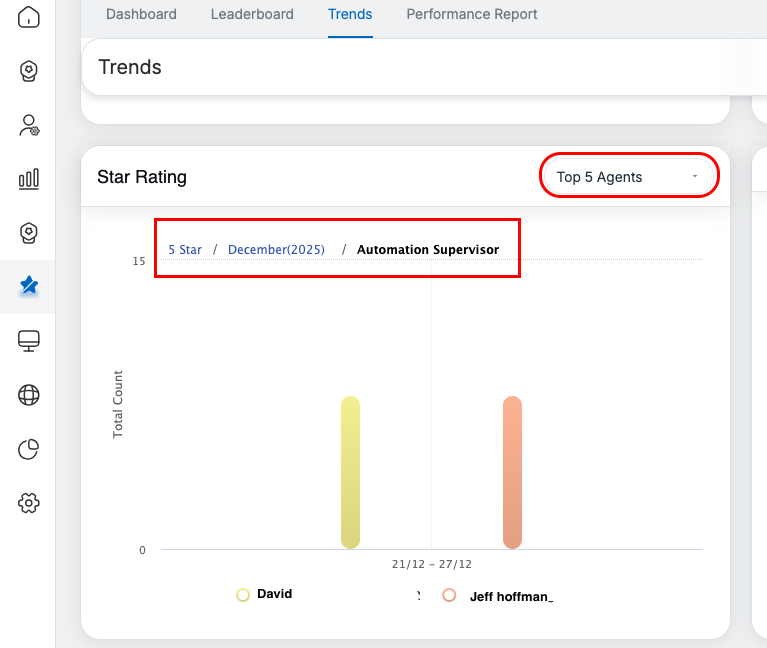
- Agent Level:
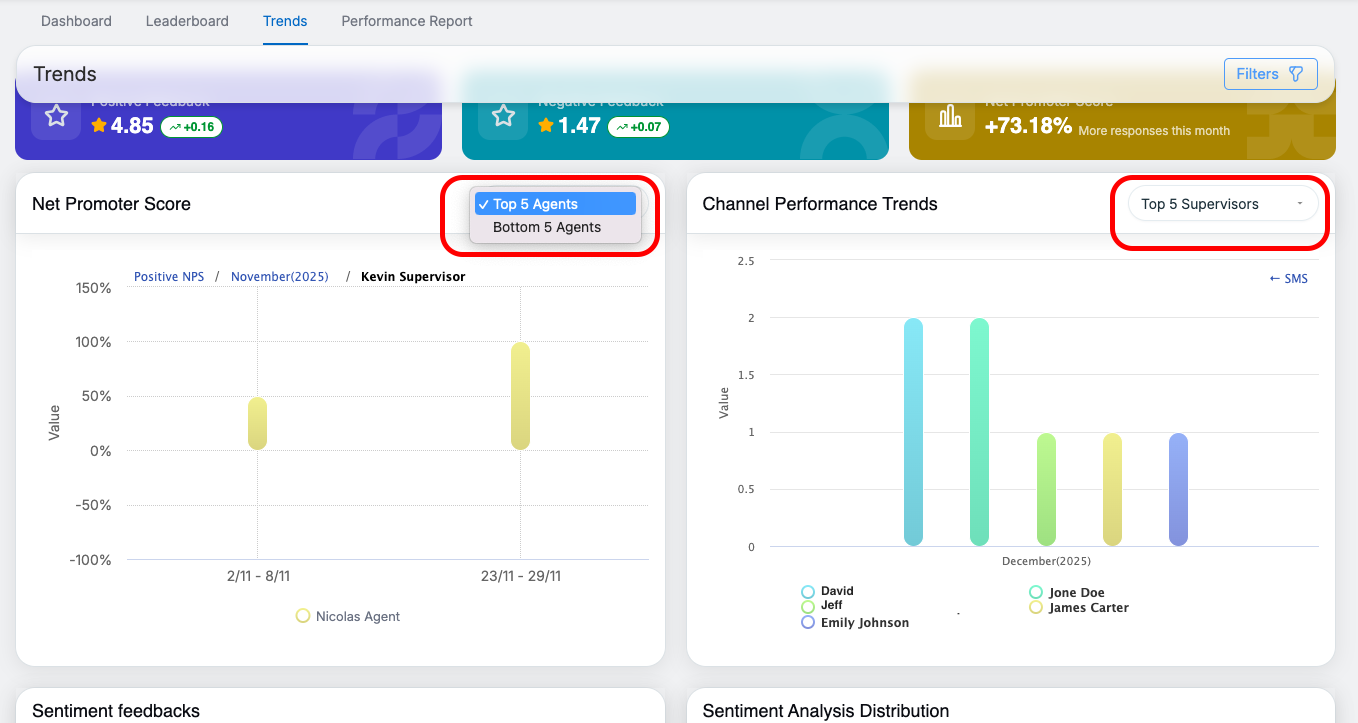
Selecting a Supervisor drills down further to the Agent level, showing agents reporting to that supervisor. Tooltips on hover clearly present agent-level NPS metrics and values. A dropdown in the top-right corner of the chart allows users to switch between the Top 5 and Bottom 5 Agent based on NPS performance. Hovering over the chart displays Agent-level metrics.
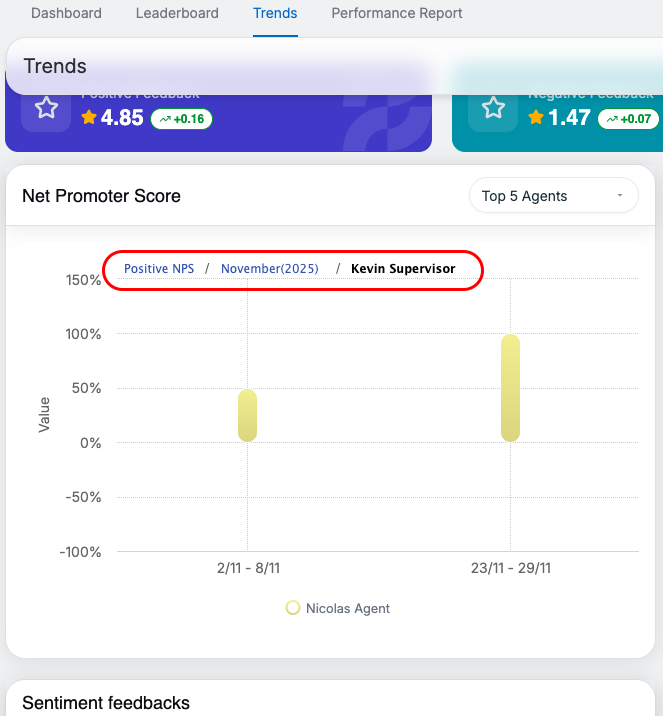
This drill-down flow—Month → Supervisor → Agent—enables focused analysis of NPS performance across time and organizational levels, supported by clear and informative tooltip interactions.
Channel Performance Trends – Drill-Down and Tooltip Interaction
The Channel Performance Trends report provides interactive drill-down and tooltip functionality to analyze performance across survey distribution channels.
-
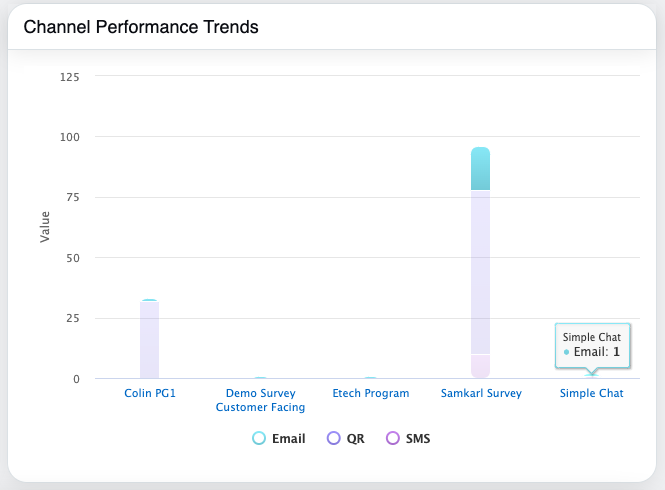
Channel Level:
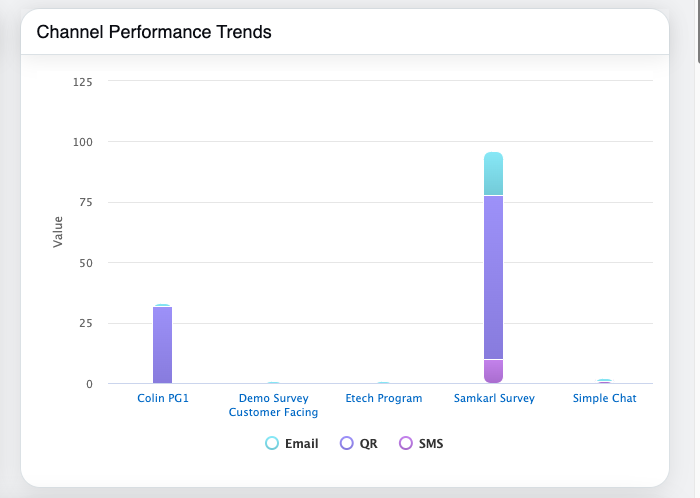
Hovering over each channel shows tooltips with response volume and performance metrics. Users can click on a specific channel to drill down
-
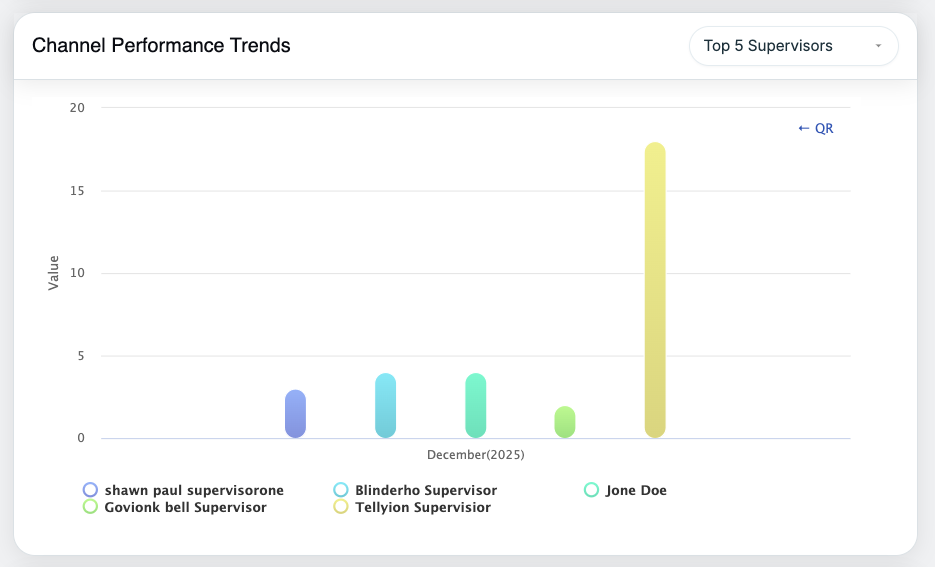
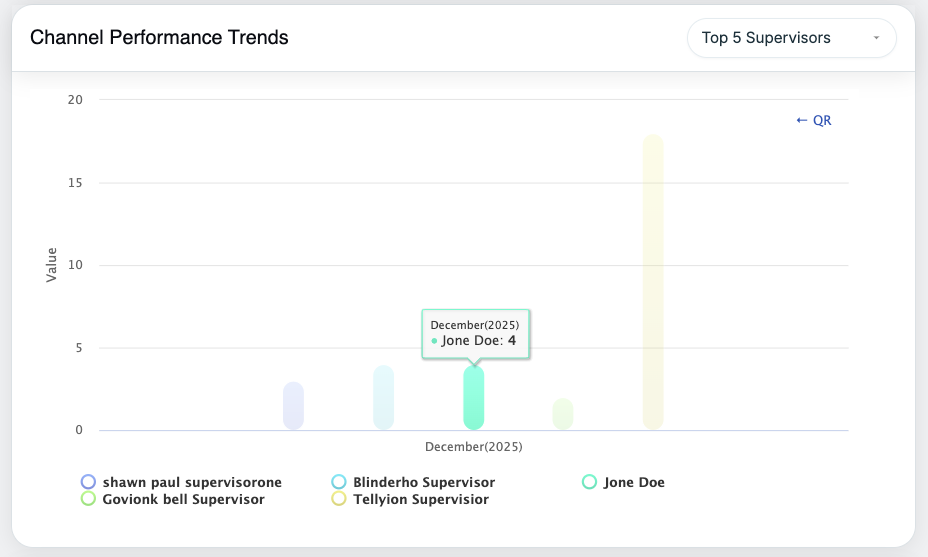
Supervisor Level:
After selecting a channel, performance data is shown at the Supervisor level. A dropdown in the top-right corner of the chart allows users to toggle between the Top 5 and Bottom 5 Supervisors based on channel performance. Tooltips continue to provide clear metric details.
-
Agent Level:
Selecting a Supervisor drills down to the Agent level, displaying agents reporting to that supervisor. A dropdown in the top-right corner of the chart allows users to toggle between the Top 5 and Bottom 5 Agent based on channel performance. Hover tooltips clearly present agent-level performance metrics.
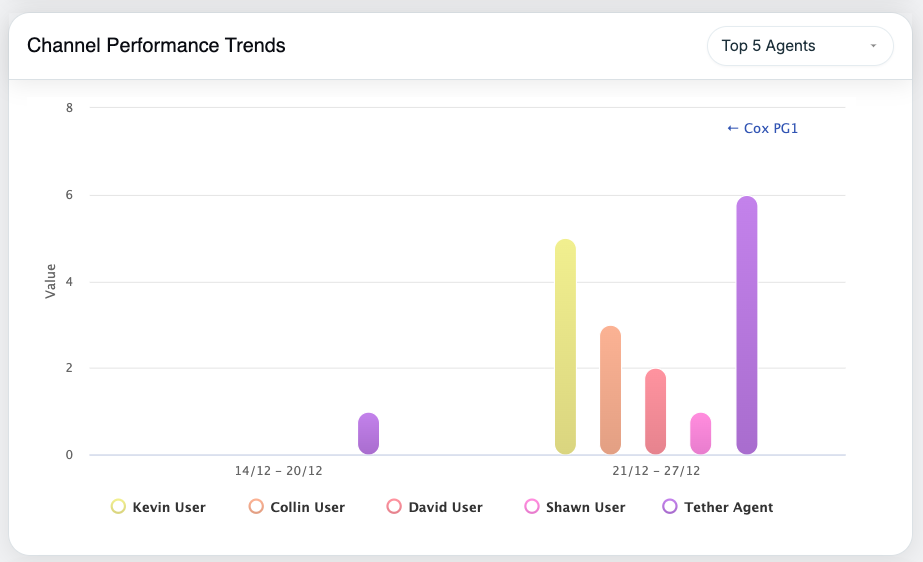
This drill-down path—Channel (Email / SMS / QR Code) → Supervisor → Agent—helps identify the most effective channels and evaluate performance at both supervisor and agent levels.
Sentiment Feedback Trends
-
Shows month-wise Positive and Negative sentiment percentages.
-
Automatically compares the current month with the previous one.
-
Helps identify sentiment shifts over time.
Sentiment Analysis Distribution
-
Circular chart showing overall sentiment split:
-
Positive
-
Neutral
-
Negative
-
-
Displays total feedback count and percentage for each sentiment type.
-
Progress bars provide quick visual comparison.
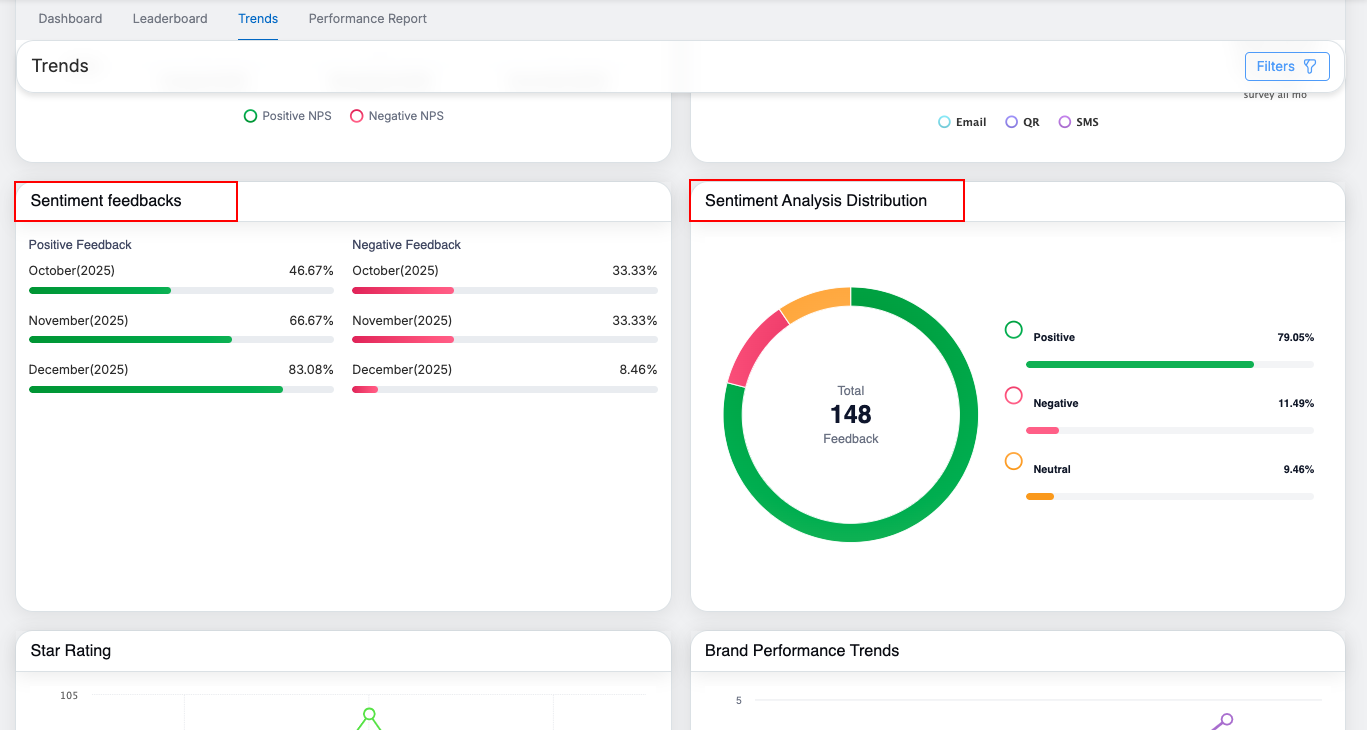
As shown, hovering over the interactive charts displays clear tooltips that describe the metrics and their values, making the data easy to understand.
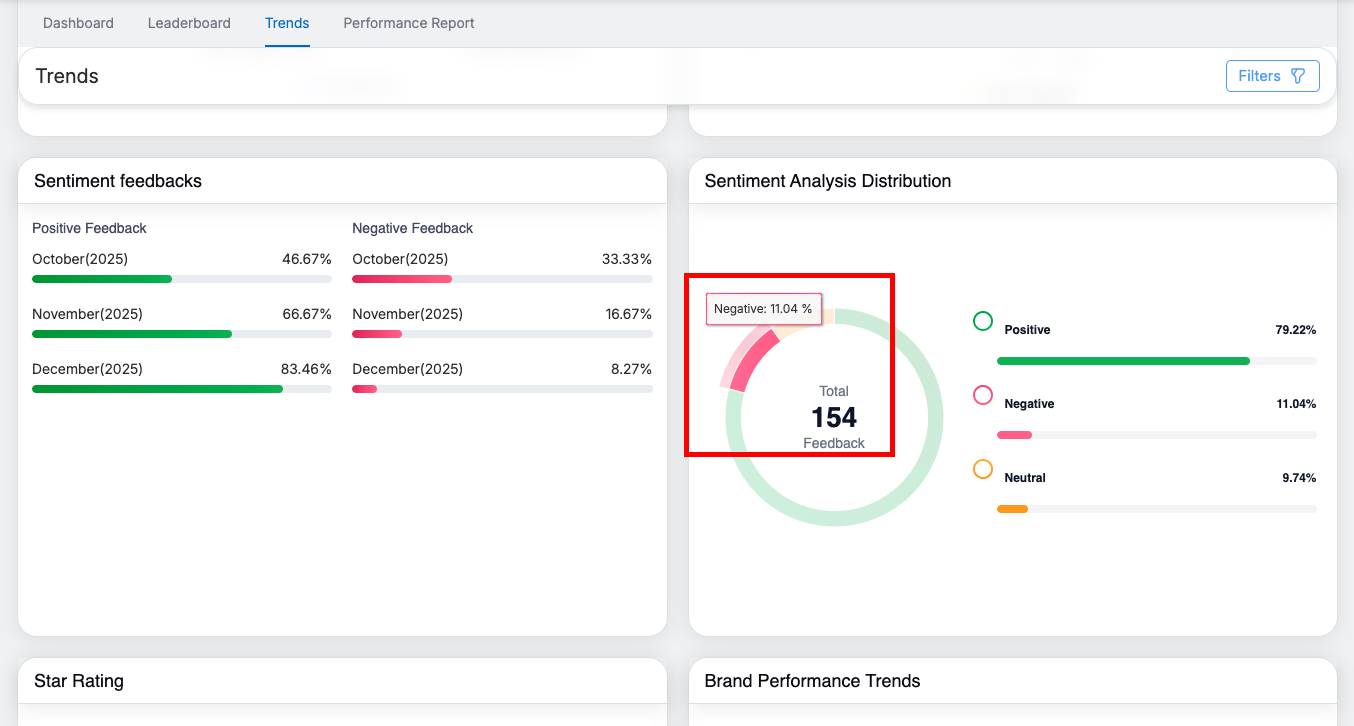
Star Rating Trends
-
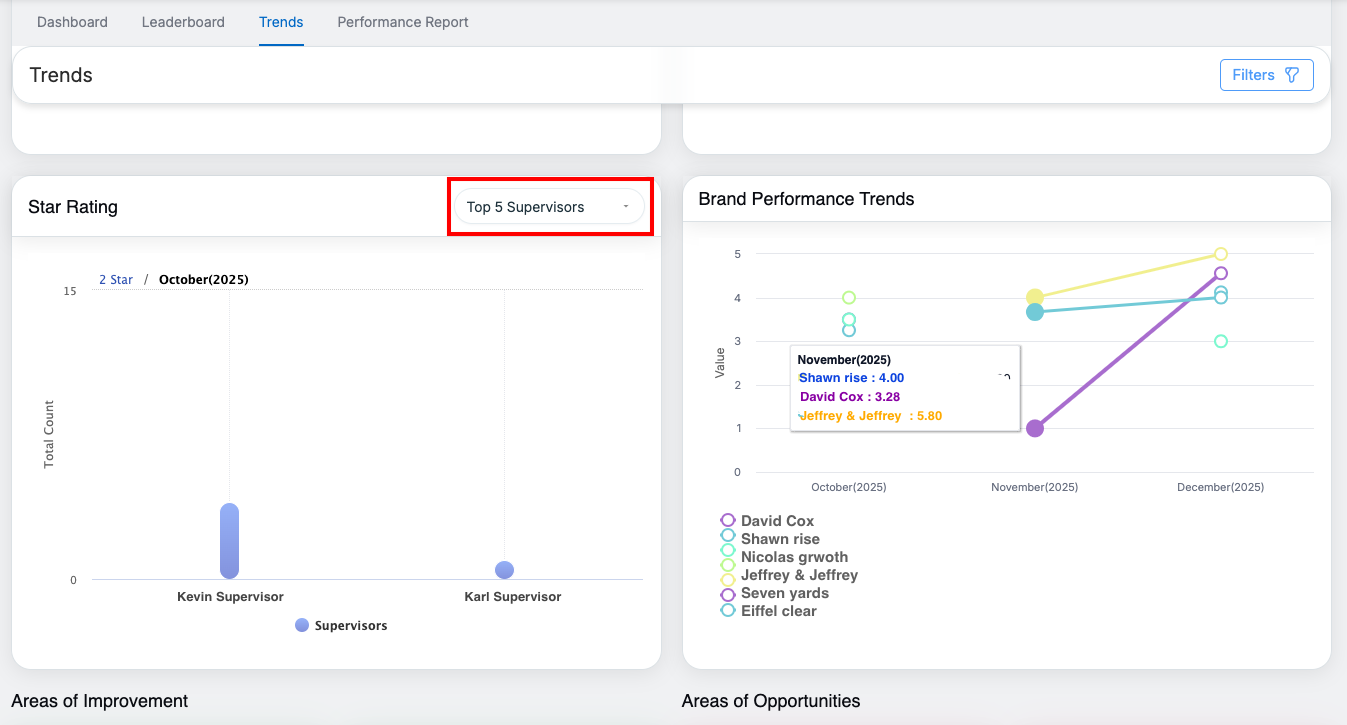
Line chart displaying trends for:
-
1-star to 5-star ratings
-
Average rating
-
-
Shows month-wise distribution and changes in rating patterns.
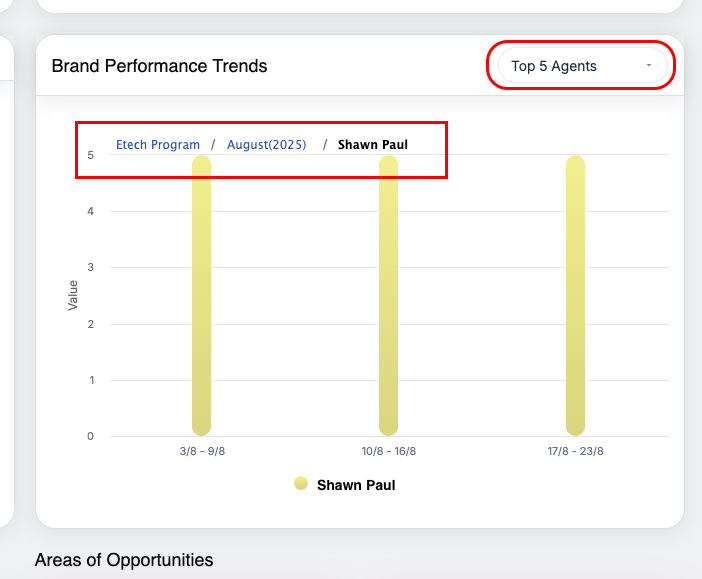
Brand Performance Trends
-
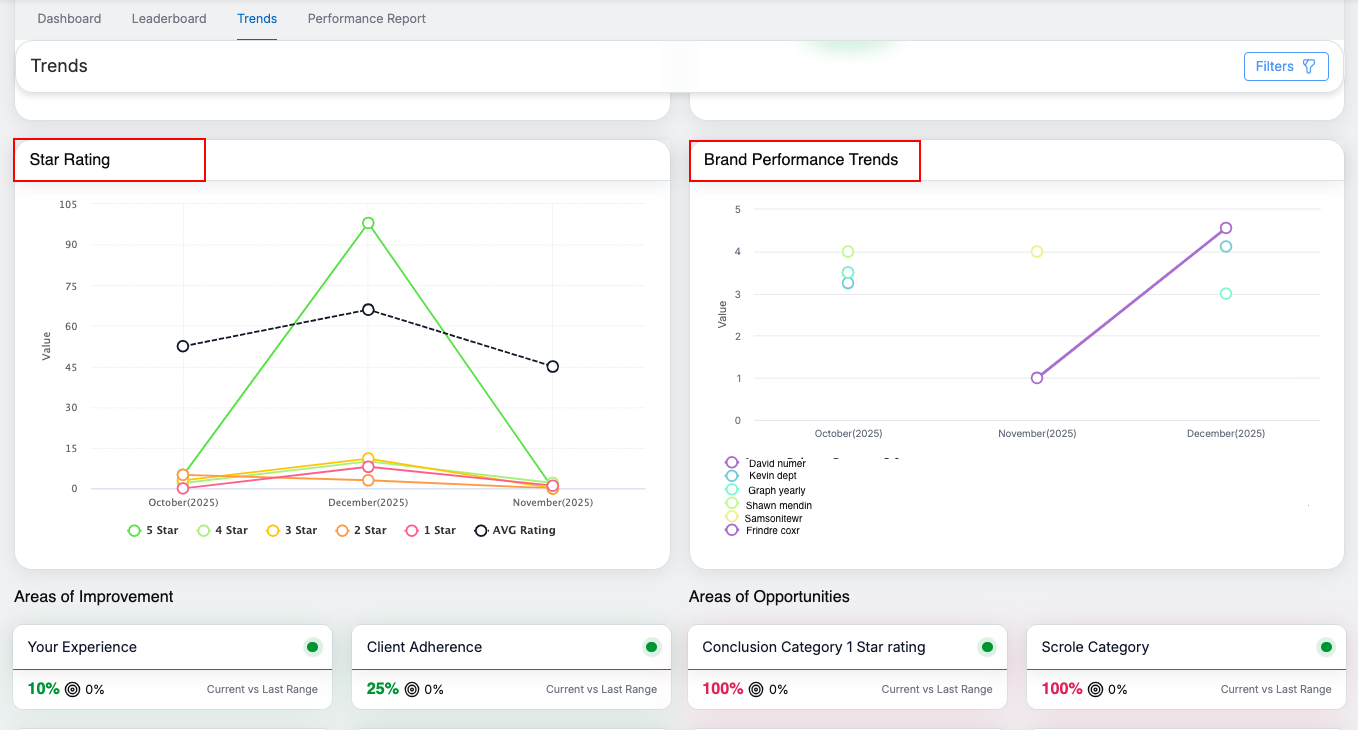
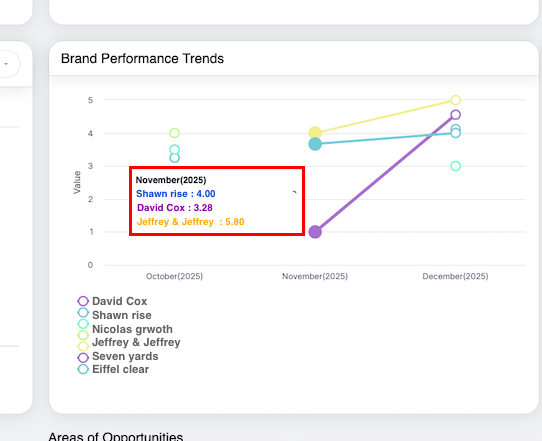
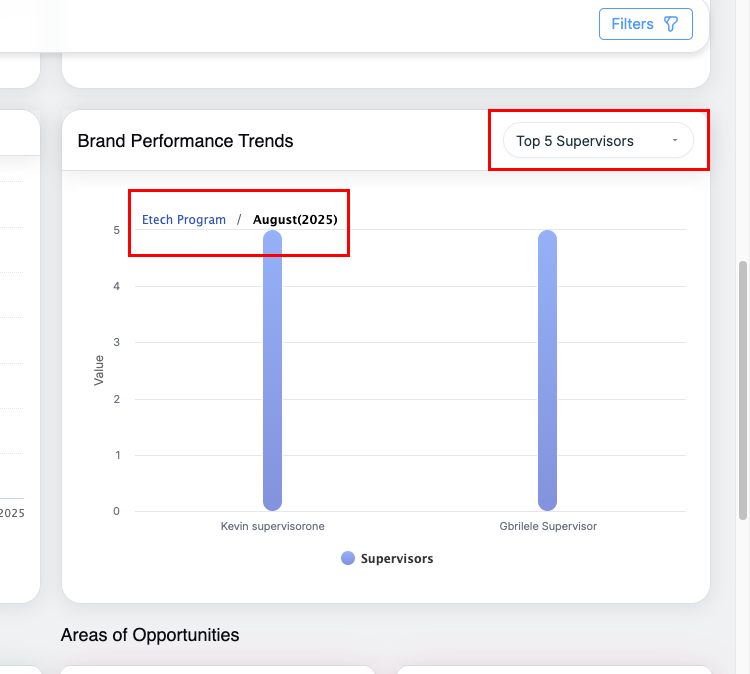
Displays brand-wise performance across months.
-
On hover, users can view:
-
Month
-
Brand name
-
Average rating
-
-
Useful for comparing performance between multiple brands.
Areas of Improvement & Opportunities
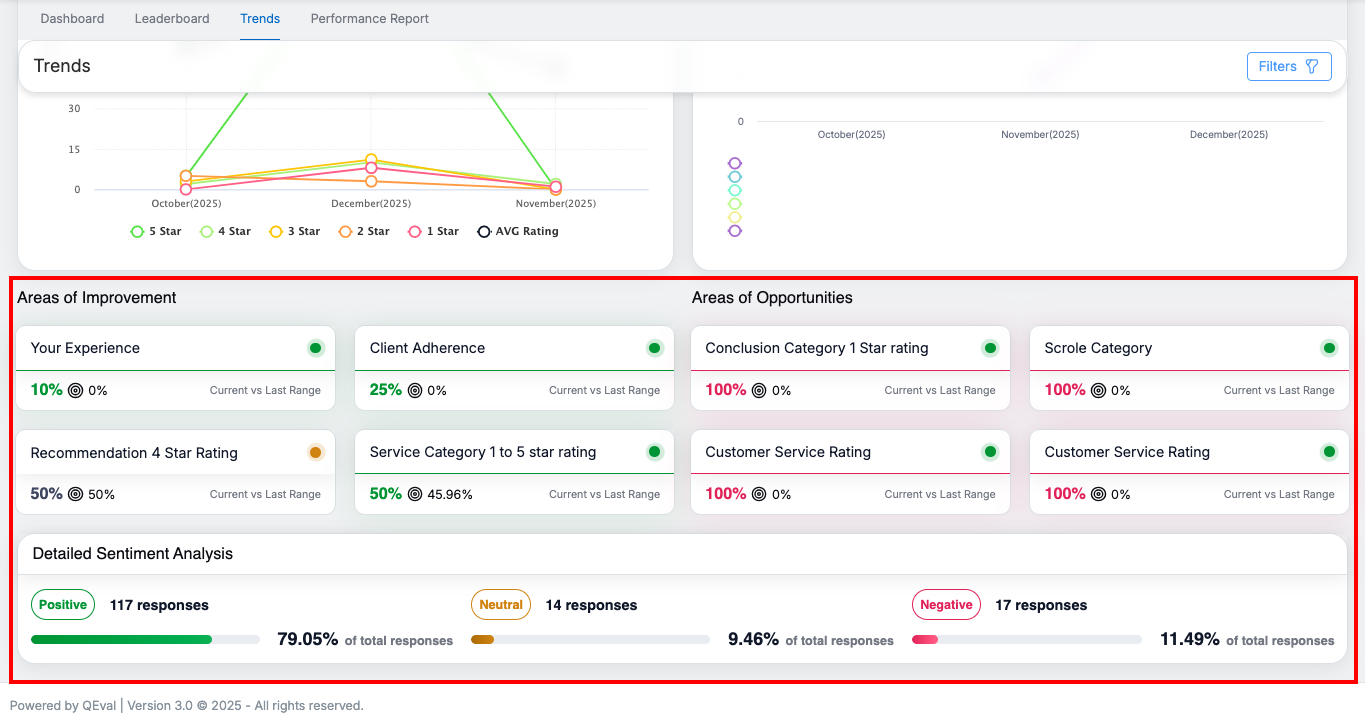
This section highlights key focus areas based on survey insights and dynamically adapts to the selected survey form configuration. The categories displayed vary by survey, depending on how each form is set up.
Example categories may include:
- Customer Experience
- Client Adherence
- Recommendation Ratings
- Service Categories

Each card shows:
- Current percentage
- Comparison with the previous equivalent period
This helps teams quickly identify improvement areas and growth opportunities relevant to each survey.
Detailed Sentiment Analysis

-
Displays sentiment breakdown with progress bars for:
-
Positive
-
Neutral
-
Negative
-
-
Shows:
-
Total response count
-
Percentage contribution
-
-
Provides a deeper understanding of overall customer sentiment.
Key Notes
- All data shown reflects the currently applied filters.
- Charts and graphs are interactive for better analysis.
- The Trends page is designed to help users track performance, understand sentiment patterns, and identify actionable insights efficiently.
Video