Role Level User Counts Report displays the number of users assigned to User roles in QEval.
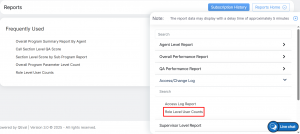
To view this report, select Reports > Report > Role Level User Counts as shown below:
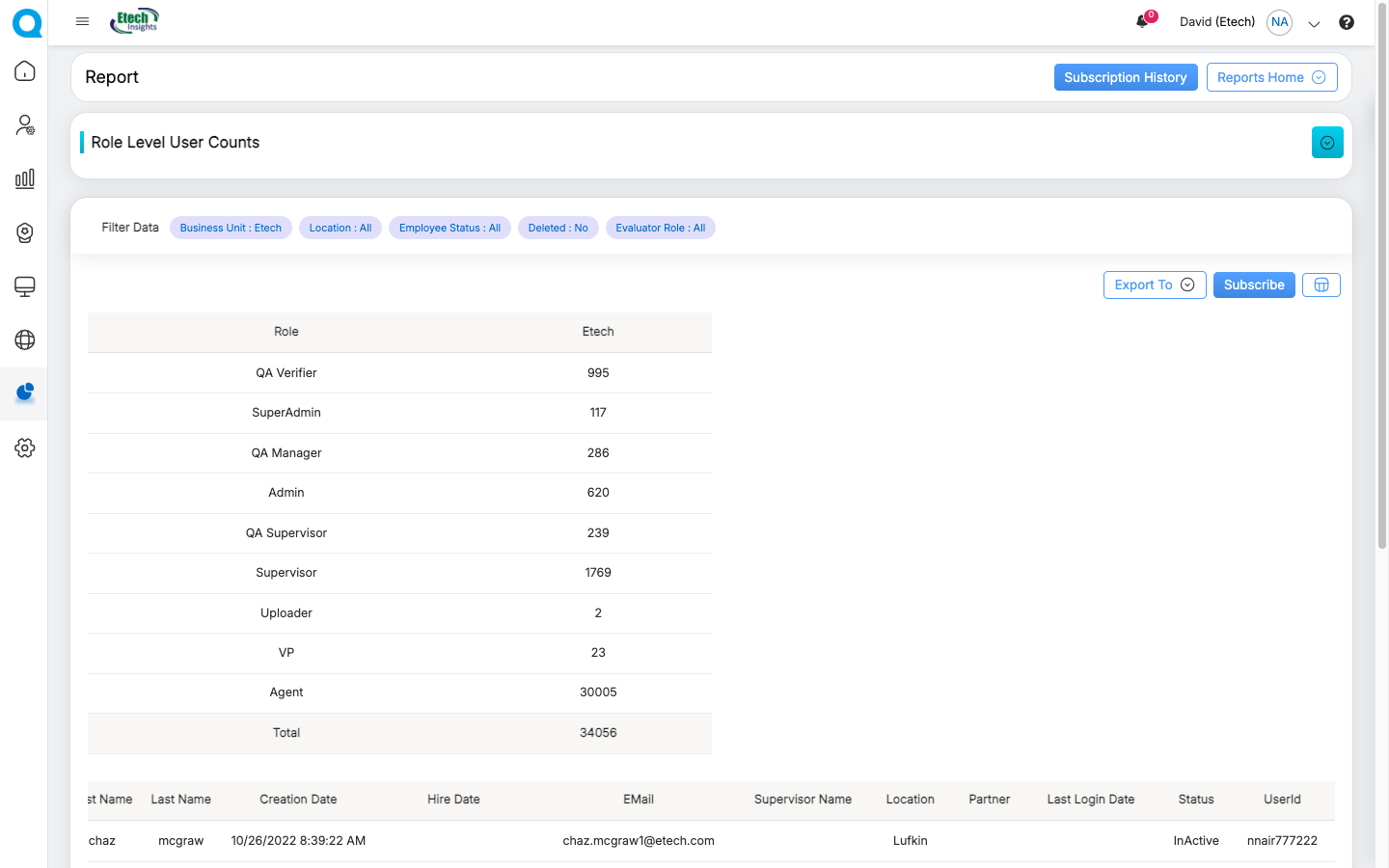
The following pages will be displayed.
If the “Login Creation Date”, “Last Login Date”, or “Employee Start Date”, “Not Logged In” radio button is selected under Report By,
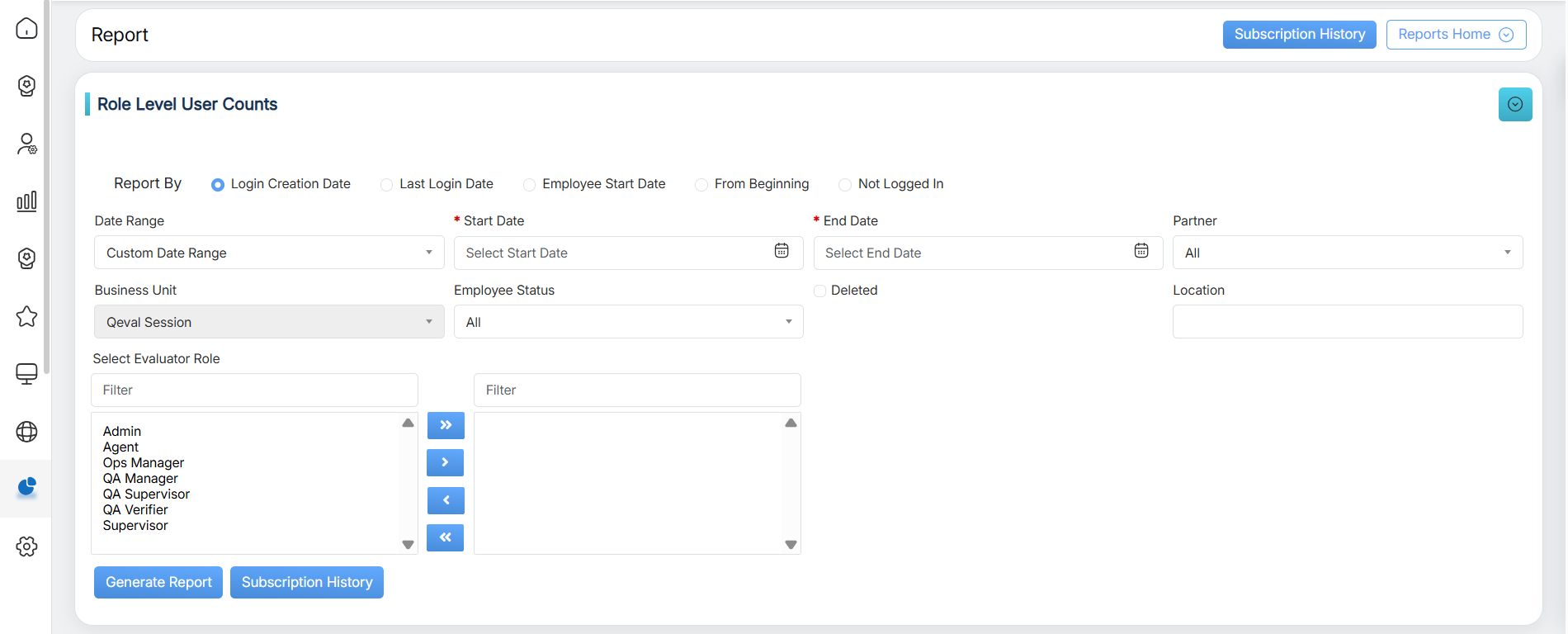
Role Level User Counts
If the “From Beginning” radio button is selected under Report By,
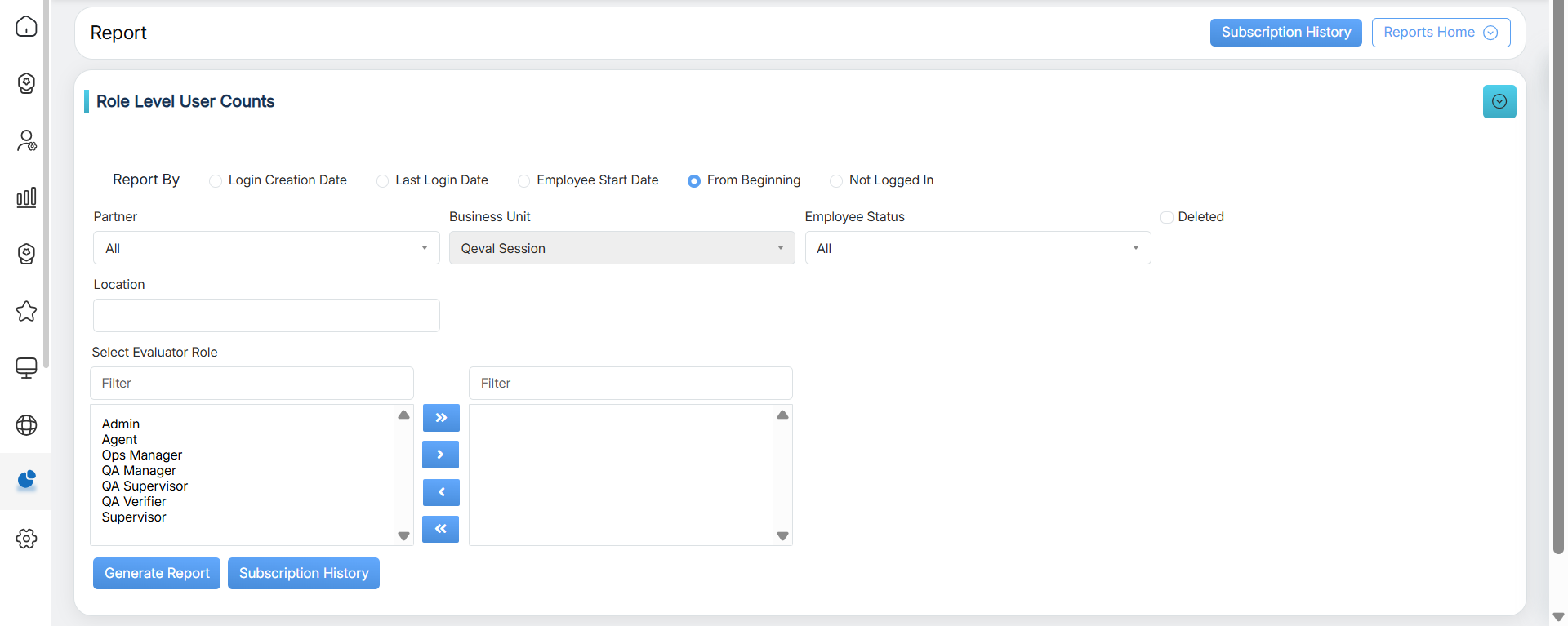
Role Level User Counts
|
Screen Elements |
Description |
|---|---|
|
Report by |
Login Creation Date: Select this radio button to display the details based on the login account creation date. Last Login Date: Select this radio button to display the details based on the last login activity. Deleted: Display details of all deleted users. Employee Start Date: Select this radio button to display the list of employees based on their start dates. From Beginning: Select this radio button to display the list of all employees whose accounts have been created from the beginning to date. Not Logged In: If a time period is selected, the system displays users who have not logged in during that period, if not then it displays the user who haven’t logged in since beginning to date. |
|
Date Range |
If the report is filtered by Login Creation Date, Last Login Date, or Employee Start Date using the radio buttons, users can define a date range either by choosing from a list of predefined timeframes in the dropdown or by setting a custom date range as needed. The available options include: Today, Last 7 Days, Last 10 Days, Last 30 Days, Last 12 Weeks, Last 6 Months, Week to Date, Month to Date, Previous Day, Previous Week, Previous Month, and Custom Date Range. Please select the option that best fits your requirements. |
|
Start Date |
If user selects the custom date range then users would be able to select the start date and end date as per their need. |
|
End Date |
Select the end date. |
|
Partner |
Select the Partner name from the dropdown list which will display the different names of Partners. |
|
Business Unit |
The client name will be selected and displayed in read-only mode as the business unit from the dropdown list. |
| Employee Status | Select the employment status from the dropdown list as – Active, Inactive, or All. |
| Deleted | Select this checkbox to view the data for deleted users. |
|
Location |
Select the required location from the list |
|
Evaluator Role |
Select the required Evaluator role from the left-hand side box which will display the list of all the user roles of higher order. One can also search the roles by entering the role’s name in the Filter field. Once the role(s) is selected, click on To move all the roles to the right-hand side box at once, click on To remove a few roles from the right-hand side box and move them back to the left-hand side box, firstly, select such roles and then, click on To move all the roles from the right-hand side box to the left-hand side box at once, click on |
 button, and the selected role(s) will be moved to the right-hand side box.
 button.
 button.
 button.
Once the search criteria are set, then, click on the  button.
Once filters are applied, the report for the set criteria will display a role-wise user count summary showing the total number of users under each role.
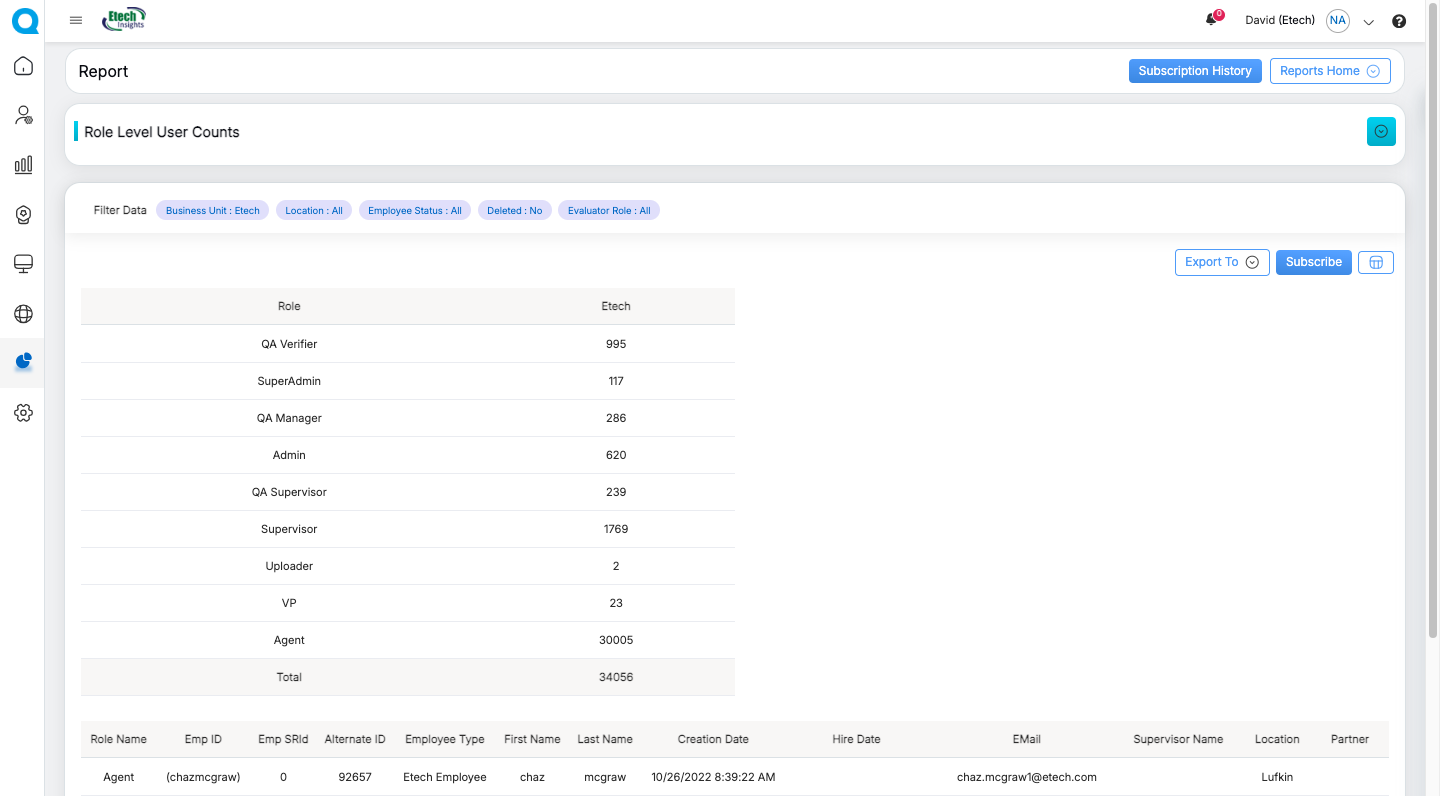
It will also generate a detailed tabular report containing user profile information along with any custom fields configured in User Details Configuration, which will automatically appear as additional columns.
Report Output Includes:
- Role-wise user count summary
- User details in tabular format
- Custom metadata / client-specific columns
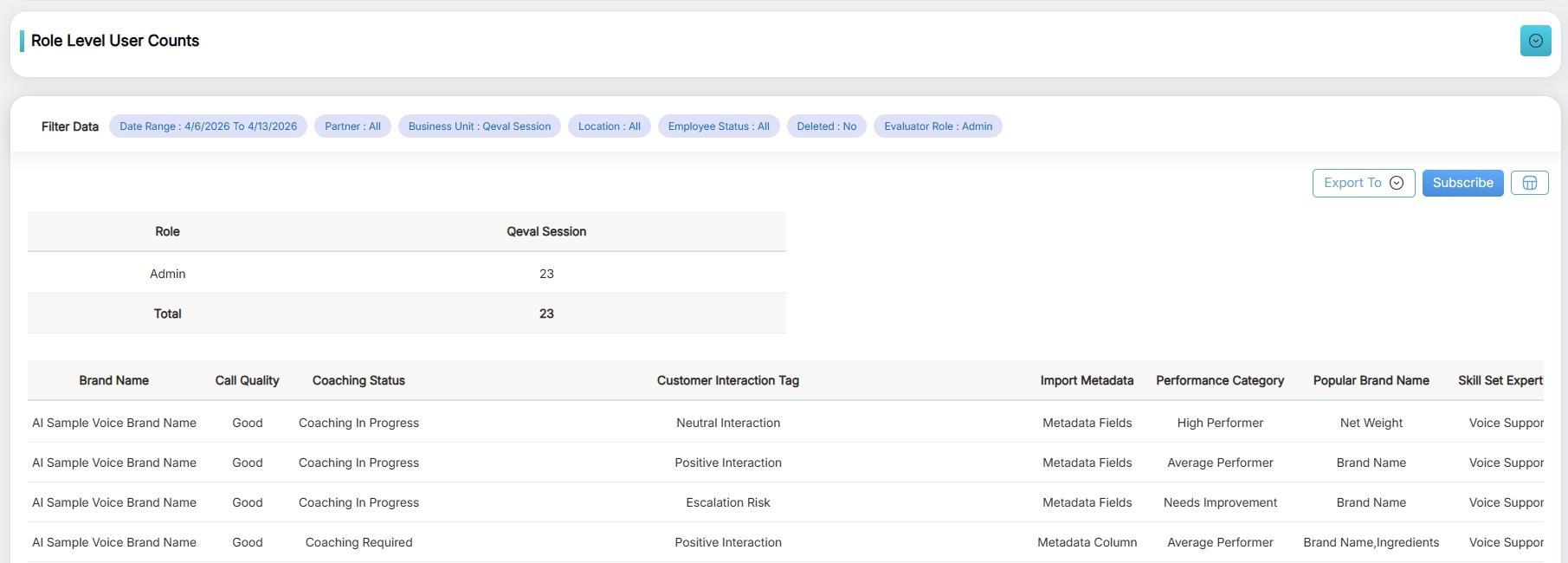
Note: Custom columns are dynamic and depend on the active configuration in User Details Configuration. Any update, rename, or deletion of custom fields will directly reflect in the report output.
Video